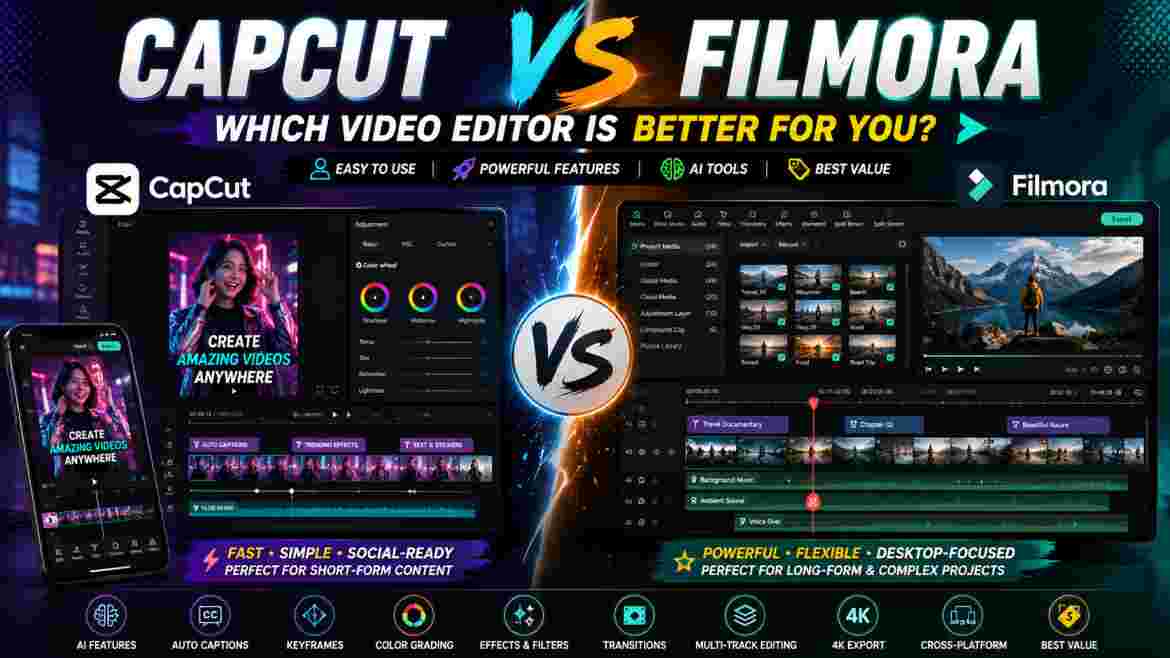
Choosing between two video editors becomes difficult when both promise an easy workflow, AI-powered tools, creative effects, automatic captions, color controls, audio features, and enough flexibility to create professional-looking content. That is exactly why CapCut vs Filmora has become an increasingly relevant comparison for beginners, YouTubers, social-media creators, freelancers, and small businesses.
At first glance, the difference seems straightforward. CapCut is commonly associated with TikTok, Instagram Reels, YouTube Shorts, mobile editing, templates, and fast social content. Filmora is usually associated with desktop video editing, longer projects, conventional timelines, and creators who want more control without learning highly complex professional software.
That description is no longer enough.
CapCut Desktop has evolved into a much more capable editor. Its current desktop offering includes keyframes and graphs, color wheels, automatic color adjustment, captions, effects, filters, AI-assisted features, aspect-ratio tools, and workflows aimed at both TikTok and YouTube creators. Filmora has also continued evolving, combining its traditional desktop workflow with AI features, creative assets, 4K export options, speech-to-text tools, and other modern editing capabilities.
That makes CapCut vs Filmora less about asking which application has more features and more about asking which application makes your particular editing workflow easier.
If you primarily create TikToks, Reels, Shorts, talking-head videos, product demonstrations, social ads, or other content that needs to move from raw footage to publication quickly, CapCut is generally the better fit. Its strongest advantage is efficiency.
Filmora becomes particularly attractive when editing happens primarily on a computer and projects become longer, more layered, and more difficult to organize. Its conventional desktop environment makes sense for YouTubers, tutorial creators, educators, and editors who regularly manage substantial timelines.
Neither answer applies to everyone.
A professional social-media editor could be much more productive in CapCut than Filmora. At the same time, a beginner planning a long-form YouTube channel could prefer Filmora from the beginning.
This detailed CapCut vs Filmora comparison focuses on those real differences. We will examine ease of use, learning curve, timeline editing, keyframes, masking, tracking, background removal, AI features, captions, text, effects, filters, transitions, color grading, audio, mobile and desktop workflows, performance, exports, pricing, free access, social content, YouTube, long-form projects, and different types of creators.
The goal is not to declare one editor universally superior. It is to help you identify which one solves your problems with less friction.
CapCut vs Filmora Quick Comparison
Before examining individual features, this table provides a practical overview.
| Category | CapCut | Filmora | Better Fit |
|---|---|---|---|
| Complete beginners | Extremely approachable | Beginner-friendly | CapCut |
| Learning curve | Low | Low to moderate | CapCut |
| Mobile editing | Major strength | Available | CapCut |
| Desktop editing | Strong | Major strength | Filmora |
| TikTok | Excellent | Good | CapCut |
| Instagram Reels | Excellent | Good | CapCut |
| YouTube Shorts | Excellent | Good | CapCut |
| Long-form YouTube | Strong for moderate projects | Strong for complex projects | Filmora |
| Traditional timeline | Capable | Strong | Filmora |
| Auto captions | Excellent social workflow | Strong | CapCut |
| Keyframes | Keyframes and graphs | Strong keyframe workflow | Close |
| Color correction | Strong creator tools | Strong desktop tools | Filmora for deeper workflows |
| Effects | Social-first | Broad creative ecosystem | Depends |
| Templates | Strong social focus | Broad library | Depends |
| Audio | Strong for creator workflows | Strong for layered projects | Filmora for complex audio |
| AI features | Extensive | Extensive | Depends on tool |
| High-volume content | Excellent | Good | CapCut |
| Large layered projects | Capable | Strong | Filmora |
| Subscription-free premium ownership | Not currently offered | Perpetual option currently offered | Filmora |
| Cross-device creator workflow | Strong | Strong | CapCut for mobile-first users |
This table should be treated as a starting point rather than a final scorecard.
A category only matters if you use it.
For example, Filmora having an advantage for large timelines is irrelevant to someone producing 30-second Reels. CapCut having an excellent mobile workflow is similarly unimportant to an editor who spends every working hour at a desktop workstation.
The best way to interpret CapCut vs Filmora is therefore to assign more weight to the tasks you perform every week.
What Is CapCut?
CapCut is a video-editing ecosystem built around accessible content creation. It became particularly popular through mobile and social-media editing, but judging the current application only by that history significantly understates what it can do.
CapCut Desktop now promotes advanced keyframes and graphs, color wheels, automatic color adjustments, effects, filters, automatic captions, AI tools, aspect-ratio adjustments, and creator workflows for both TikTok and YouTube.
That evolution changes the modern CapCut vs Filmora conversation.
CapCut is no longer simply something you use when you cannot access a “real” desktop editor. For many social-media professionals, YouTubers, marketers, small businesses, and freelance creators, it can be the primary editing environment.
Its defining characteristic is accessibility.
A new editor can begin by importing footage, trimming unwanted sections, adding captions, inserting music, applying a few adjustments, and exporting. As that user’s knowledge grows, the same project can incorporate keyframes, color adjustments, masks, layered media, more advanced audio work, and AI-assisted tools.
This gradual learning path is important.
Video editing contains a surprising amount of technical terminology. Beginners encounter concepts such as frame rate, bit rate, codec, keyframes, curves, HSL, masking, tracking, LUTs, aspect ratios, chroma key, and compression. Software that lets someone produce a useful result before understanding every term makes the learning process considerably less intimidating.
You can also review the latest features, supported platforms, and editing tools directly on the official CapCut website.
Where CapCut Is Strongest
CapCut is particularly effective when production speed matters. Someone making five social videos each week does not want every caption, resize, visual effect, or text treatment to become a technical project.
The editor is also strongly aligned with how modern content is captured and published. Footage may originate on a phone, be edited vertically, receive automatic captions, be enhanced with music and graphics, and then be adapted for several platforms.
That workflow differs substantially from traditional post-production, where footage is organized on a workstation and editing may continue for days or weeks.
CapCut understands the first workflow particularly well.
Is CapCut Only for Short Videos?
No.
This is one of the most persistent misconceptions surrounding CapCut vs Filmora.
CapCut Desktop can be used for longer YouTube videos, tutorials, educational content, marketing videos, interviews, and other substantial projects. Its current desktop feature set is explicitly positioned for YouTube creators as well as social-media users.
The real limitation appears when project complexity grows.
A 25-minute video with one main camera, moderate B-roll, background music, captions, and several graphics is very different from a 25-minute project containing hundreds of clips, many audio layers, complicated visual compositions, and extensive revisions.
CapCut can handle the first situation very comfortably for many creators. Filmora may become more attractive in the second.
What Is Filmora?
Wondershare Filmora is a desktop-oriented video editor designed to provide a more conventional editing environment without imposing the learning curve associated with some high-end professional applications.
Filmora has historically occupied a useful middle ground.
It offers enough structure and control for serious creator projects while remaining approachable to people who do not consider themselves professional editors.
The application combines traditional editing tools with newer AI-assisted functionality. Current Filmora plans advertise more than 100 advanced editing features, creative assets, AI credits on relevant tiers, 4K export, multiple export formats, and watermark-free output on paid plans.
This makes Filmora particularly relevant when video editing is primarily something you do on a computer.
Where Filmora Is Strongest
Filmora becomes increasingly useful as the timeline grows.
Imagine editing a 40-minute tutorial. The project contains two camera angles, a screen recording, dozens of B-roll clips, multiple pieces of music, voice-over corrections, screenshots, titles, graphics, sound effects, captions, and several rounds of client revisions.
At that point, editing is not simply about whether the software can create a zoom or generate subtitles.
Project organization becomes part of the editing process.
Filmora’s desktop-centered approach is well suited to that environment.
Because Filmora’s features, plans, and pricing can change, check the official Wondershare Filmora website for the latest information.
Is Filmora Only for Long Videos?
No.
Filmora can edit Shorts, Reels, TikToks, promotional videos, advertisements, and other short content.
The distinction in CapCut vs Filmora is not that one editor is capable of short video while the other is capable of long video.
It is that their workflows emphasize different priorities.
Filmora can make a 30-second Reel. CapCut can make a 30-minute YouTube video.
The better question is which environment helps you finish that particular project faster and with less frustration.
CapCut vs Filmora: The Most Important Difference
The largest difference is workflow philosophy.
CapCut frequently feels designed around the question: How can the creator reach the desired result with less friction?
Filmora more often feels designed around another question: How can a traditional desktop editing workflow remain powerful without becoming unnecessarily intimidating?
Those approaches overlap, but they lead to different strengths.
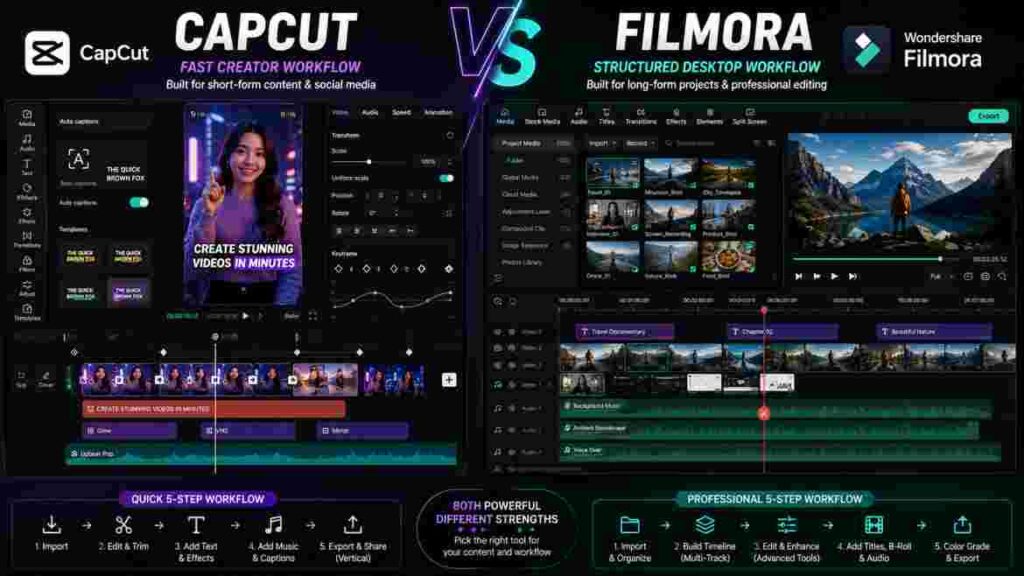
CapCut Emphasizes Speed
Consider a creator who produces three talking-head Shorts every week.
The repeated workflow might involve removing pauses, reframing the subject, creating captions, highlighting important words, adding B-roll, inserting music, creating several zooms, applying a basic color correction, and exporting vertically.
Even if Filmora can perform every one of those operations, CapCut can feel faster because those tasks align closely with its creator-focused design.
Saving two or three minutes on a single video seems insignificant.
Saving that time across 150 videos is not.
Filmora Emphasizes Structure
Now consider a creator producing one 45-minute educational video every two weeks.
The timeline contains dozens of sections. Several scenes have multiple camera angles. Screen recordings need to be synchronized with narration. Music appears in selected sections. Graphics are repeatedly revised.
Here, the time required to apply one caption style matters less than the ability to remain organized throughout the project.
Filmora’s more conventional desktop workflow becomes increasingly valuable as this complexity grows.
Why Neither Philosophy Is Better for Everyone
Some comparisons frame speed as beginner-friendly and complexity as professional.
That is misleading.
A professional social-media agency may care enormously about speed because producing 100 pieces of client content every month is a serious production operation.
Likewise, a hobbyist creating a detailed travel documentary may care deeply about timeline organization despite never earning money from editing.
The right tool follows the workflow, not the user’s status.
CapCut vs Filmora for Beginners
Beginners typically need software that accomplishes two apparently conflicting goals.
It must be simple enough that they can finish their first few videos without becoming overwhelmed, but capable enough that they do not immediately need to switch applications after learning the fundamentals.
CapCut handles that balance exceptionally well.
First-Day Experience
A complete beginner can usually understand CapCut’s basic editing logic relatively quickly. Media is imported, clips are placed on the timeline, unwanted sections are removed, text or captions can be added, music can be inserted, and the final video can be exported.
The user does not need to understand every underlying concept before creating something useful.
That matters because early progress keeps people learning.
Filmora is also designed to be accessible, but the interface introduces users more directly to a conventional desktop timeline. Someone completely unfamiliar with editing may need slightly more time to understand the relationship between tracks, media, effects, audio, and the preview window.
That additional structure is not necessarily a disadvantage.
It may actually benefit a person who intends to work primarily on desktop video from the beginning.
Learning Beyond Basic Editing
The more interesting question is what happens after the first month.
A creator who begins with CapCut can move into keyframes, animation graphs, color correction, masks, audio work, effects, and more deliberate timeline editing. CapCut Desktop currently includes keyframes and graphs specifically for more precise animation.
Filmora offers a similarly gradual progression. Users can begin with basic cuts and eventually build layered timelines, use advanced editing tools, work with AI features, and develop more detailed projects.
Neither application traps beginners at a purely basic level.
Which One Teaches Better Editing Habits?
Software itself does not teach good editing.
A beginner can misuse either program.
CapCut’s templates and one-click effects can make it tempting to depend on presets instead of learning pacing, composition, audio balance, and visual hierarchy.
Filmora’s larger desktop environment can similarly tempt beginners to assume that more layers and effects automatically create a more professional result.
The best beginner learns principles rather than buttons.
Learn why a cut works. Learn why dialogue should remain understandable. Learn why an effect needs a purpose. Learn how visual movement guides attention.
Those skills transfer between applications.
Beginner Verdict
For most complete beginners, CapCut wins this part of CapCut vs Filmora.
It has a lower barrier to productive editing, particularly for creators starting with social content.
Filmora is an excellent alternative for someone who already knows that desktop-first and long-form editing will dominate their future workflow.
CapCut vs Filmora Ease of Use
Ease of use cannot be measured simply by counting buttons.
Software may have a clean interface but require six steps for a common task. Another application may look more complicated but allow an experienced user to complete the same task immediately.
The better measurement is friction.
Interface Design
CapCut places creator-oriented features such as captions, text, effects, filters, audio, and adjustments within relatively accessible areas of the interface.
This encourages exploration.
A beginner can try something, preview the result, undo it, and continue without feeling that every experiment requires a tutorial.
Filmora also works hard to remain approachable, but its interface retains more of the structure associated with desktop video editing.
That structure can initially look busier. Over time, however, it can become an advantage for users managing substantial projects.
Finding Common Tools
Imagine that you need to create a basic talking-head video.
You trim several mistakes, generate captions, add a few B-roll clips, create two subtle zooms, reduce background noise, add music, adjust exposure, and export.
CapCut is particularly efficient for this type of workflow because many of those operations are core creator tasks.
Now imagine editing a documentary-style project containing 200 clips.
Ease of use suddenly means something different.
You care about navigating the project, understanding the timeline, keeping audio organized, locating footage, making revisions, and avoiding accidental changes.
Filmora’s structure becomes more useful.
Ease-of-Use Verdict
CapCut is easier for the majority of beginners and high-volume social creators.
Filmora may become easier for experienced desktop users once project organization becomes more important than the speed of individual operations.
That is why CapCut vs Filmora cannot be judged by screenshots of their interfaces alone.
CapCut vs Filmora Editing Features
Both editors now cover the fundamental requirements of modern creator editing.
They can cut and arrange footage, add text, work with multiple layers, create transitions, adjust audio, apply effects, modify color, and export finished videos.
The important differences emerge in implementation.
Cutting, Splitting, and Trimming
There is no meaningful winner for basic cutting.
Both applications allow users to remove unwanted material and arrange clips into a sequence.
If your only requirement is trimming footage, choosing between them based on that capability makes little sense.
The difference becomes noticeable after the cut.
CapCut’s workflow can move particularly quickly from trimming into captions, effects, social text, reframing, or other creator-oriented tasks.
Filmora keeps cutting naturally integrated into a more conventional timeline workflow.
Multi-Layer Editing
Modern content becomes layered surprisingly quickly.
A straightforward YouTube video may contain a main camera, B-roll, screenshots, captions, music, sound effects, a logo, graphics, and adjustment elements.
CapCut Desktop can manage layered projects, making old descriptions of it as a simplistic mobile editor increasingly inaccurate.
Filmora is also built around multi-track work and tends to become more comfortable as the timeline becomes denser.
Editing Features Comparison
| Editing Need | CapCut | Filmora |
|---|---|---|
| Basic cuts and trimming | Excellent | Excellent |
| Layered social edits | Excellent | Excellent |
| Large desktop timelines | Good | Excellent |
| Fast creator workflows | Excellent | Very good |
| Traditional project structure | Good | Excellent |
| Beginner accessibility | Excellent | Very good |
| Custom animation | Strong | Strong |
| Social-first tools | Excellent | Very good |
The overall CapCut vs Filmora editing winner depends on scale.
For small and medium creator projects, CapCut can be exceptionally efficient.
For larger desktop projects, Filmora’s structure becomes increasingly valuable.
CapCut vs Filmora for Keyframes
Keyframes allow editors to create controlled changes over time.
Instead of choosing a preset zoom, for example, you can define where the zoom begins, where it ends, and how the movement behaves between those points.
This gives creators much greater control over motion.
CapCut Desktop currently provides keyframes and graphs for smoother and more precise animation.
Filmora also offers keyframe-based control within its editing environment.
If you want more control over zooms, position changes, and custom motion, our detailed guide explains how to use keyframes in CapCut for smoother animations.
Why Keyframes Matter
Suppose a speaker makes an important statement halfway through a talking-head clip.
A subtle zoom can emphasize the moment.
A preset animation may zoom too quickly, too far, or at the wrong time.
Keyframes let you control the movement deliberately.
The same principle applies to product videos. You can gradually move toward the product, animate a graphic, change opacity, reposition an overlay, or create a custom reveal.
CapCut Keyframe Workflow
CapCut makes keyframes relatively approachable.
This is particularly useful for social creators who want more custom movement without turning every animation into a complicated motion-design project.
The addition of graph-based control allows users to refine how movement accelerates and decelerates rather than relying only on uniform motion.
That can make a significant difference in perceived quality.
A smooth movement usually feels more intentional than a harsh linear change.
Filmora Keyframe Workflow
Filmora also supports keyframe animation and fits it naturally into desktop editing.
Its advantage becomes more noticeable when many animated properties and layers exist across a larger timeline.
Keyframe Verdict
This category is close.
CapCut offers more than enough keyframe control for most creator workflows and makes animation approachable.
Filmora may feel more comfortable when keyframes form part of a larger, more complicated desktop project.
Neither editor should be chosen simply because the other supposedly “doesn’t have professional keyframes.” That characterization no longer reflects the current tools accurately.
CapCut vs Filmora for Masking
Masking allows you to control which part of a layer remains visible.
It can be used for custom transitions, split screens, selective effects, object reveals, creative compositions, clone effects, and many other techniques.
Both editors provide masking capabilities suitable for common creator workflows.
Practical Masking Example
Suppose you want a title to appear behind a person.
The visual composition may contain the original background, the title, and a separated version of the subject.
Masking or subject-isolation tools help create the illusion that the text exists within the scene rather than simply sitting on top of the video.
Another example is a split-screen comparison. A mask can reveal one part of one clip and another part of a second clip.
Where Masking Becomes Difficult
The complexity is rarely drawing the first mask.
It is maintaining the illusion when movement occurs.
Hair, fast motion, changing lighting, motion blur, and objects crossing the subject can require careful refinement.
AI can reduce manual work, but difficult footage remains difficult.
Masking Verdict
For ordinary creator masking, both applications are capable.
If advanced masking is central to your visual style, the best approach is to test both using difficult footage from your own projects.
CapCut vs Filmora for Motion Tracking
Motion tracking allows a visual element to follow movement in footage.
A label can remain attached to a product. A graphic can follow a person. An emoji can cover a moving face. A callout can remain connected to an object as the camera moves.
Tracking can save enormous amounts of manual keyframing when it works well.
What Determines Tracking Quality?
The software matters, but footage matters too.
A high-contrast object moving steadily across a clean background is relatively easy.
An object that rotates rapidly, becomes partially hidden, moves through motion blur, or blends into the background is much more challenging.
That means demonstrations should be treated cautiously.
A tracking tool may look flawless when the source footage was specifically chosen because it is easy to track.
How to Compare Tracking Properly
Use a difficult clip from your own content.
Track the same object in both applications.
Then compare how much manual correction is required.
If one tool produces a usable result in 30 seconds while another requires several minutes of cleanup, you have found a meaningful workflow difference.
Motion-Tracking Verdict
There is no reason to select a universal winner without considering footage and current feature availability.
Both ecosystems continue to develop assisted editing capabilities. For tracking-heavy work, your own footage is the best benchmark.
CapCut vs Filmora for Background Removal
Removing a background without a physical green screen has become one of the most useful applications of AI in creator editing.
It can help produce product advertisements, educational videos, social content, virtual backgrounds, talking-head compositions, and promotional graphics.
CapCut’s current Pro documentation lists advanced tools including camera tracking and AI-oriented functionality, while the desktop editor emphasizes broader AI-powered creation. Filmora similarly integrates AI capabilities into its current editing packages.
When AI Background Removal Works Well
Results are usually strongest when the subject is clearly separated from the background.
Good lighting helps.
Strong visual contrast helps.
Clean edges help.
Limited motion blur helps.
When It Struggles
Hair remains difficult.
Transparent objects remain difficult.
Fast movement remains difficult.
A person wearing clothing similar in color to the background can also create problems.
This matters because creators sometimes assume AI background removal completely replaces careful shooting.
It does not.
Better source footage still produces better results.
Green Screen Still Has a Purpose
Traditional chroma key remains valuable when predictable separation matters.
If you are intentionally recording content that will definitely require a replacement background, a properly lit green screen can provide greater consistency than hoping AI correctly identifies every edge.
AI is convenient.
Controlled production is reliable.
Background-Removal Verdict
For quick creator work, CapCut’s overall workflow makes background removal particularly convenient.
Filmora remains competitive for desktop compositions.
Choose based on the quality you can achieve with your footage rather than the presence of an AI label.
CapCut vs Filmora AI Features
AI has become one of the largest battlegrounds in modern video editing.
Both companies now promote AI extensively.
That makes this one of the areas where feature-count comparisons are least useful.
The question is not how many AI tools exist.
The question is how many save you meaningful time.
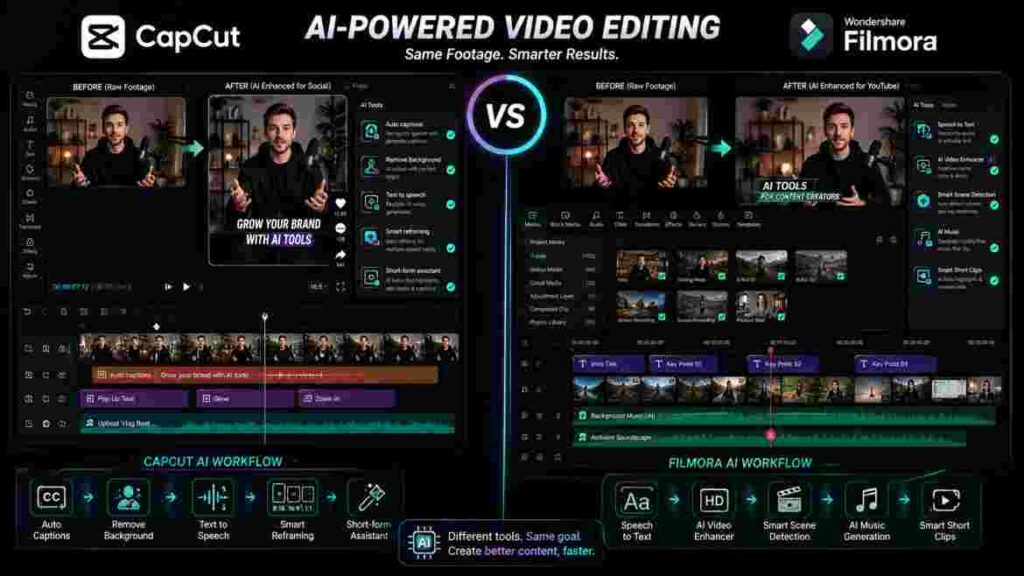
CapCut’s AI Approach
CapCut integrates AI into the broader creator workflow. Its current desktop materials highlight AI-generated content, script-to-video functionality, AI writing, captions, text-to-speech, and other assisted tools.
CapCut’s current subscription structure also differentiates between more basic and advanced AI access, with Pro positioned toward professional, business, team, and cross-platform workflows.
Filmora’s AI Approach
Filmora similarly offers AI functionality across speech, video enhancement, music, smart clips, and other editing tasks. Current plan information lists tools such as Smart Short Clips, Smart Scene Cut, text-to-speech, speech-to-text, AI Video Enhancer, and AI Music.
Filmora also uses AI credits for various features, and additional credit packages are available.
AI Features Comparison
| AI Use Case | CapCut | Filmora |
|---|---|---|
| Auto captions | Strong | Strong |
| Text-to-speech | Available | Available |
| AI-assisted creator workflow | Major focus | Major focus |
| Short-form automation | Strong | Strong |
| AI video tools | Broad ecosystem | Broad ecosystem |
| AI usage limits | Can depend on plan/credits | Credit-based for various features |
| Best context | Fast creator workflow | Desktop editing workflow |
The AI Feature That Matters Most
The most valuable AI feature is the one that removes a task you hate repeating.
For one creator, that could be captions.
For another, it could be noise reduction.
For a marketer, it might be generating content variations.
For a long-form editor, speech-to-text may save more time than every generative feature combined.
Do not purchase an editor because its AI demonstration looks futuristic.
Purchase it because its AI reduces your actual workload.
AI Credits Matter
Credit systems deserve particular attention.
A feature can technically be included in an application while still costing additional credits to use repeatedly.
Before subscribing primarily for AI, estimate how often you expect to use the feature.
A creator producing two videos per month may never reach a credit limit.
A marketing team producing dozens of assets could have a completely different experience.
AI Verdict
The CapCut vs Filmora AI category has no universal winner.
CapCut is particularly compelling when AI is connected to fast social and creator production.
Filmora is particularly compelling when AI assistance is integrated into a desktop-first workflow.
Choose the AI tools you need, then compare access and usage limits—not the marketing headline.
CapCut vs Filmora for Auto Captions
Automatic captions are one of the most genuinely useful applications of automation in video editing.
They can improve accessibility, help viewers understand speech in noisy environments, support people watching without sound, and make short-form content easier to follow.
CapCut currently promotes automatic caption generation directly within its desktop editor. Filmora offers speech-to-text functionality among its current AI tools.
Why CapCut Is Particularly Strong Here
CapCut’s caption workflow fits naturally with modern social content.
For TikTok, Reels, and Shorts, captions are often not merely subtitles.
They become part of the visual design.
Words may appear dynamically, important phrases may receive emphasis, and text may help establish rhythm.
This is an area where CapCut’s social-media DNA is useful.
Filmora Captions
Filmora’s caption capabilities fit well into desktop workflows.
For longer tutorials, educational videos, interviews, and other substantial projects, keeping speech-to-text functionality inside the same editing environment can save significant time.
Never Trust Automatic Captions Completely
Regardless of the application, automatic transcription requires review.
Names can be wrong.
Numbers can be wrong.
Brand names can be wrong.
Technical terminology can be wrong.
Accents and background noise can cause errors.
A caption that looks professionally animated but contains the wrong word is still a bad caption.
Caption Verdict
CapCut wins this part of CapCut vs Filmora for high-volume, visually styled social captions.
Filmora remains a strong option when subtitles form part of a larger desktop production
CapCut vs Filmora for Text and Titles
Text serves different purposes depending on the content.
A cinematic title, lower third, tutorial annotation, product price, animated social caption, and YouTube callout all use text differently.
CapCut is particularly strong when text needs to feel integrated into fast-moving creator content.
Filmora offers a broader traditional title workflow that fits comfortably into longer desktop projects.
Readability Matters More Than Animation
Creators frequently make the mistake of judging text by how impressive the animation looks.
The first job of text is usually communication.
If the font is too decorative, the movement too fast, the contrast too weak, or the placement too close to platform interface elements, the text has failed regardless of how sophisticated the animation is.
This principle applies to both applications.
Text Verdict
For social captions, callouts, and fast creator text, CapCut has the advantage.
For conventional title work within larger desktop projects, Filmora is extremely capable.
The winner depends on the role text plays in your content.
CapCut vs Filmora Effects
Effects are among the easiest features to market because they produce obvious visual changes.
They are also among the easiest features to misuse.
Effects can improve an edit when they serve a clear purpose; see our complete guide to CapCut effects for practical techniques and common mistakes to avoid.
CapCut Effects
CapCut offers a large creator-focused ecosystem of effects and filters. Its desktop application emphasizes trending effects and filters as part of its creative workflow.
These can work especially well for social content, music edits, entertainment videos, product clips, and fast-paced creator content.
Filmora Effects
Filmora’s current paid ecosystem promotes millions of creative assets depending on the plan and storefront.
That broader asset environment can be valuable for creators working across multiple content styles rather than concentrating only on short-form trends.
More Effects Can Make a Worse Video
The biggest effects problem is not lack of choice.
It is lack of restraint.
A beginner sees glow, shake, glitch, blur, particles, lens effects, distortion, and dozens of transitions and assumes using more will make the edit more professional.
Usually, the opposite happens.
Effects should support the content.
If the viewer notices the effect more than the message, ask whether it is helping.
Effects Verdict
The CapCut vs Filmora effects category is close.
CapCut has the advantage for trend-aware social effects and fast experimentation.
Filmora can be more attractive when a broader desktop asset ecosystem matters.
CapCut vs Filmora Filters
Filters provide a quick way to change the visual character of footage.
They can make an image warmer, cooler, softer, more contrasty, less saturated, or more stylized.
Both editors provide accessible filter workflows.
The Correct Order: Correction Before Style
A filter should not be used to hide badly corrected footage.
Suppose someone’s face looks too orange because the white balance is wrong.
Applying a cinematic filter does not necessarily solve the problem. It may exaggerate it.
Correct exposure and white balance first.
Check skin tones.
Control highlights and shadows.
Then decide whether a creative filter improves the look.
Avoid Maximum Intensity
Filters are often more effective below their default or maximum strength.
A subtle look can create consistency without making the footage appear obviously processed.
The best filter is often the one viewers never consciously notice.
Filters Verdict
There is no strong universal winner.
The libraries change over time, and personal visual preference plays a large role.
Test the filters that actually fit your brand rather than comparing the total number available.
CapCut vs Filmora Transitions
Transitions connect shots, but they should not be used simply because a transition button exists.
A clean cut remains one of the most effective editing tools.
If smooth cuts are important to your videos, our guide to CapCut transitions explains how to choose, time, and refine transitions without making your edits look overdone.
When Transitions Help
Transitions make sense when they reinforce a change.
A scene moves to another location.
Time passes.
A montage changes energy.
Movement in one shot continues into another.
The edit deliberately shifts into a new section.
In these situations, a transition can support storytelling.
CapCut for Social Transitions
CapCut’s creator orientation makes trendy transitions particularly accessible.
This is useful for fashion content, travel videos, montages, product edits, entertainment content, and other visually energetic formats.
Filmora for Traditional Projects
Filmora provides a broad transition environment that works naturally within longer desktop timelines.
For tutorials, YouTube videos, educational content, and presentations, this can provide plenty of flexibility.
Transition Verdict
CapCut gets the edge for rapid social-style transitions.
Filmora works extremely well for conventional desktop editing.
In either application, the professional rule remains simple:
Choose the transition after understanding the cut—not before.
CapCut vs Filmora Color Grading
Color grading is one of the areas where CapCut’s modern desktop capabilities are frequently underestimated.
CapCut Desktop currently promotes color wheels and automatic adjustment, while other official CapCut desktop materials reference HSL and correction controls.
Filmora’s current plan comparison also includes color-related controls such as RGB curves, white balance, sharpening, and HDR support.
Both applications therefore offer considerably more than simple filters.
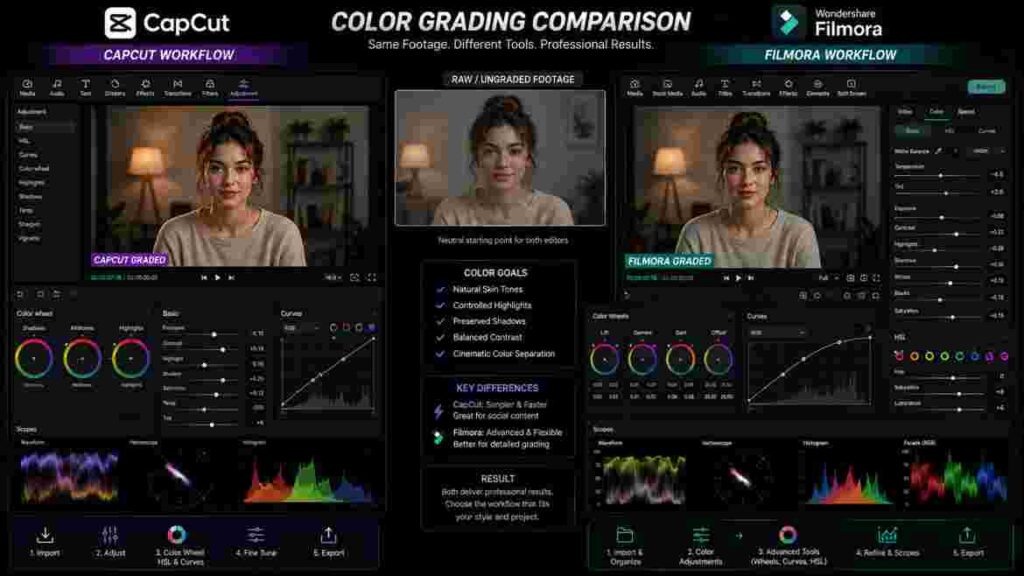
Color Correction Comes First
Before developing a creative grade, correct obvious problems.
Exposure should be appropriate.
White balance should look believable.
Highlights should not be unnecessarily harsh.
Shadows should retain useful detail.
Skin tones should appear natural unless the style deliberately changes them.
Shots from the same sequence should feel visually related.
Once those fundamentals are controlled, creative grading becomes easier.
CapCut Color Workflow
CapCut’s combination of accessible controls and more advanced desktop features makes it a strong environment for creators learning color.
A beginner can start with exposure, contrast, saturation, highlights, and shadows before progressing into more selective adjustments.
That is valuable because color grading is a skill that develops through observation.
Filmora Color Workflow
Filmora fits color correction naturally into a desktop production environment.
Its advantage becomes more noticeable when many clips need consistent treatment across a longer project.
Matching 50 clips is a different challenge from grading one 20-second Reel.
The longer the project, the more workflow consistency matters.
Color Comparison
| Color Need | CapCut | Filmora |
|---|---|---|
| Basic correction | Excellent | Excellent |
| Filters/presets | Strong | Strong |
| Color wheels | Available on desktop | Strong color workflow |
| Curves/advanced adjustment | Capable | Capable |
| Social content | Excellent | Very good |
| Large long-form project | Good | Excellent |
| Beginner learning | Excellent | Very good |
Color Verdict
Filmora receives a modest advantage for long, desktop-centered color workflows.
CapCut remains more than capable for the vast majority of social, marketing, YouTube, and creator projects.
For many users, skill will make a much larger difference than the software.
CapCut vs Filmora Audio Editing
Viewers will often tolerate an imperfect image longer than they will tolerate difficult audio.
That makes audio one of the most important parts of any editing workflow.
Both applications provide the tools needed for common creator audio, including music, volume adjustment, fades, sound effects, voice-over, and AI-assisted enhancement.
Dialogue Should Usually Come First
If your content is based on speech, the voice is the most important audio element.
Music should support it, not fight it.
Sound effects should emphasize moments, not make the video exhausting.
Noise reduction should improve intelligibility without turning the voice metallic.
These principles matter more than the size of an audio-effects library.
CapCut Audio Workflow
CapCut works particularly well when the audio structure is straightforward.
A social video may contain dialogue, one music track, and several sound effects.
The creator can balance those elements without needing an advanced mixing environment.
Filmora Audio Workflow
Filmora becomes more attractive when the audio timeline becomes complicated.
A long project might contain dialogue from several recording sessions, multiple music cues, ambient sound, voice-over corrections, and dozens of effects.
The ability to keep those elements organized becomes increasingly valuable.
AI Cannot Repair Everything
Noise-reduction technology continues improving, but there are limits.
A microphone placed far from the speaker in a reverberant room will produce a difficult recording.
Clipping cannot always be repaired convincingly.
Heavy background noise may overlap the same frequencies as speech.
Recording better audio remains more effective than relying on software to rescue it.
Audio Verdict
For fast creator audio, CapCut is excellent.
For complex, layered desktop audio, Filmora has an organizational advantage.
The CapCut vs Filmora audio winner therefore changes with project complexity.
CapCut vs Filmora for Mobile Editing
This is one of the clearest categories.
CapCut has a major advantage for mobile-first creators.
Its broader subscription documentation even distinguishes Standard as primarily focused on lighter mobile editing, while Pro expands cross-platform workflows across mobile, desktop, and web.
Why Mobile Editing Matters
A phone is not simply a less powerful computer.
It changes the production workflow.
A creator can record a clip, edit it immediately, generate captions, add music, create text, make color adjustments, and prepare it for publication without transferring files to another device.
For event creators, travel creators, small businesses, influencers, and people publishing frequently, that convenience can be enormous.
Where Mobile Editing Reaches Its Limits
Screen size eventually becomes a constraint.
Fine timeline adjustments become more difficult.
Managing many layers becomes cumbersome.
Long editing sessions can become uncomfortable.
Large media libraries are harder to organize.
When those problems become frequent, desktop editing becomes worthwhile.
Mobile Verdict
CapCut wins the mobile category comfortably.
If phone-based editing is central to your workflow, this difference alone can be enough to decide CapCut vs Filmora.
CapCut vs Filmora for Desktop Editing
The comparison becomes much closer on a computer.
Filmora’s history and design give it a natural advantage for conventional desktop editing.
CapCut Desktop, however, has evolved enough that it should not be dismissed.
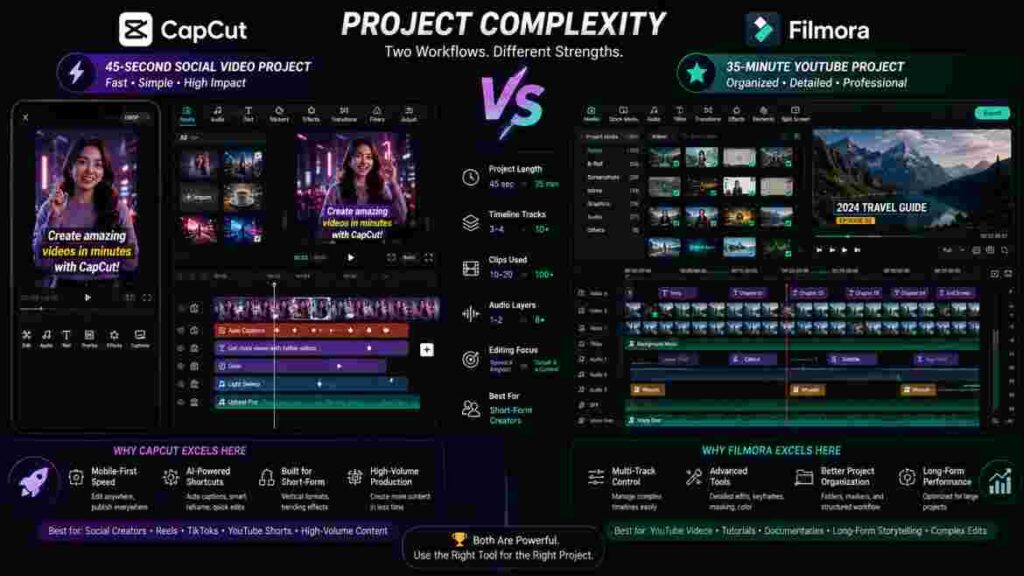
CapCut Desktop Has Become Serious
Current CapCut Desktop materials highlight keyframes and graphs, color wheels, automatic adjustment, effects, filters, captions, smart search, AI features, aspect-ratio tools, and dedicated YouTube workflows.
Those are not merely mobile features displayed on a larger screen.
They support genuinely substantial editing.
Filmora’s Structural Advantage
Filmora’s strength appears when the editor spends hours inside one complicated project.
The conventional timeline feels appropriate for managing many clips, layers, and revisions.
A dedicated long-form editor may value this organization more than faster access to social-media features.
What If You Edit Social Content on a PC?
Using a computer does not automatically mean Filmora is better.
Suppose you edit Reels and Shorts on a powerful desktop because you prefer a keyboard and large monitor.
CapCut’s social workflow may still save more time.
Device and content type are separate considerations.
Desktop Verdict
Filmora wins for traditional, large-scale desktop timeline editing.
CapCut can be the better desktop application for creators whose work remains centered around social, marketing, or streamlined YouTube content.
CapCut vs Filmora Performance
Performance comparisons require caution.
Your computer influences the result as much as the application.
Important factors include the processor, graphics hardware, RAM, storage speed, available disk space, source codec, resolution, frame rate, number of layers, active effects, and project length.
Why Two Users Can Report Opposite Experiences
One user may edit a single 1080p camera track on a modern desktop and experience perfectly smooth playback.
Another may edit multiple 4K HEVC clips with stabilization, background removal, color correction, captions, and effects on an older laptop.
Their performance experiences will be completely different even if they use the same editor.
Resolution Is Only Part of the Story
People often assume 4K footage is always four times harder to edit than 1080p.
Reality is more complicated.
Codec efficiency matters.
Bit depth matters.
Frame rate matters.
Hardware acceleration matters.
Effects matter.
A highly compressed file can require significant processing during playback.
How to Test Performance Properly
Use your actual footage.
Build a representative timeline.
Add the effects you normally use.
Generate captions.
Apply your normal color corrections.
Create the number of layers typical of your projects.
Then test playback, scrubbing, responsiveness, and export.
That provides a meaningful CapCut vs Filmora performance comparison for your computer.
What to Do When Editing Becomes Slow
Before switching software, reduce preview quality, close unnecessary background applications, ensure adequate free storage, simplify unnecessary stacked effects, and consider optimized media or proxy workflows where appropriate.
A software switch cannot compensate for every hardware bottleneck.
Performance Verdict
There is no universal winner.
The application that performs better on your specific hardware with your specific footage is the correct performance winner.
CapCut vs Filmora Export Quality
Many creators search for which editor gives “better quality,” but export quality depends heavily on settings.
Resolution, frame rate, bit rate, codec, source footage, compression, and platform processing all influence the result.
4K Does Not Automatically Mean Better
Exporting a blurry 1080p source as 4K does not recreate all the detail that was never captured.
The file dimensions become larger.
The source information does not magically become equivalent to genuine high-quality 4K footage.
AI enhancement may improve perceived detail in some situations, but that is different from perfectly recovering missing information.
Frame Rate Should Match the Workflow
If footage was recorded and edited at 30 fps, exporting at 60 fps does not automatically make it more professional.
Use a frame rate that makes sense for the footage and intended delivery.
Bit Rate Matters
Excessive compression can damage detail, particularly in footage containing fast movement, water, foliage, smoke, particles, or complex textures.
At the same time, extremely high bit rates can produce enormous files with little visible advantage after YouTube, TikTok, or Instagram recompresses them.
Export Comparison
| Export Consideration | CapCut | Filmora |
|---|---|---|
| High-quality creator export | Yes | Yes |
| 4K capability | Plan/platform dependent | Available on current relevant plans |
| Multiple formats | Supported | Supported |
| Social export workflow | Excellent | Strong |
| Desktop delivery | Strong | Excellent |
| Final quality potential | High | High |
Filmora’s current plan information explicitly advertises 4K HD export and multiple export formats on relevant plans. CapCut’s current Pro documentation similarly references premium editing and 4K export capabilities, while exact access can depend on plan and platform.
Export Verdict
For ordinary creator requirements, both can produce excellent final output when configured correctly.
The source footage and export decisions usually matter more than the logo on the editing application.
CapCut vs Filmora Free Version
The word “free” needs careful interpretation.
Free installation does not necessarily mean every tool is free.
A feature may require premium access.
An asset may be paid.
AI usage may depend on credits.
An export condition may differ from a paid plan.
Always test the workflow you actually need.
CapCut Free Access
CapCut provides a strong entry point for beginners and casual creators, although its current membership system differentiates free/basic access from Standard and Pro capabilities.
CapCut’s official documentation describes Standard as aimed at more casual and primarily mobile editing, while Pro provides advanced AI, premium resources, commercial-use assets, larger cloud storage, collaboration, and broader cross-platform access.
Exact availability can change by account, device, region, and version.
Filmora Free Access
Filmora can be downloaded and evaluated before committing to a paid plan.
However, users should check export conditions carefully. Current paid plans specifically advertise export without a watermark, making it important to verify what your free setup does before spending hours on an important project.
The Best Free-Version Test
Create a 60-second real project.
Import your footage.
Make the normal edits.
Generate captions if needed.
Add an effect and transition.
Adjust audio.
Apply a color correction.
Then export.
You will immediately discover which parts of your workflow are genuinely available and which require payment.
Free-Version Verdict
For many beginners, CapCut provides the more attractive starting experience.
Filmora is still worth testing if you expect to move into a paid desktop workflow.
Do not base the decision on the download being free. Base it on whether the finished video you need can actually be exported under the conditions you accept.
CapCut vs Filmora Pricing and Value
Pricing changes, and both products can vary according to plan, region, platform, promotion, or storefront.
For that reason, exact dollar amounts can become outdated quickly.
CapCut explicitly states that Pro pricing varies by region, device, and available promotions, and recommends checking the application or website for the current price applicable to your account.
CapCut currently offers monthly and yearly premium subscription structures and does not offer a lifetime premium purchase.
Filmora currently offers recurring plans as well as a perpetual purchasing option on its official store, though pricing, included version, AI credits, cloud storage, and asset access vary by offer.
Pricing Structure Comparison
| Cost Question | CapCut | Filmora |
|---|---|---|
| Free starting access | Yes | Yes/trial-style access |
| Monthly/recurring premium | Yes | Yes |
| Annual premium | Yes | Yes |
| Lifetime premium | No current lifetime option | Perpetual option currently available |
| AI usage considerations | Plan/credits can matter | AI credits can matter |
| Pricing can change | Yes | Yes |
| Best way to verify | Current account/order page | Official current store |
Why the Cheapest Plan May Not Be the Best Value
Imagine Editor A costs less but lacks one tool you use every week.
You purchase a second service to solve that problem.
Editor B costs more but includes the required functionality.
Editor B may actually be cheaper.
Time should also be included in the calculation.
If one application saves a freelancer three hours every month, the financial value of those hours may exceed the subscription difference many times over.
CapCut Subscription Considerations
CapCut has introduced a newer membership structure separating Standard and Pro use cases. Its official documentation positions Standard toward casual/mobile users and Pro toward professionals, businesses, teams, advanced AI, commercial assets, collaboration, and cross-platform workflows.
This means users should check which level contains the specific tools they depend on rather than assuming “CapCut Pro” works exactly as an old tutorial describes.
Filmora Perpetual Plan Considerations
Filmora’s current perpetual option is potentially important for people who strongly dislike recurring subscriptions.
However, “perpetual” should not automatically be interpreted as unlimited upgrades to every future major version.
Read the current purchase terms carefully.
The official store currently describes the included Filmora version/update entitlement alongside the perpetual plan, so verify what is being purchased at the time of checkout.
Pricing Verdict
There is no universal winner.
CapCut can offer exceptional value when its fast creator workflow and cross-device ecosystem match your work.
Filmora can provide excellent value for desktop-focused users, particularly those interested in its current perpetual purchasing option.
Compare the cost of your workflow, not just the subscription price.
CapCut vs Filmora for YouTube
“YouTube editing” describes too many different workflows to have one automatic winner.
A 20-second Short and a 50-minute documentary are both YouTube videos.
They have almost nothing in common from an editing perspective.
YouTube Shorts
CapCut has a clear advantage for Shorts.
Vertical composition, automatic captions, quick text, effects, music, reframing, keyframes, and fast exports align closely with short-form production.
A creator producing multiple Shorts each week benefits significantly from reducing repetitive editing work.
Talking-Head Videos
The answer becomes much closer for ordinary talking-head YouTube content.
Suppose your video is 12 minutes long.
It contains one main camera track, several B-roll clips, captions, background music, a few screenshots, and basic color correction.
CapCut Desktop can handle that workflow very effectively.
There is no need to move to Filmora merely because the finished video exceeds ten minutes.
Tutorial Videos
Tutorials can become more complicated.
A presenter may appear on camera while screen recordings, cursor movements, zooms, callouts, screenshots, titles, and voice-over need to remain synchronized.
Both applications can handle these projects.
CapCut may feel faster when captions and creator-oriented tools dominate the workflow.
Filmora may feel more comfortable as the timeline becomes longer and more layered.
Long YouTube Essays and Documentaries
This is where Filmora’s strengths become clearer.
A 40-minute video essay can contain hundreds of individual media elements.
Organization becomes essential.
You need to find clips quickly, maintain audio consistency, manage B-roll, revise sections, and prevent changes in one part of the timeline from creating problems elsewhere.
Filmora’s desktop-first approach becomes more valuable.
YouTube Comparison
| YouTube Format | Better Fit | Why |
|---|---|---|
| Shorts | CapCut | Fast vertical creator workflow |
| 5–10 minute talking head | CapCut/Close | Speed and captions |
| Product review | Depends | Project complexity matters |
| Tutorial | Depends | Both can work well |
| 20–40 minute layered video | Filmora | Timeline organization |
| Documentary-style project | Filmora | Larger project structure |
| High-volume channel clips | CapCut | Faster repeated workflow |
YouTube Verdict
CapCut wins for Shorts and many straightforward creator videos.
Filmora gets the advantage for large, layered long-form productions.
The best CapCut vs Filmora choice for YouTube depends more on timeline complexity than video duration.
CapCut vs Filmora for TikTok
TikTok is one of CapCut’s strongest use cases.
The platform rewards fast content production, vertical framing, captions, text, music, visual pacing, and trend-aware editing.
CapCut’s workflow aligns naturally with those requirements.
Why Speed Matters on TikTok
TikTok creators may publish several times per week or even several times per day.
A workflow that saves five minutes per video can save hours across a month.
That changes how software should be evaluated.
The creator does not necessarily need the deepest possible desktop toolset.
They need enough control to produce the desired result quickly.
TikTok Verdict
CapCut wins this CapCut vs Filmora category for most creators.
Filmora can produce high-quality TikTok content, particularly for someone who prefers desktop editing, but CapCut’s broader workflow is better aligned with high-frequency social production.
CapCut vs Filmora for Instagram Reels
Instagram Reels share many production requirements with TikTok.
Vertical framing, captions, hooks, music, B-roll, quick pacing, and visual text are common.
CapCut again fits naturally.
Brand Content Changes the Equation
Businesses creating highly controlled branded Reels may care more about consistent colors, logos, typography, and repeatable templates than trendy effects.
CapCut can still work extremely well here, particularly with premium commercial and brand-oriented features on relevant plans.
Filmora may appeal to teams or freelancers that already produce all content within a desktop editing workflow.
Reels Verdict
CapCut wins for most Reel creators.
Filmora remains completely viable for desktop-first branded content.
CapCut vs Filmora for YouTube Shorts
YouTube Shorts combine YouTube distribution with the production style of short-form social video.
That makes CapCut particularly suitable.
Captions can be generated quickly.
Vertical composition is familiar.
Text and visual effects are easy to access.
Keyframes can create controlled punch-ins.
Music and sound effects can be incorporated without slowing the workflow significantly.
Shorts Verdict
CapCut is the stronger recommendation.
A Filmora user who already has an efficient Shorts workflow does not need to switch, but someone choosing from scratch will generally find CapCut better aligned with this format.
CapCut vs Filmora for Long-Form Videos
Long-form video changes what “easy” means.
In a short project, ease means adding a caption or effect quickly.
In a large project, ease means staying organized for hours.
Complexity Grows Faster Than Runtime
A 30-minute video is not merely a one-minute video repeated 30 times.
Long projects typically contain much more source footage than their final runtime suggests.
A 30-minute documentary may be assembled from several hours of recordings.
B-roll may come from dozens of locations.
Music changes throughout the project.
Graphics and titles need consistency.
Revisions can affect multiple sections.
This makes timeline organization increasingly important.
Filmora’s Advantage
Filmora’s conventional desktop environment is well suited to long sessions and layered timelines.
The software feels more naturally designed around the idea that the project itself may become complicated.
CapCut Can Still Handle Long Content
CapCut should not be dismissed for long-form video.
A 30-minute podcast highlight, tutorial, interview, or educational video can remain relatively simple structurally.
If the timeline is straightforward and the creator benefits heavily from CapCut’s captions, AI tools, and faster creator workflow, switching to Filmora may provide no meaningful advantage.
Long-Form Verdict
Filmora wins for complex long-form projects.
CapCut remains highly viable for moderately complex long videos.
The deciding factor is not the number on the runtime counter.
It is the number of moving parts in the project.
CapCut vs Filmora for Small Businesses
Small businesses have different editing priorities from dedicated video professionals.
The owner of a restaurant, local service company, online store, fitness studio, or small agency usually does not want to spend six hours learning advanced post-production.
They need content.
That may include product demonstrations, testimonials, social advertisements, Reels, Shorts, event videos, promotional clips, and educational content.
Why CapCut Often Makes More Sense
CapCut’s speed and accessibility are major advantages here.
A business can create attractive content without turning video editing into another full-time job.
CapCut’s current Pro positioning also includes commercial-use assets and collaboration-oriented capabilities, which can be relevant to professional and business workflows.
When Filmora Makes More Sense
Filmora becomes attractive when the company produces longer training videos, detailed tutorials, presentations, educational content, or other projects where desktop organization matters.
Small-Business Verdict
CapCut wins for social-first small businesses.
Filmora is worth considering for companies producing substantial long-form video.
CapCut vs Filmora for Freelancers
Freelancers should make this decision according to profitability and client requirements rather than personal preference alone.
Short-Form Freelancers
A freelancer producing dozens of Reels, TikToks, Shorts, or product clips every month benefits enormously from speed.
CapCut can be an excellent fit.
Captions, social formatting, text, effects, and rapid revisions all align with that business model.
Long-Form Freelancers
A freelancer editing podcasts, courses, long YouTube videos, educational content, or corporate projects may value Filmora’s desktop structure more highly.
Large client projects also tend to generate more revisions.
Organization matters.
Commercial Assets and Licensing
Freelancers should pay attention to licensing rather than assuming every visible asset is automatically appropriate for every client project.
CapCut’s current Pro documentation specifically references commercial-use assets. Filmora’s storefront likewise distinguishes commercial-use offerings in parts of its current plan ecosystem.
Always check the terms associated with the specific asset and plan you are using.
Freelancer Verdict
There is no universal winner.
For high-volume social editing, CapCut is usually the stronger fit.
For large desktop client projects, Filmora may be more comfortable.
The best freelancer tool is the one that helps you deliver the required quality in fewer billable or non-billable hours.
CapCut vs Filmora for Students
Students may use video editing for presentations, class projects, portfolios, YouTube channels, social content, or learning creative skills.
CapCut provides an excellent entry point because it allows useful work to begin quickly.
A student can learn basic editing without first investing heavily in software or spending days understanding the interface.
Filmora becomes attractive for students intentionally developing desktop video-editing skills or producing increasingly involved projects.
Student Verdict
CapCut is the stronger general recommendation for students.
Filmora is a good alternative for students whose learning goals specifically involve conventional desktop editing.
CapCut vs Filmora for Professional Content Creation
“Professional” is one of the least useful words in software comparisons when it is not defined.
A professional editor may create 15-second advertisements.
A hobbyist may create a 90-minute documentary.
Project requirements matter more than labels.
Can CapCut Be Professional?
Absolutely.
If a social-media agency uses CapCut to create client content efficiently, meet technical requirements, maintain brand standards, and deliver on time, the software is being used professionally.
CapCut’s current Pro positioning explicitly targets professionals, businesses, and teams and includes commercial-use resources and collaboration-related features.
Can Filmora Be Professional?
Yes.
Filmora can support paid YouTube, marketing, educational, freelance, and other creator work.
Its desktop structure can be particularly useful when client projects become longer or require repeated revisions.
When Neither May Be Enough
Some specialized workflows require capabilities beyond the normal scope of either editor.
Large collaborative productions, specialized broadcast requirements, highly advanced audio post-production, complex visual-effects pipelines, or specific client project-file requirements may justify different software.
That does not make CapCut or Filmora “unprofessional.”
It means software should match the job.
CapCut vs Filmora Pros and Cons
A fair comparison needs to acknowledge weaknesses as well as strengths.
| CapCut | Filmora | |
|---|---|---|
| Biggest strength | Fast, accessible creator workflow | Structured desktop editing |
| Biggest weakness | Can feel less ideal as projects become very large | Can be unnecessary for simple mobile/social work |
| Best device context | Mobile + flexible desktop/web | Desktop-first |
| Best content | Social and streamlined creator videos | Long and layered projects |
| Beginner experience | Excellent | Very good |
| AI ecosystem | Extensive | Extensive |
| Pricing model | Subscription-based premium | Subscription + current perpetual option |
| Main workflow advantage | Speed | Organization |
CapCut Advantages
CapCut combines an unusually approachable learning curve with increasingly serious editing capability. Its mobile workflow is excellent, its desktop editor has grown substantially, and social-media tasks such as captions, vertical formatting, text, effects, and fast visual adjustments fit naturally into the interface.
It is particularly valuable for high-volume creators because small workflow efficiencies accumulate over time.
CapCut Limitations
Premium features, assets, AI functionality, cloud storage, and cross-platform benefits can depend on the current plan. CapCut also does not currently offer lifetime premium access.
For extremely large desktop projects, some editors may prefer Filmora’s more traditional organizational environment.
CapCut’s easy access to templates and effects can also encourage inexperienced users to overedit.
Filmora Advantages
Filmora provides an approachable path into conventional desktop editing.
It handles larger timelines naturally, includes modern AI-assisted features, provides a substantial creative ecosystem, and currently offers both recurring and perpetual purchase options depending on the storefront and plan.
This makes it attractive to creators who want more traditional editing without immediately moving into a much steeper professional environment.
Filmora Limitations
Filmora may be unnecessary for creators whose work consists almost entirely of fast mobile social content.
Users also need to examine plan details carefully because AI credits, asset access, cloud storage, version upgrades, and other benefits can vary.
Anyone using the free version should verify export conditions before committing significant time to a project.
CapCut vs Filmora: Which Is Faster for Editing?
For most short-form workflows, CapCut is faster.
That does not mean its rendering engine wins every benchmark.
Editing speed includes much more than export time.
It includes how quickly you can perform the tasks that happen between import and export.
Think in Repeated Actions
Suppose you produce 200 videos per year.
If CapCut saves two minutes per video on captions, that is more than six hours.
If it saves another minute on formatting and another minute on effects or text, the total becomes substantial.
This is why high-volume creators should care deeply about workflow friction.
Long-Form Changes the Answer
On a 45-minute project, Filmora may become faster overall because organization prevents wasted time.
If a creator can find clips faster, navigate layers more confidently, and make revisions without disrupting other elements, those efficiencies can outweigh faster individual tools.
Speed Verdict
CapCut wins for high-volume short and medium creator content.
Filmora can win for complex long-form projects.
The correct CapCut vs Filmora speed test is the time from raw footage to approved final export—not the speed of one feature.
CapCut vs Filmora: Which Gives More Creative Control?
Creative control is not simply the number of sliders available.
It is the ability to translate an idea into a finished result without the software forcing you into a preset.
CapCut’s keyframes, graphs, color tools, layered workflow, effects, and other controls provide considerably more manual flexibility than its reputation as a simple social editor suggests.
Filmora similarly provides extensive control within its desktop environment.
Presets Versus Manual Editing
Presets are useful when speed matters.
They become limiting when every project starts looking the same.
Strong creators often begin with a preset and then modify it.
Change the timing.
Reduce the intensity.
Adjust the color.
Modify the animation.
Make the result fit the content.
Creative-Control Verdict
Filmora receives a slight advantage when control is evaluated across large traditional desktop projects.
CapCut remains highly capable and may actually provide more useful control for a social creator because the relevant tools are easier to access.
CapCut vs Filmora: Which Is Better for Productivity?
Productivity means achieving the required quality with the least unnecessary effort.
That definition changes according to the user.
A social-media manager producing 40 videos per month may be dramatically more productive in CapCut.
A YouTuber spending two weeks on one 50-minute project may be more productive in Filmora.
A beginner may be most productive in whichever application requires fewer tutorials.
An experienced CapCut user may initially become less productive after switching to Filmora because familiar shortcuts and habits disappear.
Software migration has a cost.
Productivity Verdict
CapCut wins for frequent, repeatable creator workflows.
Filmora wins when large-project organization is the primary bottleneck.
Neither application automatically makes someone productive.
Familiarity and good workflow design matter enormously.
Should You Switch From CapCut to Filmora?
Existing CapCut users should not switch simply because Filmora looks more traditional.
Changing editing software requires time.
You need to learn new menus, rebuild habits, understand different shortcuts, locate equivalent features, recreate presets, learn new export settings, and potentially reorganize old workflows.
A switch needs a reason.
Stay With CapCut When…
If CapCut already handles your social videos, Shorts, Reels, product videos, talking-head content, tutorials, and ordinary YouTube projects efficiently, there may be no reason to leave.
The existence of features you do not need does not make another editor better.
Test Filmora When…
Filmora becomes worth testing when timeline organization repeatedly slows you down, projects are becoming substantially longer, desktop editing now dominates your workflow, or you simply find CapCut increasingly uncomfortable as project complexity grows.
Do not switch based on assumptions.
Recreate one real project.
Measure the difference.
Could You Use Both?
Yes.
A creator might use CapCut for daily social clips and Filmora for longer YouTube projects.
That can work when the workflows are genuinely distinct.
However, multiple applications also mean multiple interfaces, project systems, shortcuts, subscriptions, and learning curves.
For many solo creators, deep familiarity with one editor is more valuable than shallow familiarity with four.
Common CapCut vs Filmora Choosing Mistakes
The most common mistake is choosing according to feature count. A tool you use every day is more important than 50 features you never touch.
Another mistake is equating complexity with professionalism. Professional editing means producing the required result efficiently and reliably. It does not mean choosing the most complicated interface.
Creators also frequently ignore their dominant content format. Someone making Shorts should prioritize completely different workflow features from someone editing documentaries.
Price is another common distraction. The cheapest subscription may not provide the best value if it costs you more time or requires additional services.
Free users sometimes make the mistake of building an entire project before checking export restrictions. A 60-second test export should happen before any major commitment.
AI creates another trap. A long list of AI tools sounds impressive, but automation only creates value when it removes work you actually perform.
Hardware should not be ignored either. An old computer struggling with demanding 4K codecs will not necessarily become fast simply because you install another editor.
Finally, creators often switch software too frequently.
Every new application has exciting features.
Constantly moving between them prevents you from developing the muscle memory and deep knowledge that make editing genuinely fast.
How to Choose Between CapCut and Filmora
If you are still undecided, stop comparing marketing pages and conduct a practical test.
Choose a project that represents the work you actually create. Do not use an easy demo clip if your normal videos are complicated.
Edit the same footage in both applications.
Perform your normal cuts.
Add B-roll.
Generate captions.
Create a keyframed movement.
Adjust color.
Balance audio.
Add the effects or transitions you normally use.
Then export.
Record how long each version takes.
More importantly, notice where friction occurs.
Did you repeatedly search for tools?
Did one timeline become confusing?
Did captions require substantial correction?
Did a premium restriction interrupt the workflow?
Did playback become slow?
Did one application make you think more about the video and less about the software?
That is your answer.
A Practical Decision Table
| If This Describes You | Choose |
|---|---|
| I mainly edit on my phone | CapCut |
| I create TikToks frequently | CapCut |
| I produce Instagram Reels | CapCut |
| I make YouTube Shorts | CapCut |
| I need fast social captions | CapCut |
| I am completely new to editing | CapCut |
| I mainly edit on desktop | Filmora deserves serious consideration |
| I create long, heavily layered videos | Filmora |
| I prefer a traditional timeline | Filmora |
| I strongly prefer a current one-time/perpetual purchase option | Filmora |
| I create simple long-form videos but love CapCut | Stay with CapCut |
| I already use Filmora efficiently for social content | No need to switch |
| I need both mobile speed and desktop flexibility | CapCut is likely the better starting point |
| My workflow varies dramatically by project | Test both |
CapCut vs Filmora Final Verdict
After comparing ease of use, editing features, keyframes, masking, tracking, background removal, AI, captions, text, effects, filters, transitions, color grading, audio, mobile workflows, desktop editing, performance, exports, free access, pricing, YouTube, TikTok, Reels, Shorts, long-form video, businesses, freelancers, and professional use, the answer becomes much clearer.
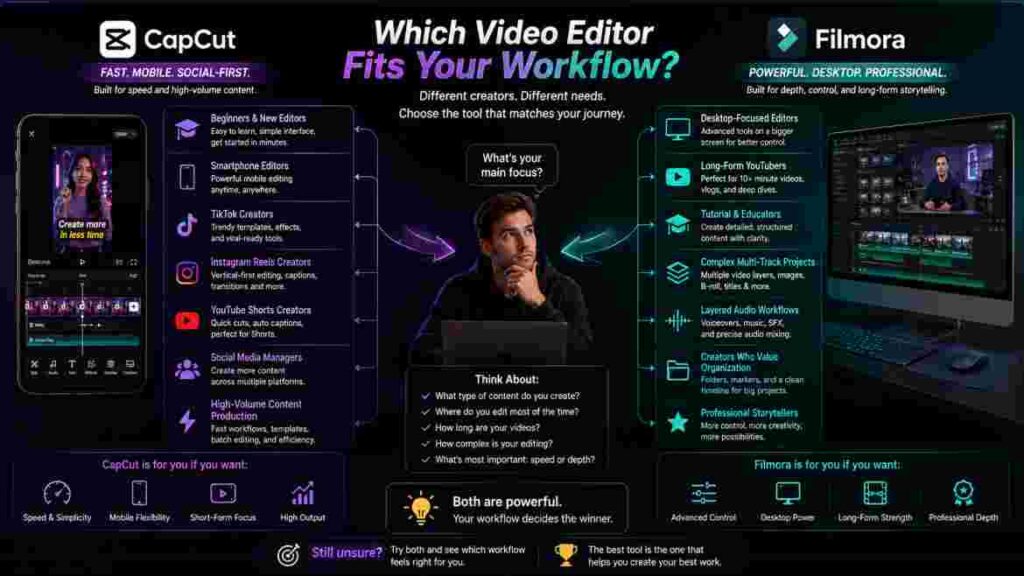
CapCut is the stronger overall recommendation for the modern creator who prioritizes speed.
That includes many beginners, TikTok creators, Instagram Reels editors, YouTube Shorts creators, mobile editors, small businesses, social-media managers, and creators producing frequent talking-head or marketing content.
CapCut’s advantage comes from making common creator tasks accessible without limiting users to purely basic editing. Its desktop editor now provides keyframes and graphs, color controls, effects, captions, AI tools, and other features that give creators considerable room to grow.
Filmora is the stronger recommendation when editing becomes primarily a desktop activity and project organization becomes increasingly important.
Long YouTube videos, complicated tutorials, layered educational projects, and other substantial productions can benefit from its more conventional timeline environment.
Best for Beginners: CapCut
CapCut offers the easier path from no editing experience to a useful finished video.
Filmora remains a very good beginner editor, especially for people committed to desktop production.
Best for Mobile: CapCut
This is one of the clearest wins in CapCut vs Filmora.
CapCut’s mobile workflow is central to the platform and fits naturally with creators who record and edit on the same device.
Best for TikTok: CapCut
CapCut’s vertical workflow, captions, effects, templates, and production speed make it the stronger option for most TikTok creators.
Best for Instagram Reels: CapCut
The same advantages apply to Reels.
CapCut makes the typical short-form workflow particularly efficient.
Best for YouTube Shorts: CapCut
Shorts align closely with CapCut’s strengths in vertical composition, captions, text, quick effects, and creator-focused editing.
Best for Long-Form YouTube: Filmora
Filmora receives the advantage when long-form projects become large, layered, and revision-heavy.
CapCut remains perfectly viable for moderately complex YouTube videos.
Best for Traditional Desktop Editing: Filmora
Filmora’s interface and workflow are more naturally aligned with editors who spend long sessions working on desktop timelines.
Best for AI: It Depends
Both platforms now offer broad AI functionality.
The winner depends on the exact tool you use, your plan, available credits, and how frequently the feature enters your workflow.
Best for Value: It Depends
CapCut can deliver exceptional value through speed and cross-platform creator tools.
Filmora can offer excellent value to desktop editors and currently has a perpetual purchase option that may appeal to people who dislike subscriptions.
Overall Winner for Most Social Creators: CapCut
For the typical beginner or intermediate creator publishing social video and streamlined YouTube content, CapCut is our overall recommendation.
Overall Winner for Complex Desktop Projects: Filmora
For someone whose editing work centers on large, long-form desktop projects, Filmora is the better fit.
The most useful conclusion to CapCut vs Filmora is therefore not that one editor defeats the other.
They optimize different parts of the editing experience.
Choose CapCut when reducing production friction matters most.
Choose Filmora when managing production complexity matters most.
Conclusion
The CapCut vs Filmora decision becomes much easier when you stop asking which editor has more features and start asking which one removes more friction from the videos you actually make.
CapCut is the stronger choice for most beginners, mobile editors, TikTok creators, Instagram Reels creators, YouTube Shorts creators, social-media managers, small businesses, and people producing frequent creator content.
Its greatest strength is efficiency.
Common tasks such as captions, vertical formatting, text, effects, keyframes, AI-assisted editing, and social-media production fit naturally into the workflow. At the same time, CapCut Desktop has developed far enough that serious creators can use color tools, keyframes and graphs, effects, captions, and more advanced editing without immediately moving to another application.
Filmora becomes more attractive as the timeline itself becomes the challenge.
Long-form YouTube projects, complicated tutorials, educational videos, layered client work, and other substantial productions benefit from a conventional desktop editing environment where organization is a major part of productivity.
That distinction is more useful than declaring one application universally superior.
If you create a 30-second Reel every day, Filmora’s long-form organizational advantages may provide little value.
If you edit a 45-minute video containing hundreds of media elements, CapCut’s faster social tools may matter much less than Filmora’s desktop structure.
Pricing should be evaluated the same way.
CapCut’s current premium model is subscription-based, with pricing and availability varying by region, device, and promotion. Filmora currently offers subscription plans as well as a perpetual option, although exact terms, AI credits, version entitlements, and assets should be checked before purchasing.
Do not choose based on the longest feature list.
Do not choose based on which editor looks more professional.
Do not switch because another creator told you that serious editors must use a particular application.
Look at your last ten videos.
Consider where you edited them, how long the timelines became, which tools you used repeatedly, what slowed you down, and what you expect to create over the next year.
For high-volume social and creator content, CapCut is our overall recommendation.
For large, desktop-centered projects where timeline organization matters more than social-production speed, Filmora receives the advantage.
That is the practical answer to CapCut vs Filmora: the better editor is the one that lets you spend less time managing software and more time improving the video.