Video editing has changed dramatically over the past few years. Creators who once needed complicated desktop software to produce polished videos can now handle captions, background removal, effects, color adjustments, social-media formatting, and even AI-assisted production inside a single editing environment. CapCut Pro 2026 sits squarely in that changing landscape, promising a faster workflow without requiring every creator to master a traditional professional editing suite.
But paying for an editing subscription is a different decision from downloading a free editor. The real question is not whether CapCut has impressive features. It is whether the paid features solve problems that matter enough to justify an ongoing subscription.
For many active content creators, it can be worthwhile because it combines premium creative assets, advanced editing capabilities, AI-assisted tools, higher-end export options, cloud functionality, and a workflow designed around modern social content. That does not mean everyone needs it. Casual editors who mainly trim clips, add basic text, and export occasional videos may get everything they need from CapCut’s free tools or another lower-cost option.
There is another complication: CapCut has changed its membership structure over time. Pricing, available plans, AI allowances, features, and even the purchasing experience can differ according to region, account, device, platform, and promotion. A price or feature list copied from an older article may therefore give you the wrong impression of what you will actually receive.
This guide approaches CapCut Pro 2026 as a buying decision rather than a feature advertisement. We will examine what the subscription provides, where its strongest advantages lie, how its AI and credit systems affect value, how Free, Standard, and Pro differ, and which types of creators should—and should not—pay for the upgrade.
The goal is simple: by the end, you should know whether CapCut’s premium plan makes sense for your actual editing workflow.
What Is CapCut Pro in 2026?
CapCut Pro is the premium level of CapCut’s video-editing ecosystem. While the free version provides enough core functionality for basic editing, Pro is intended for people who need broader access to premium tools, creative resources, AI-assisted features, storage, and more capable workflows.
That distinction matters because CapCut Pro 2026 is no longer best understood simply as “free CapCut with more effects.” The platform has increasingly developed into an ecosystem that spans mobile, desktop, and web editing while incorporating generative and assistive AI capabilities.
At the basic level, a video editor needs to let you import media, cut unwanted footage, arrange clips, work with audio, add text, adjust visual properties, and export the finished project. CapCut’s free experience already covers many of those fundamentals.
Pro becomes more relevant when your workflow repeatedly hits restrictions.
Perhaps you find a premium transition that fits your project but cannot use it without upgrading. Maybe you need more sophisticated AI processing. You might work between a laptop and phone and value greater cloud capacity. You may create content commercially and need access to appropriate premium resources. Or you may simply produce enough videos that saving several minutes on repetitive editing tasks has meaningful value.
That is where CapCut Pro 2026 should be evaluated: not by asking whether Pro contains more features—it obviously does—but by asking whether those features remove enough friction from your particular workflow.
CapCut Is an Ecosystem, Not Just a Mobile Editor
CapCut became widely known through mobile-first, short-form video editing, but limiting your understanding of the platform to its smartphone app is increasingly inaccurate.
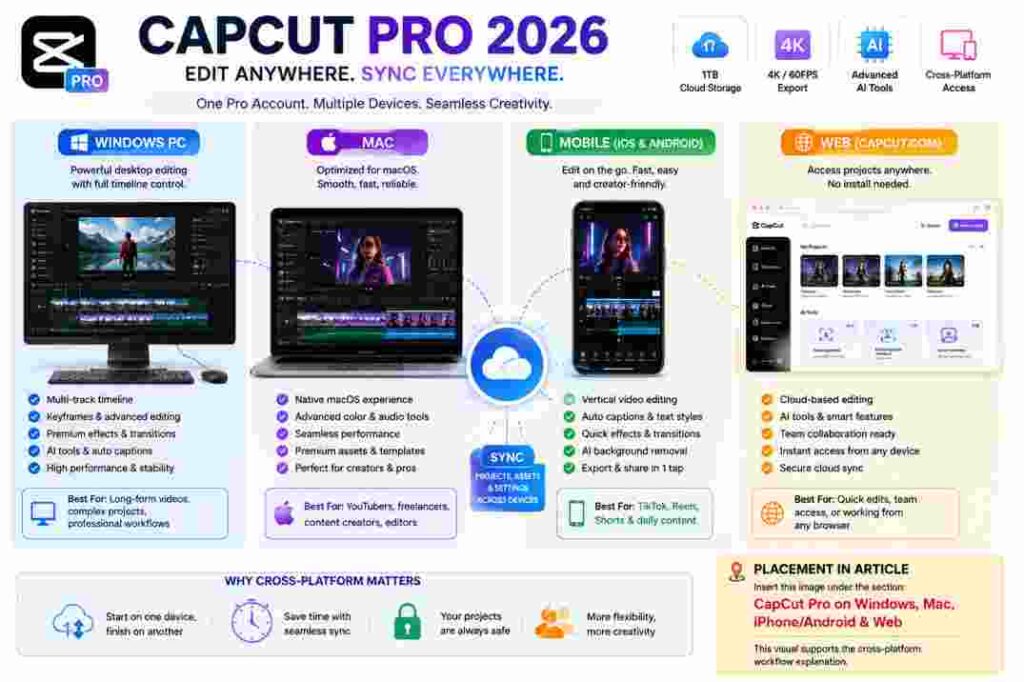
CapCut now spans desktop, mobile, and web environments. This makes CapCut Pro 2026 relevant to several different creator types.
A TikTok creator might perform nearly the entire workflow on a phone. A YouTuber could prefer desktop editing for a longer timeline. A social-media manager may switch between desktop production and mobile publishing. A small marketing team might care more about shared assets, storage, and workflow efficiency.
The value of Pro consequently changes depending on where and how you edit.
Who Is CapCut Pro Designed For?
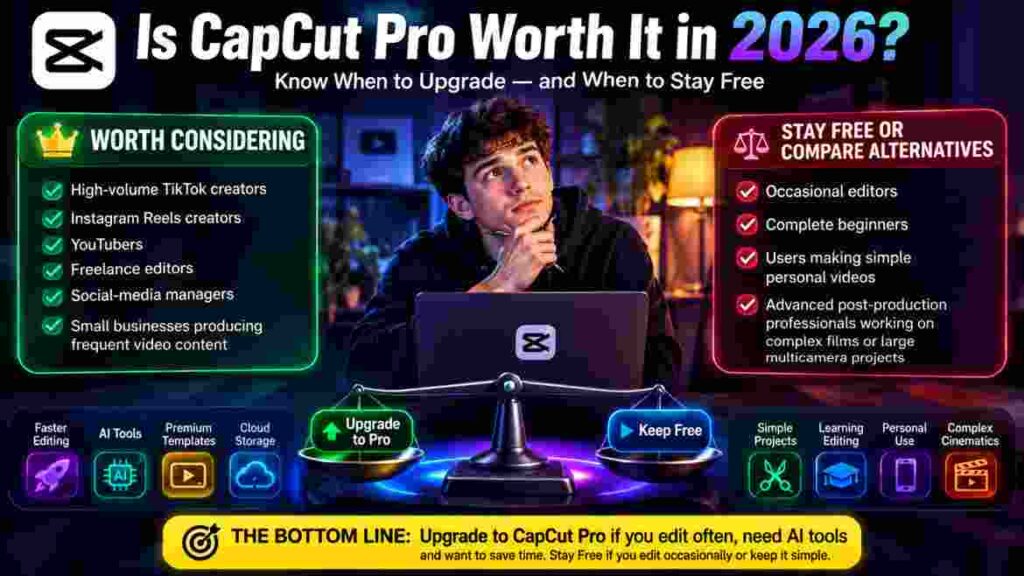
The strongest candidates are creators who edit frequently enough to benefit from premium functionality.
That can include YouTubers, TikTok creators, Instagram Reels creators, freelance editors, social-media managers, marketers, small businesses, educators, coaches, podcasters producing video clips, and creators operating multiple channels.
However, frequency alone is not enough.
Someone making five simple talking-head videos every week might still be satisfied with free tools. Meanwhile, someone producing two sophisticated marketing videos each month could benefit substantially from premium assets and automation.
Think in terms of workflow requirements rather than labels.
Why Older CapCut Pro Information Can Be Misleading
One of the biggest problems with researching CapCut Pro 2026 is that CapCut’s plans have evolved.
Old screenshots, pricing articles, YouTube tutorials, and forum discussions can remain indexed long after subscription structures or individual features have changed. Even current official material warns that prices may vary according to region, platform, taxes, and promotional offers.
This means there is no responsible reason to assume that a price another user sees is necessarily the price you will see.
Always treat the checkout screen associated with your own account and region as the final source for the amount you will actually pay.
The same caution applies to AI allowances and individual tools. AI services are particularly likely to evolve because they have ongoing computational costs and can be tied to credits or usage restrictions.
What’s Different About CapCut Pro 2026?
The most important development is not one flashy effect. It is the broader direction of the product.
Modern video editing increasingly combines conventional timeline editing with automation. Instead of manually performing every repetitive task, creators can use software to accelerate transcription, caption generation, subject isolation, noise cleanup, tracking, content generation, and other operations.
CapCut Pro 2026 reflects that transition.
A Greater Emphasis on AI-Assisted Editing
AI tools are becoming integrated into ordinary editing rather than existing as separate novelty features.
That distinction is important.
Generating an unusual AI image may be interesting, but automatically producing a usable transcript for a 10-minute talking-head video can save far more time for an everyday creator. Similarly, automated subject isolation can remove a tedious manual step even if the final result still requires inspection.
The best way to judge AI features is therefore not by asking, “Is this impressive?”
Ask:
“Does this reliably reduce the amount of work between my raw footage and the finished video?”
If the answer is yes for tools you use repeatedly, CapCut Pro 2026 becomes easier to justify.
More Cloud Capacity for Larger Workflows
CapCut’s current official documentation describes the upgraded Pro offering as including substantially expanded cloud storage, with official help material citing an increase from 100GB to 1TB for the upgraded Pro plan.
Cloud capacity becomes meaningful when you work across devices, maintain multiple active projects, or handle substantial amounts of source media.
It is less valuable if you keep everything locally on one machine.
Storage should therefore be treated as a workflow benefit rather than automatically counted as money saved.
AI Credits Are Becoming Part of the Value Equation
This is one of the most important details to understand.
Paying for Pro does not necessarily mean every AI action becomes unlimited forever. CapCut uses credits for certain AI-powered operations, and official documentation distinguishes those credits from the subscription itself.
That means CapCut Pro 2026 should not be evaluated under the simplistic assumption that “Pro = unlimited everything.”
Some premium editing tools may be unlocked by the subscription, while certain computationally intensive AI operations can consume credits.
If AI is a major reason you are considering Pro, check the current allowance associated with your exact plan before subscribing.
CapCut Pro 2026 Features: What Do You Actually Get?
A long feature list can make almost any software subscription look impressive. The more useful approach is to group features according to the problems they solve.
CapCut Pro 2026 provides its greatest value when multiple premium capabilities work together within a recurring production workflow.
Premium Effects and Visual Treatments
Effects are one of CapCut’s most recognizable strengths.
Modern short-form content often depends on quick visual emphasis: zooms, lighting treatments, blur, motion effects, stylized transitions, overlays, and other devices that help maintain visual energy.
Premium access expands the creative library available to editors.
The advantage is speed. Instead of manually constructing every visual treatment from scratch, you can start with a prebuilt effect and adjust the result to fit your footage.
The disadvantage is equally important: easy access encourages overediting.
Adding premium effects does not automatically make a video look professional. A clean cut at the right moment can be more effective than an elaborate transition. A subtle zoom may support a point better than an aggressive shake effect.
Use the larger library in CapCut Pro 2026 as a toolbox, not a checklist.
Premium Transitions
Transitions help connect shots, but they work best when they support the relationship between those shots.
Creators producing Reels, Shorts, product videos, travel edits, and fast-paced promotional content may find premium transition options particularly useful.
For longer-form YouTube content, restraint usually becomes more important. Excessive transitions can make an otherwise polished video feel amateurish.
A practical rule is to understand the cut first and choose the transition afterward.
“Transitions can improve pacing when they support the cut rather than distract from it. Our guide to CapCut Transitions explains how to choose, time, and refine transitions for more professional results.”
Templates and Ready-Made Creative Resources
Templates can dramatically reduce production time when speed matters more than creating every design element from scratch.
This makes CapCut Pro 2026 attractive to creators who publish frequently.
A social-media manager producing daily content may gain more from templates than a filmmaker who wants every sequence to have an original visual identity.
Templates are especially useful for recurring formats:
weekly tips, promotional announcements, product showcases, quote videos, short educational clips, social-media recaps, event content, and branded series.
The risk is sameness. If you rely on a popular template without meaningful customization, your content can resemble hundreds of other videos.
Treat templates as starting structures rather than finished creative decisions.
Text, Captions, and Typography
Text is central to modern social video.
Many viewers encounter videos without immediately turning on sound, while short-form content often depends on visual captions to maintain attention and clarify speech.
CapCut Pro 2026 benefits creators who use sophisticated caption styling, premium text resources, or automated text workflows regularly.
But good captions depend on more than animation.
They should be readable, correctly timed, visually consistent, and accurate.
An animated caption that misrepresents what the speaker said is worse than a simple caption that is correct.
Auto Captions
Automatic transcription can eliminate a substantial amount of manual typing.
However, creators should still review generated captions before publishing.
Names, technical terminology, accents, brand names, homophones, background noise, overlapping speakers, and unclear audio can all cause transcription errors.
For professional content, AI-generated captions should be treated as a first draft.
Background Removal and Subject Isolation
Background removal is another example of automation solving a real production problem.
Traditionally, separating a person or object from a background could require a green screen or significant masking work. AI-assisted subject isolation can accelerate that process.
In CapCut Pro 2026, tools in this category can be useful for talking-head content, product demonstrations, thumbnails, promotional videos, tutorials, reaction videos, and vertical social content.
Still, automatic cutouts are not perfect.
Hair, motion blur, transparent objects, fine edges, low contrast, and complex backgrounds can expose errors.
Always inspect important cutouts at full size before export.
Audio Enhancement and Voice Tools
Poor audio can make strong visuals difficult to watch.
Creators often focus heavily on image quality while overlooking background noise, inconsistent loudness, harsh recordings, or competing music.
CapCut offers tools intended to make audio handling more accessible, and paid functionality can contribute to a faster cleanup workflow.
For creators evaluating CapCut Pro 2026, audio tools are particularly valuable when the same problems occur repeatedly.
A podcaster creating clips every week, for example, can benefit more from efficient voice processing than someone editing silent aesthetic montages.
AI audio processing should nevertheless be used carefully. Aggressive noise reduction can make voices sound unnatural, metallic, or thin.
The objective is intelligibility and consistency—not processing for its own sake.
Advanced Editing Tools
CapCut’s appeal is not limited to one-click effects.
More advanced projects can involve keyframes, masks, speed changes, tracking, layered footage, overlays, detailed color work, audio layers, and complex timelines.
CapCut Pro 2026 becomes more compelling when these capabilities are combined with premium resources and automation.
The important question is how complex your projects become.
For a 30-second Reel with captions, music, B-roll, and several effects, CapCut can feel extremely efficient.
For a two-hour documentary with extensive media organization, complex audio mixing, multicamera requirements, sophisticated color management, and demanding collaboration, a traditional professional nonlinear editor may provide a more appropriate environment.
Pro does not change CapCut’s fundamental design philosophy.
It expands what you can do within that philosophy.
Cloud Storage and Cross-Device Work
Cloud functionality can be one of the least exciting features on a marketing page and one of the most useful features in real life.
Imagine beginning a project on desktop, reviewing material from another device, maintaining media for several clients, or needing access to projects while traveling.
In those situations, the cloud component of CapCut Pro 2026 can matter considerably.
But cloud storage should not replace a proper backup strategy.
Important client or business projects should have independent copies. Cloud synchronization is useful, but no single service should be the only location where irreplaceable work exists.
Export Quality and 4K
CapCut’s official help documentation describes Pro as providing access to 4K/60fps export, alongside other premium capabilities.
This sounds straightforward, but export requirements depend on your destination.
A creator posting ordinary short-form videos may not always need 4K. A YouTuber recording high-resolution footage, a business producing display content, or a creator who wants greater flexibility for reframing may care much more.
CapCut Pro 2026 therefore should not be purchased merely because “4K sounds professional.”
Ask whether your source footage, delivery platform, storage, processing power, and audience actually benefit from it.
Higher resolution also means larger files and potentially longer exports.
Premium Stock Resources
Stock assets can reduce the need to search across multiple services for music, effects, fonts, visual elements, or other resources.
CapCut’s official comparison material highlights a wider premium resource library as one of Pro’s advantages.
For high-volume creators, this convenience can be meaningful.
However, always check the licensing terms that apply to the specific asset and intended use, particularly for advertising, client work, business content, monetized publishing, or distribution outside CapCut.
Never assume “available inside an editor” automatically means “unrestricted for every commercial purpose.”
CapCut Pro AI Features in 2026
AI is one of the biggest reasons CapCut Pro 2026 deserves a separate evaluation from older versions of the software.
The important distinction is between AI that assists editing and AI that generates new material.
Both can be useful, but they solve different problems.
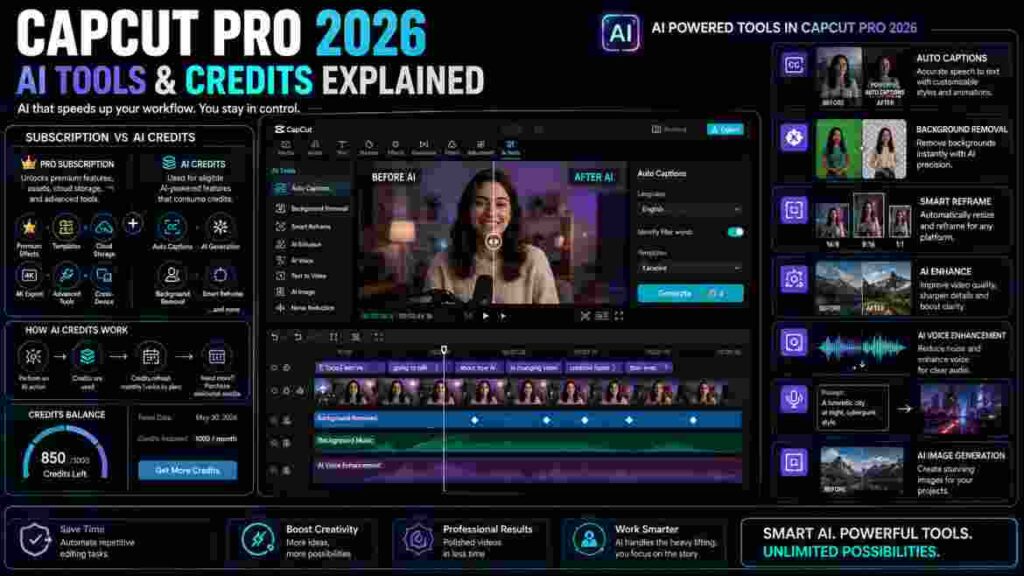
Automatic captioning is one of the clearest examples of AI reducing repetitive editing work, especially for creators publishing several videos each week. Our guide to CapCut Auto Captions explains how the feature works and how to improve caption accuracy
AI That Saves Editing Time
Some of the most valuable AI capabilities are not necessarily the most visually dramatic.
Tools that can accelerate captions, cleanup, subject isolation, tracking, reframing, or repetitive adjustments may deliver more everyday value than spectacular generative demonstrations.
For a creator publishing several times per week, saving ten minutes on a task repeated across dozens of videos can matter.
This is where CapCut Pro 2026 can become a productivity purchase rather than simply a creative purchase.
Generative AI Tools
Generative tools can assist with images, video elements, scripts, voices, avatars, and other content depending on what is available to your account and platform.
These tools can be useful for ideation and production, but generated material should be reviewed carefully.
Look for:
incorrect text, visual artifacts, unnatural movement, inconsistent faces, anatomical errors, misleading imagery, factual inaccuracies, pronunciation problems, and brand inconsistencies.
AI generation can accelerate creation without eliminating editorial responsibility.
Understanding CapCut Credits
CapCut’s official help center describes credits as a virtual currency used for eligible AI-powered operations.
This is critical when calculating the real value of CapCut Pro 2026.
A subscription and AI credits are related, but they are not identical.
Official CapCut documentation states that Pro subscriptions can include subscription credits, while separate purchased credits can also exist. CapCut also explicitly states that credits cannot be used to purchase the Pro subscription itself.
In practical terms, you may pay for Pro and still encounter credit consumption when using certain advanced AI services.
“If AI tools are an important reason for upgrading, review CapCut’s official explanation of AI credits to understand how credits are obtained and consumed.”
Subscription Credits vs Purchased Credits
The details of credit validity and allocation can change, so check your account rather than relying on an old screenshot.
As a general conceptual distinction, subscription credits are connected to an active subscription or billing cycle, whereas separately purchased credits operate under their own terms.
Before buying CapCut Pro 2026 primarily for AI, check:
- Which AI tools you actually need.
- Whether those tools consume credits.
- How many credits your selected plan includes.
- How often the allowance refreshes.
- What happens to unused credits.
- Whether additional credits can be purchased in your region and platform.
- How much your normal workflow is likely to consume.
This prevents an unpleasant situation where you subscribe expecting unlimited AI generation and discover that your heaviest-use feature has a separate consumption model.
AI Should Accelerate Judgment, Not Replace It
The best AI workflow still includes a human quality-control stage.
For captions, verify language.
For background removal, inspect edges.
For generated visuals, inspect anatomy and text.
For audio cleanup, listen for artifacts.
For scripts, verify facts.
For automatically assembled content, check pacing and narrative logic.
CapCut Pro 2026 can reduce manual labor, but professional results still depend on editorial decisions.
CapCut Pro Price in 2026
Price is one of the most searched—and most easily mishandled—parts of this topic.
You may see different numbers on different websites, devices, or accounts.
CapCut’s official documentation explicitly says Pro pricing can vary according to region, device, and available promotions. Its official Standard-versus-Pro resource has cited US pricing around $19.99 per month and $179.99 annually for individual Pro users, but you should not treat those figures as a guaranteed universal checkout price.
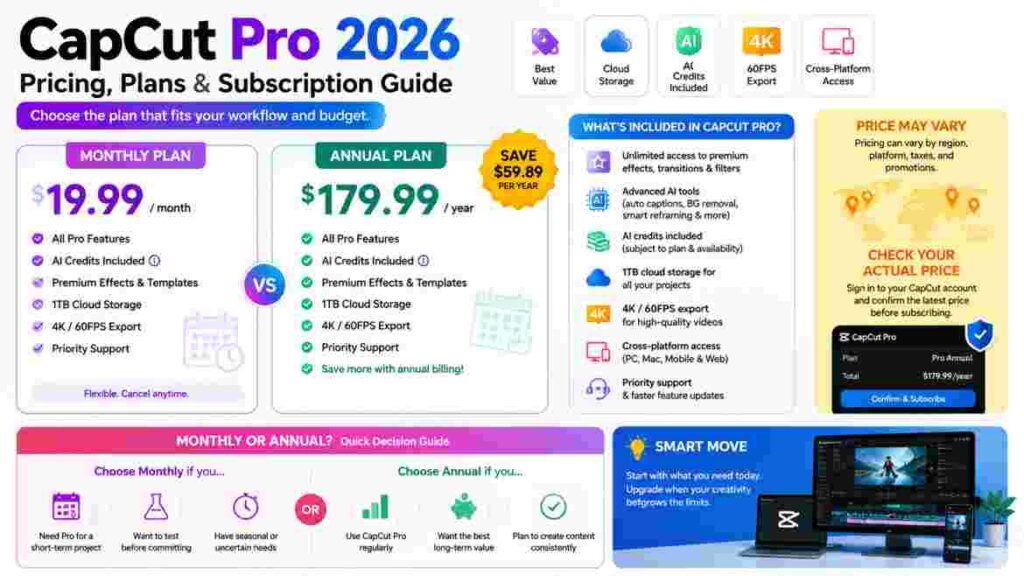
That distinction is essential when discussing CapCut Pro 2026.
Monthly Subscription
Monthly billing gives you flexibility.
It can make sense when you:
need Pro for a temporary project, are testing the software seriously for the first time, have seasonal editing requirements, are uncertain whether premium tools will become part of your workflow, or do not want a long commitment.
The downside is usually higher effective cost if you remain subscribed throughout the year.
Annual Subscription
Annual billing is aimed at users who expect to use Pro consistently.
If the annual offer available to you costs less than paying the monthly rate for twelve consecutive months, the savings can be meaningful.
But paying annually only makes sense when you are reasonably confident you will continue using the service.
Do not buy a year merely because the monthly equivalent looks cheaper.
Unused software is not a bargain.
Why Prices Can Differ
Several factors can affect what you see when purchasing CapCut Pro 2026:
region, local currency, taxes, platform, mobile app-store billing, promotional discounts, account eligibility, subscription history, plan availability, and membership changes.
This is why a responsible pricing guide should provide context rather than promise one permanent number.
How to Check Your Actual Price
The safest method is straightforward.
Sign into your own CapCut account, open the upgrade or subscription area, select the relevant plan, and review the current price and renewal terms before confirming payment.
CapCut’s official help documentation recommends checking current pricing directly through CapCut Web, desktop, or the mobile app.
If the price shown there differs from an article you read, trust the current checkout information associated with your account.
Monthly vs Annual: Which Is Better?
Choose monthly when flexibility matters more than the lowest long-term effective cost.
Choose annual when you already use CapCut regularly and have confirmed that the annual plan provides worthwhile savings.
For a new creator who has never tested premium functionality, one month can be a sensible evaluation period.
For an established creator publishing every week, annual billing may make more economic sense.
The best CapCut Pro 2026 plan is therefore not necessarily the cheapest plan. It is the billing structure that matches your expected usage.
Because subscription prices and available offers can change by region, platform, taxes, and promotions, check the official CapCut pricing information before subscribing.
CapCut Free vs Standard vs Pro in 2026
CapCut’s membership structure deserves attention because choosing between plans is no longer always a simple Free-versus-Pro decision.
CapCut currently documents Standard and Pro as serving different levels of creator need.
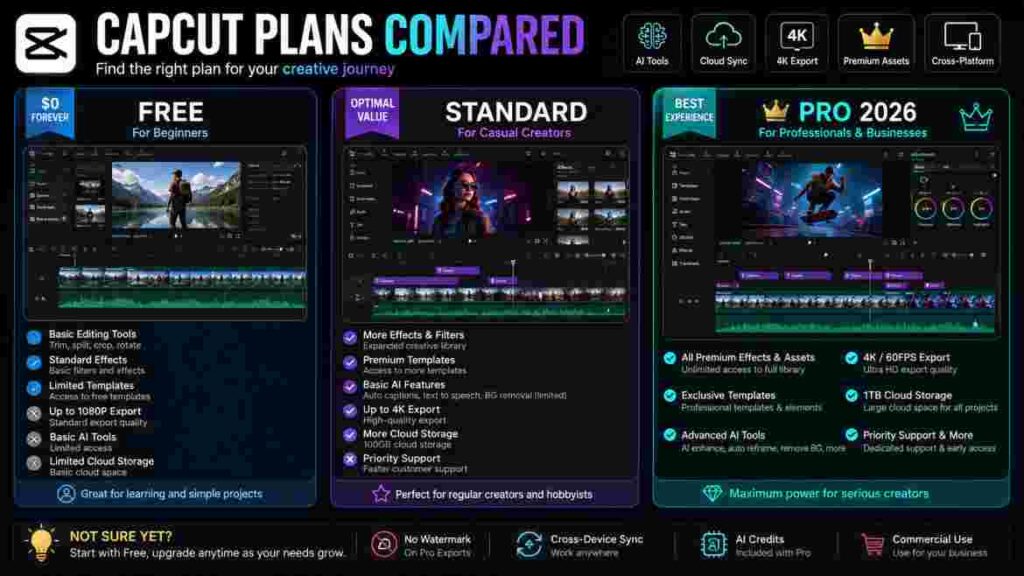
CapCut Free
Free remains suitable for basic editing.
A beginner can learn core timeline skills, cut footage, build straightforward social videos, experiment with text and effects, and understand whether CapCut’s workflow feels comfortable before paying.
That is important.
You do not need CapCut Pro 2026 simply to begin learning video editing.
The free version can be the smarter choice while you develop basic skills.
CapCut Standard
According to CapCut’s current help material, Standard is positioned toward casual creators who want more than the free experience without necessarily needing the full professional-oriented package.
Official documentation describes Standard as focusing more heavily on straightforward/mobile editing, essential tools, basic AI capabilities, and a smaller cloud-storage allocation than Pro.
Availability and exact entitlements can vary, so verify the plan offered to your account.
CapCut Pro
Pro is designed for users with more demanding requirements.
CapCut’s official materials associate Pro with broader premium resources, advanced AI capabilities, larger cloud storage, cross-device workflows, and professional or commercial-oriented use cases.
That makes CapCut Pro 2026 the logical tier to investigate when editing is part of your job, business, or serious content-production routine.
Free vs Standard vs Pro: Practical Comparison
| Area | Free | Standard | Pro |
|---|---|---|---|
| Best for | Beginners and occasional editors | Casual regular creators | Frequent and advanced creators |
| Core editing | Yes | Yes | Yes |
| Premium resources | Limited | Expanded | Broadest access |
| Advanced AI | Limited | Some access | Greater access, subject to plan/credits |
| Cloud capacity | Limited/varies | More | Significantly larger on current upgraded plan |
| Cross-device workflow | Basic/varies | More limited | Stronger focus |
| Professional workflow | Possible for simple work | Moderate | Best CapCut tier for demanding work |
| Cost | Free | Paid | Higher paid tier |
This table is intentionally conceptual rather than promising permanent feature entitlements. CapCut changes its membership offerings, and account-level availability should always be checked before purchase.
Is CapCut Pro 2026 Worth Paying For?
This is the central question.
The answer depends less on how many features CapCut advertises and more on how many of those features replace work you already perform.
Suppose you publish four short videos every week. Each requires captions, background cleanup, premium effects, B-roll, text animation, audio enhancement, and export. If premium tools reduce production time on every project, the subscription has recurring utility.
Now imagine you edit one family video every two months.
The same feature set may be impressive but financially unnecessary.
Calculate Value Through Time Saved
One useful way to evaluate CapCut Pro 2026 is to estimate time saved.
Do not use unrealistic assumptions.
Track an actual project.
Measure how long you spend on tasks that a premium tool could accelerate. Multiply the realistic saving across your monthly workload.
If a feature saves five minutes once per month, it probably should not drive your subscription decision.
If several features collectively save hours every month, the calculation changes.
Calculate Value Through Replaced Services
Another consideration is whether CapCut reduces your dependence on separate tools or asset subscriptions.
For example, you may currently use one service for captions, another for background removal, another for stock resources, and another for certain AI tasks.
If CapCut Pro 2026 genuinely replaces paid services you already use, the subscription can create direct financial value.
But only count a service as “replaced” after confirming CapCut meets your quality and licensing requirements.
Calculate Value Through Output
For commercial creators, the final calculation can involve revenue.
If faster editing lets you serve more clients, publish more consistently, test more marketing creatives, or reduce outsourced production costs, software can be valuable even if the subscription is not cheap.
This does not mean CapCut automatically makes you money.
Software creates leverage only when there is already a productive workflow around it.
CapCut Pro on Windows
Desktop editing changes the CapCut experience substantially.
A larger display, keyboard shortcuts, mouse precision, and a wider timeline can make complex projects easier to manage than on a phone.
For creators producing YouTube videos, tutorials, marketing content, or layered social projects, CapCut Pro 2026 on Windows can offer a useful middle ground between mobile-first simplicity and a more complicated professional NLE.
When Windows Makes More Sense
Desktop is particularly useful when you work with:
multiple video layers, substantial B-roll, long voiceovers, several audio tracks, detailed keyframes, large source files, repeated revisions, or longer projects.
A desktop environment also makes file management easier when footage comes from cameras, screen recordings, microphones, or external drives.
Hardware Still Matters
A Pro subscription cannot compensate for weak hardware.
High-resolution footage, AI processing, many effects, and complex timelines can place substantial demands on a computer.
If CapCut becomes slow, investigate project complexity, source codecs, available storage, RAM, GPU capability, background processes, and proxy options where applicable.
Do not assume upgrading to CapCut Pro 2026 will automatically make an underpowered computer faster.
CapCut Pro on Mac
Mac users receive many of the same workflow advantages associated with desktop editing: larger timelines, easier file management, keyboard-and-mouse precision, and a workspace better suited to complex projects.
The question is whether CapCut or another Mac editor better matches your goals.
CapCut Pro 2026 can be particularly attractive to creators who value fast social-media workflows and do not want the learning curve associated with more traditional editing software.
Creators deeply invested in sophisticated professional post-production may eventually prefer tools with more extensive media management, color, audio, multicamera, plugin, or finishing ecosystems.
There is no contradiction here.
CapCut can be excellent for one type of professional workflow without being the ideal editor for every professional workflow.
CapCut Pro on iPhone and Android
Mobile remains one of CapCut’s strongest environments.
The ability to record footage, edit it, caption it, apply effects, format it vertically, and publish without transferring files to a computer is extremely valuable for social creators.
CapCut Pro 2026 on mobile makes the most sense when speed and convenience are central to your production process.
Mobile Advantages
Mobile editing works especially well for:
TikTok videos, Instagram Reels, YouTube Shorts, travel content, quick product demonstrations, event clips, creator updates, talking-head videos, and rapid social publishing.
Touch controls can make simple operations intuitive.
Mobile Limitations
A phone screen also imposes practical limits.
Long timelines, many layers, detailed audio work, precise keyframing, large media libraries, and extended editing sessions can become uncomfortable.
The issue is not whether mobile CapCut is capable.
It is whether the interface remains efficient as project complexity increases.
For demanding work, CapCut Pro 2026 often makes more sense as a cross-device ecosystem than as a mobile-only tool.
CapCut Pro Web
Browser-based editing can be useful when you want to work without relying entirely on a locally installed application.
It can also play an important role in account management and AI workflows.
CapCut’s current documentation indicates that certain credit-related capabilities and purchasing flows differ by platform, making web access relevant even for people who primarily edit elsewhere.
When evaluating CapCut Pro 2026, do not assume that mobile, desktop, and web expose every feature in exactly the same way.
Check the environment where you actually intend to perform the task.
Is CapCut Pro Good for YouTube?
Yes, CapCut can be a strong editor for many YouTube workflows, but “YouTube editing” covers a huge range of project types.
A five-minute talking-head tutorial and a 90-minute documentary are both YouTube videos. Their editing requirements are completely different.
YouTube Shorts
CapCut Pro 2026 is particularly well suited to Shorts.
The platform’s heritage in vertical social content aligns naturally with the requirements of short-form production:
fast cutting, animated captions, effects, music, overlays, reframing, text, templates, and quick exports.
Creators publishing Shorts frequently may see substantial value from premium assets and time-saving automation.
Talking-Head YouTube Videos
CapCut can also work well for ordinary talking-head videos.
A typical project might contain:
A-roll, B-roll, captions, background music, sound effects, screenshots, zooms, graphics, basic color correction, and transitions.
CapCut can handle that workflow effectively.
Tutorials and Educational Videos
Screen recordings, voiceovers, callouts, captions, zooms, and overlays are common in tutorials.
CapCut Pro 2026 can be useful when your tutorial style depends on frequent text animation and visual emphasis.
However, longer educational projects may expose timeline-management limitations sooner than short social videos.
Long-Form and Complex YouTube Projects
This is where the decision becomes more nuanced.
If your projects involve hundreds of media files, advanced color workflows, sophisticated audio mixing, extensive multicamera editing, complex project organization, or collaborative post-production pipelines, software such as Adobe Premiere Pro, DaVinci Resolve, or Final Cut Pro may deserve consideration.
CapCut can edit long videos.
The question is whether it remains the most efficient environment for the complexity of your long videos.
Is CapCut Pro Good for TikTok?
TikTok is one of the strongest use cases for CapCut Pro 2026.
CapCut’s editing philosophy aligns closely with the requirements of high-volume short-form content.
You can move quickly from raw footage to captions, effects, music, text, B-roll, and a finished vertical export.
That speed matters because short-form creators often need consistency and volume.
A creator producing one polished video every month evaluates editing software differently from someone publishing two or three pieces of content per day.
Speed Is the Real Advantage
The strongest benefit is not that CapCut contains effects unavailable anywhere else.
Many professional editors can recreate similar visuals.
The difference is how quickly a creator can reach the result.
CapCut Pro 2026 packages many social-first tools into an accessible workflow, reducing the number of steps required for common edits.
For TikTok creators, that can be more valuable than having the deepest possible technical control.
Is CapCut Pro Good for Instagram Reels?
The same logic applies to Reels.
Creators frequently need vertical formatting, readable captions, quick cuts, music synchronization, product callouts, overlays, visual effects, and strong first-second hooks.
CapCut Pro 2026 supports that style of production well.
Businesses can also benefit when they need recurring Reels for promotions, educational content, behind-the-scenes material, testimonials, product demonstrations, or social campaigns.
The biggest mistake is allowing templates and effects to replace brand consistency.
Establish your own typography, caption treatment, color approach, pacing, and visual rules so your content remains recognizable.
Is CapCut Pro Suitable for Professional Video Editing?
Yes—with an important qualification.
“Professional” describes how the work is used, not which software created it.
If a freelancer earns money producing short-form social videos in CapCut, that is professional work.
If a marketing agency uses CapCut to produce paid social creatives, that is professional work.
If a business uses CapCut Pro 2026 to create successful product demonstrations, the software is being used professionally.
But professional video editing also includes workflows that demand capabilities beyond CapCut’s strongest areas.
Where CapCut Works Professionally
CapCut is particularly strong for:
social-media agencies, short-form freelancers, creator businesses, marketing teams, small businesses, educational creators, YouTubers with straightforward workflows, promotional content, rapid ad variations, and high-volume vertical video.
Where More Specialized Software May Be Better
More traditional professional editors may be preferable for:
feature-length projects, complex documentaries, demanding multicamera productions, high-end color finishing, extensive audio post-production, advanced media management, elaborate plugin pipelines, broadcast workflows, or large post-production teams.
This does not make CapCut Pro 2026 “unprofessional.”
It means tools have different design priorities.
CapCut Pro for Freelancers
Freelancers should evaluate software primarily through client requirements and productivity.
If your clients want TikTok videos, Shorts, Reels, podcast clips, creator content, product demonstrations, or social advertisements, CapCut can be extremely practical.
CapCut Pro 2026 may reduce repetitive production work while giving you access to a broad range of visual treatments.
But freelancers need to think beyond editing speed.
Consider:
asset licensing, project backup, client confidentiality, file handoff, revision management, archive requirements, brand consistency, export specifications, and whether clients need editable project files in another application.
The right editor is the one that fits the entire service you sell.
CapCut Pro for Social-Media Managers
Social-media managers often care about throughput more than cinematic complexity.
They may need to transform one recording into multiple pieces of content, caption videos, resize footage, add branding, create platform-specific versions, and respond quickly to trends.
That makes CapCut Pro 2026 particularly relevant.
Templates and automation can help establish repeatable production systems.
For example:
one long interview can become several vertical clips; each clip can receive captions; brand elements can be applied consistently; multiple hook variations can be tested; and finished assets can be exported for different channels.
The productivity advantage grows with repetition.
CapCut Pro for Small Businesses
Small businesses often face a difficult choice.
They need video, but they may not have enough budget or workload to employ a dedicated editor.
CapCut lowers the barrier.
A business owner or marketer can use CapCut Pro 2026 for product videos, service explanations, customer education, event promotion, behind-the-scenes content, recruiting clips, social advertisements, and short tutorials.
However, buying Pro does not automatically create a marketing strategy.
The software can improve production efficiency. It cannot determine your audience, offer, positioning, message, or distribution plan.
Good editing amplifies a clear message.
It rarely rescues a weak one.
CapCut Pro Pros and Cons
No serious commercial review should discuss only advantages.
CapCut Pro 2026 offers a compelling combination of accessibility and advanced functionality, but it also has limitations.
Advantages
Fast learning curve
CapCut is generally easier for beginners to approach than many traditional professional editing environments.
Strong short-form workflow
Vertical content, captions, effects, text, and rapid editing are core strengths.
Cross-platform ecosystem
The ability to work across mobile, desktop, and web can suit modern creator workflows.
AI-assisted productivity
Automation can reduce repetitive manual work.
Premium creative resources
Effects, templates, fonts, transitions, and other assets can accelerate production.
Cloud functionality
Expanded storage and synchronization can help creators working across devices.
Good fit for high-volume creators
The more frequently you repeat the same production tasks, the more valuable workflow acceleration can become.
Disadvantages
Subscription cost
A recurring payment is difficult to justify if you rarely use premium tools.
Features and pricing can change
What is included today may not perfectly match an older tutorial or future plan.
AI may involve credits
A Pro subscription should not automatically be interpreted as unlimited use of every computational AI tool.
Platform differences
Features, account controls, and purchasing workflows may differ across mobile, web, and desktop.
Potential for overediting
Easy effects and templates can encourage creators to prioritize novelty over clarity.
Not ideal for every advanced workflow
Large, complex post-production environments may benefit from a more traditional NLE.
Common Misconceptions About CapCut Pro 2026
Understanding what Pro does not guarantee is as important as knowing what it includes.
“Pro Makes Every Video Professional”
It does not.
Professional-looking video depends on footage quality, lighting, sound, framing, pacing, storytelling, color, typography, restraint, and editorial judgment.
Premium tools increase your options.
They do not make decisions for you.
“Every Pro Feature Is Unlimited”
Do not assume this.
Certain AI services can use credits or other usage systems.
Always inspect the current terms associated with the specific feature.
“Pro Is Necessary for Beginners”
Usually not.
Beginners often benefit from learning the fundamentals with free tools before upgrading.
If you cannot yet explain why you need a premium feature, you probably do not need to rush into paying for it.
“CapCut Pro Replaces Every Other Editor”
No editor is best for every workflow.
CapCut Pro 2026 may replace other software for a social creator while remaining unsuitable as the sole post-production environment for another editor.
“The Price Online Is the Price I Will Pay”
Not necessarily.
Regional pricing, platform billing, promotions, taxes, and membership changes can create differences.
Check your account.
Who Should Upgrade to CapCut Pro?
Several groups have a stronger case for upgrading than others.
High-Volume Short-Form Creators
If you publish frequently and repeatedly use premium effects, captions, templates, AI tools, and other paid resources, CapCut Pro 2026 can reduce production friction.
Time saved compounds across a large publishing schedule.
YouTubers Who Use CapCut as Their Main Editor
If CapCut already handles most of your YouTube workflow and premium restrictions repeatedly interrupt your editing, upgrading may be logical.
The decision is particularly strong when you also create Shorts.
Freelancers Producing Social Content
When editing speed affects billable capacity, productivity tools have direct commercial value.
CapCut Pro 2026 can make sense when it allows you to complete client deliverables more efficiently without compromising quality.
Social-Media Teams
Teams producing a steady flow of content can benefit from broader resources, storage, and streamlined production.
Check whether an individual Pro subscription or a team-oriented offering better matches your needs.
Small Businesses With Recurring Video Needs
Businesses producing content weekly can often justify a paid editor more easily than businesses making a handful of videos each year.
Who Should Stay With CapCut Free or Standard?
Not upgrading can be the correct decision.
Occasional Editors
If you edit a few times per year, paying continuously for CapCut Pro 2026 may provide poor value.
Use the free version until you encounter a genuine limitation.
Beginners Learning the Basics
Learn cutting, pacing, audio, text, composition, and basic color adjustment first.
Premium effects will not compensate for weak fundamentals.
Creators Who Rarely Touch Premium Features
If most of your projects can already be completed comfortably without Pro, upgrading simply to have more options is difficult to justify.
Users Who Need One Specialized Feature
If your only reason for upgrading is one feature, compare alternatives.
A dedicated tool may solve that single problem more economically.
Editors Who Need Advanced Post-Production Infrastructure
If your workflow depends on capabilities better served by a traditional professional editor, investing your time and money there may be more sensible.
Is CapCut Pro 2026 Worth It for Beginners?
For most complete beginners, not immediately.
Start free.
Create several real projects.
Learn where your workflow becomes frustrating.
Then evaluate whether Pro solves those specific frustrations.
This approach has two advantages.
First, you avoid paying for features you do not understand.
Second, you can evaluate CapCut Pro 2026 against actual needs rather than marketing claims.
A beginner who quickly moves into daily content production may outgrow free limitations relatively fast.
Another beginner making occasional personal videos may never need Pro.
Both outcomes are reasonable.
Is CapCut Pro Worth It for YouTubers?
For many YouTubers, yes—especially creators producing straightforward talking-head videos, tutorials, Shorts, commentary, educational content, or social-first videos.
CapCut Pro 2026 is strongest when the YouTube workflow benefits from quick captions, visual effects, text, B-roll, automation, and cross-platform editing.
It becomes less obviously ideal as project complexity increases.
Long-form creators should consider:
timeline organization, media management, audio requirements, color workflow, multicamera needs, collaboration, project archiving, plugin support, and hardware performance.
If CapCut handles those requirements comfortably, there is no rule saying you must switch.
If it becomes the bottleneck, use a tool designed for the workflow you are growing into.
Is CapCut Pro Worth It for TikTok and Reels?
This is arguably one of the easiest cases to make.
Short-form creators are working directly in CapCut’s strongest territory.
The combination of speed, effects, captions, templates, mobile access, and social-oriented editing makes CapCut Pro 2026 particularly attractive for high-volume TikTok and Reels production.
The key phrase is “high-volume.”
If you publish one Reel every few months, free tools may still be sufficient.
If you publish every day, small efficiency gains become much more important.
Is CapCut Pro Worth It for Businesses?
Potentially, but the calculation should be business-oriented.
Do not ask only whether the features are enjoyable.
Ask whether CapCut Pro 2026 helps your team:
produce content faster, reduce outsourcing, maintain consistency, create more advertising variations, publish more frequently, respond to trends faster, or simplify an existing multi-tool workflow.
If it does, the subscription may be inexpensive relative to the value created.
If nobody on the team actually uses the advanced features, it is another unused software expense.
Is CapCut Pro Worth It for Professional Editors?
It depends on what you edit professionally.
A social-media editor can make CapCut Pro 2026 a central professional tool.
A feature-film colorist probably will not.
A freelance Shorts editor may find CapCut more efficient than a larger editing suite for daily work.
A documentary editor managing hundreds of hours of footage may strongly prefer another environment.
The term “professional” is too broad to settle the question.
Define your deliverables first.
CapCut Pro vs Traditional Professional Editors
CapCut’s biggest competitive advantage is accessibility and speed.
Traditional editors often prioritize depth, control, interoperability, media management, extensibility, and complex post-production.
That creates different strengths.
When CapCut Wins
CapCut is often the more convenient choice for:
fast social content, beginner-friendly editing, vertical video, template-based production, quick captions, mobile editing, creator workflows, and rapid turnaround.
When Traditional NLEs Win
More established professional editors often become preferable for:
large projects, deep color workflows, complex audio, multicamera editing, advanced media management, specialized plugins, professional interchange, and demanding post-production pipelines.
Choosing CapCut Pro 2026 does not require declaring it universally better.
Choose based on the work.
Common CapCut Pro Problems and How to Handle Them
Even paid software can create frustrating situations.
A Pro Feature Still Appears Locked
First confirm that you are signed into the correct account.
Creators sometimes purchase a subscription through one login method and later access CapCut through another account.
Check subscription status and restart or refresh the application where appropriate.
If the problem persists, use CapCut’s official support channels rather than attempting unofficial workarounds.
Your Subscription Is Not Showing on Another Device
Confirm that the same CapCut account is being used on both devices.
Subscription synchronization depends on account identity.
Platform differences can also affect where particular functions appear.
AI Tool Says You Need Credits
This does not necessarily mean your Pro subscription is broken.
As explained earlier, CapCut Pro 2026 and AI credits are separate concepts even though subscriptions can include credit allowances.
Check your credit balance and the cost of the AI operation.
A Feature Exists on One Device but Not Another
CapCut’s mobile, desktop, and web environments do not always expose identical capabilities.
Update the application first.
Then verify whether the feature is supported on your platform, account, or region.
Do not assume every tutorial applies universally.
Export Is Slow
Slow export can result from high-resolution footage, effects, AI processing, complex layers, source codecs, hardware limitations, storage performance, or background system load.
A paid subscription does not remove hardware constraints.
Simplifying the project, updating drivers/software, freeing storage, or using a more capable machine may help depending on the cause.
CapCut Becomes Laggy on a Large Project
Large projects can stress both software and hardware.
Break extremely complicated work into manageable sections when appropriate, reduce unnecessary effects, keep adequate free storage, close resource-heavy background applications, and consider whether the project has outgrown CapCut’s most comfortable workflow.
Seven Things to Check Before Buying CapCut Pro 2026
This is the section worth reading twice before entering payment details.
1. Check Your Actual Checkout Price
Do not purchase based on a price quoted in an old article.
Sign into CapCut and inspect the current plan available to your account.
Confirm currency, taxes, billing frequency, promotional conditions, and renewal price.
2. Identify the Features You Actually Need
Write down the premium features causing friction in your current workflow.
If you cannot identify any, keep using free tools.
Buying CapCut Pro 2026 because it contains “more features” is weaker reasoning than buying it because three specific tools save you time every week.
3. Check AI Credit Requirements
If AI is important to you, investigate the credit model before subscribing.
Determine which features consume credits and what allowance comes with your current offer.
4. Confirm Platform Availability
A feature demonstrated on desktop may not behave identically on mobile.
A web-based AI capability may have different controls from the installed application.
Verify the platform you actually use.
5. Check Export Requirements
Determine whether you genuinely need 4K/60fps or other premium export capabilities.
Match export settings to your source footage and publishing destination.
6. Review Asset Licensing
If you produce client, business, advertising, or monetized content, understand the terms attached to the assets you use.
Do not assume every resource has identical commercial rights.
7. Understand Renewal and Cancellation
Before purchasing CapCut Pro 2026, check whether your plan renews automatically, the renewal amount, billing cycle, and cancellation procedure.
A subscription should never surprise you.
How to Decide in Five Minutes
You do not need a complicated spreadsheet.
Answer five questions.
Do you edit at least weekly?
If no, free is probably sufficient unless you have specialized requirements.
Do premium restrictions repeatedly interrupt projects?
If yes, Pro becomes more relevant.
Will premium or AI tools save meaningful time?
If yes, estimate the monthly saving.
Do you earn money from the content?
If yes, evaluate the subscription as a production expense.
Would another editor solve your needs better?
If yes, compare before committing.
If most answers point toward frequent use and measurable workflow benefits, CapCut Pro 2026 is easier to justify.
Best Practices for Getting More Value From CapCut Pro
Buying software and using it effectively are different things.
Build Repeatable Workflows
Create a consistent editing process.
For example:
import and organize footage → rough cut → refine pacing → add B-roll → clean audio → create captions → add graphics → color adjustment → effects → quality control → export.
A repeatable workflow makes premium tools more valuable because you know exactly where they fit.
Save Effects for a Purpose
Do not add effects because they are included.
Use them to:
direct attention, clarify information, support emotion, emphasize a beat, connect shots, or reinforce brand style.
The best CapCut Pro 2026 workflow may use fewer premium effects than an inexperienced free editor uses basic ones.
Develop a Caption System
Choose consistent typography, size, placement, animation, highlighting, and line length.
Consistency reduces editing decisions and strengthens visual identity.
Build a Brand Toolkit
Businesses and serious creators should define reusable elements:
fonts, colors, logo placement, caption style, intro/outro rules, lower thirds, sound approach, transition style, and thumbnail conventions.
The goal is not to make every video identical.
It is to make production repeatable without losing identity.
Review AI Output
Automation should always be followed by inspection.
Do not export immediately after applying AI processing.
Watch the entire relevant section.
Keep Projects Organized
Name media logically.
Separate raw footage, B-roll, audio, graphics, exports, and project resources.
Good organization matters even in an editor designed for speed.
Back Up Important Work
Do not rely exclusively on cloud synchronization.
Maintain independent backups of irreplaceable client footage and important project assets.
How CapCut Pro 2026 Fits Different Creator Workflows
A subscription’s value becomes clearer when viewed through real workflow patterns.
The Daily Short-Form Creator
This person publishes frequently on TikTok, Reels, and Shorts.
They need speed, captions, visual variety, music, text, effects, and vertical formatting.
For this creator, CapCut Pro 2026 can offer strong value because premium functionality touches nearly every project.
The Weekly YouTuber
This creator produces one substantial video and several Shorts each week.
Desktop editing, captions, B-roll, audio, effects, and cross-platform content repurposing matter.
Pro can be valuable, particularly when Shorts are created from long-form footage.
The Occasional Hobbyist
This person edits vacation videos, family clips, or occasional social posts.
Free CapCut may already cover most needs.
For them, CapCut Pro 2026 is likely a convenience rather than a necessity.
The Freelance Social Editor
This creator serves multiple clients and needs rapid turnaround.
Every saved minute can increase capacity.
Pro has a stronger business case here, provided CapCut meets client requirements.
The Advanced Post-Production Editor
This user needs sophisticated project management, audio, color, collaboration, and interchange.
CapCut may remain useful for quick social deliverables, but it may not replace the editor at the center of their primary workflow.
Is CapCut Pro 2026 Better Than Free CapCut?
It is more capable, but “better” depends on need.
A paid plan containing 100 features you never use is not better value than a free plan containing the 20 features you need every day.
Free CapCut wins on cost.
Pro wins on access and capability.
The correct question is:
“Which version lets me complete my work efficiently without paying for unnecessary capacity?”
For beginners and occasional editors, free can win.
For frequent creators who repeatedly hit premium restrictions, CapCut Pro 2026 can win decisively.
Should You Choose Monthly or Annual CapCut Pro?
Monthly is generally better for testing, temporary work, uncertain usage, or creators whose production schedule changes substantially.
Annual can be better for established users who already know CapCut is part of their long-term workflow and whose available annual price produces worthwhile savings.
Before buying CapCut Pro 2026 annually, use the free version extensively or test paid functionality long enough to understand your needs.
Do not let a percentage discount make the decision for you.
A cheaper annual commitment is still expensive if you stop using the product after two months.
What CapCut Pro Cannot Fix
Software cannot solve every production problem.
CapCut Pro 2026 cannot fix:
a weak content idea, poor audience research, unclear messaging, bad storytelling, consistently unusable source footage, inaccurate information, a weak offer, lack of publishing consistency, or poor creative judgment.
Some technical problems can be improved in post-production, but prevention is usually better.
Record clean audio.
Use appropriate lighting.
Frame deliberately.
Plan your story.
Capture sufficient B-roll.
Then use editing tools to enhance good material rather than rescue avoidable mistakes.
Privacy, Copyright, and Commercial Considerations
Creators working professionally should think beyond features.
Copyright
Music, stock footage, templates, fonts, and other assets can carry usage conditions.
Review the applicable licensing terms for your intended distribution.
This is especially important for advertisements, client campaigns, paid promotions, and monetized commercial content.
AI-Generated Material
AI-generated content creates additional considerations around accuracy, disclosure, intellectual property, platform rules, and brand safety.
Policies continue to evolve.
Do not assume that generating something inside CapCut Pro 2026 automatically resolves every legal or platform-specific issue associated with its use.
Client Content
If you work with confidential client material, review the relevant service terms and organizational requirements before uploading sensitive assets to cloud or AI services.
Professional responsibility extends beyond whether the edit looks good.
Final Verdict: Should You Get CapCut Pro 2026?
For frequent short-form creators, social-media managers, YouTubers with streamlined workflows, freelancers producing creator content, and small businesses making video regularly, CapCut Pro 2026 can be a strong investment.
Its central advantage is not any single effect.
It is the combination of an accessible editor, premium creative resources, AI-assisted workflows, cross-device functionality, cloud capacity, and social-first production tools in one ecosystem.
For occasional editors, the answer is different.
If you can already complete your projects comfortably with free tools, there is little reason to subscribe merely because premium features exist.
Advanced professional editors also need a more nuanced decision. CapCut can absolutely be used for paid work, particularly social and creator content, but highly complex post-production may be better served by software designed around deeper media management, audio, color, collaboration, or finishing workflows.
The best approach is therefore practical.
Use free CapCut first. Identify genuine bottlenecks. Determine which premium features solve those bottlenecks. Check the current price and AI allowance shown to your own account. Estimate how frequently you will use those benefits. Then compare the cost with the time or money they realistically save.
If the numbers and workflow make sense, CapCut Pro 2026 is worth considering.
If they do not, staying free is not missing out. It is simply choosing the level of software your work currently requires.
Conclusion
The strongest reason to pay for CapCut Pro 2026 is not access to a longer list of effects. It is the possibility of making a recurring editing workflow faster, easier, and more capable.
CapCut’s premium ecosystem can offer meaningful advantages to creators who publish regularly. Premium assets reduce the need to build everything manually. AI-assisted tools can accelerate repetitive tasks. Greater cloud capacity can support multi-device workflows. Higher-end export options can meet more demanding delivery requirements. And CapCut’s social-first design can make everyday content production substantially quicker than a more complicated traditional workflow.
Those benefits become valuable through use, not ownership.
A creator who barely touches premium features gains little from paying for them. A freelancer who uses several of them on every client project may recover the subscription cost through time savings alone.
That is why CapCut Pro 2026 should be approached as a workflow investment rather than an automatic upgrade.
Start with what you create. Identify what slows you down. Determine whether CapCut’s paid tools directly address those bottlenecks. Verify current pricing, platform availability, AI credit allowances, licensing requirements, and renewal terms through your own account. Then make the decision based on measurable value.
For high-volume TikTok, Reels, Shorts, creator, marketing, and straightforward YouTube workflows, CapCut Pro 2026 has a compelling case. For casual editors, free CapCut may remain more than adequate. And for demanding professional post-production, CapCut may be one part of the toolkit rather than the entire toolkit.
The right subscription is not the one with the most features.
It is the one whose features you actually use.