Choosing between CapCut and InShot is no longer as simple as picking the advanced editor over the basic one. Both apps have developed into capable video editors for social media, short-form content, personal projects, and everyday creator workflows.
The real CapCut vs InShot decision comes down to how you prefer to edit.
CapCut is generally the better choice if you want more room to grow, stronger desktop and web support, a larger template ecosystem, deeper timeline control, and a broader collection of AI-assisted tools.
InShot makes more sense if you mainly edit on your phone, want a cleaner and easier interface, create relatively straightforward videos, and prefer a lower-cost paid option.
Importantly, InShot is no longer just a simple trim-and-filter app. Its current feature set includes Auto Captions, background removal, smart tracking, keyframe animation, chroma key, picture-in-picture, speed ramping, AI effects, and exports up to 4K at 60fps.
CapCut also continues to expand beyond mobile editing. Its Pro membership works across mobile, Windows/macOS desktop, and the web when you use the same account, which gives it a major advantage for creators who move between devices.
So which editor should you actually choose?
For most growing creators, CapCut is the stronger overall option. For beginners, casual creators, and people who want fast mobile editing without unnecessary complexity, InShot can be the better fit.
This CapCut vs InShot comparison focuses on the differences that genuinely affect your workflow rather than simply counting features.
CapCut vs InShot at a Glance
If you need a quick answer, this table covers the most important differences.
| Category | CapCut | InShot |
|---|---|---|
| Best for | Growing creators, high-volume social content | Beginners and mobile-first creators |
| Ease of use | Easy to moderate | Very easy |
| Basic editing | Excellent | Excellent |
| Advanced editing | Stronger overall | Good |
| Auto captions | Yes | Yes |
| Keyframes | Yes | Yes |
| Chroma key | Yes | Yes |
| Background removal | Yes | Yes |
| Templates | Major strength | Less central |
| AI tools | Broader ecosystem | Useful core AI tools |
| Windows editing | Yes | No comparable native Windows editor |
| Mac | Yes | Compatible on supported Apple silicon Macs |
| Web editor | Yes | No comparable full web editor |
| 4K export | Yes, with device/platform conditions | Up to 4K 60fps |
| Current US monthly price | Standard $9.99; Pro $19.99 | Pro $4.99 |
| Lifetime purchase | No standard lifetime option listed | $49.99 |
| Better for simplicity | Good | Excellent |
| Better for growth | Excellent | Good |
The basic pattern is clear.
InShot reduces complexity.
CapCut increases possibilities.
That difference should guide most of your decision.
What Is the Biggest Difference Between CapCut and InShot?
The biggest difference in CapCut vs InShot is not one particular feature.
It is how each editor handles complexity.
Imagine you are creating a simple Instagram Reel with five clips, background music, a title, and a few transitions. Both apps can handle that project comfortably.
InShot may actually feel faster because you can reach common tools quickly without navigating a larger editing environment.
Now imagine the same Reel contains animated captions, multiple B-roll layers, tracked text, background removal, sound effects, keyframed zooms, product overlays, and several versions for different platforms.
CapCut starts making more sense.
This is why choosing based only on feature checklists can be misleading. Two editors may both offer keyframes or captions, but the experience of managing those tools inside a complex project can be very different.
CapCut is increasingly designed as a wider creation ecosystem.
InShot remains more focused on efficient mobile editing.
Neither approach is automatically better.
If your projects are straightforward, simplicity can save more time than extra capability.
If your projects keep becoming more complicated, a broader editing environment can prevent you from outgrowing the software.
CapCut vs InShot for Ease of Use
InShot wins for immediate ease of use.
A beginner can usually understand the basic workflow quickly: import footage, trim unwanted sections, arrange clips, add music, insert text, apply effects, and export.
The interface feels focused around the tasks most casual creators perform regularly.
That does not mean InShot lacks advanced features. It currently includes keyframes, chroma key, picture-in-picture, tracking, automatic background removal, Auto Captions, and speed ramping.
The difference is that these tools sit inside a relatively approachable mobile workflow.
CapCut is also beginner-friendly, but it gives you more things to explore. Templates, captions, effects, tracking, animation, AI tools, audio controls, overlays, and advanced editing features create more options.
For some users, that is exciting.
For others, it slows down a job that should have taken ten minutes.
Which Is Better for Beginners?
For a complete beginner making occasional videos, InShot is easier.
For a beginner who expects to become a serious creator, CapCut may be the better long-term choice because there is more room to grow without changing editors.
That is the best way to think about CapCut vs InShot for beginners.
InShot is easier to start with.
CapCut is easier to grow into.
Editing Tools: Which Gives You More Control?
For ordinary editing, the gap between the two apps is smaller than many comparisons suggest.
Both can trim and merge clips, adjust speed, add music, create text, use transitions, work with overlays, and produce social-ready video.
Both also support more advanced techniques.
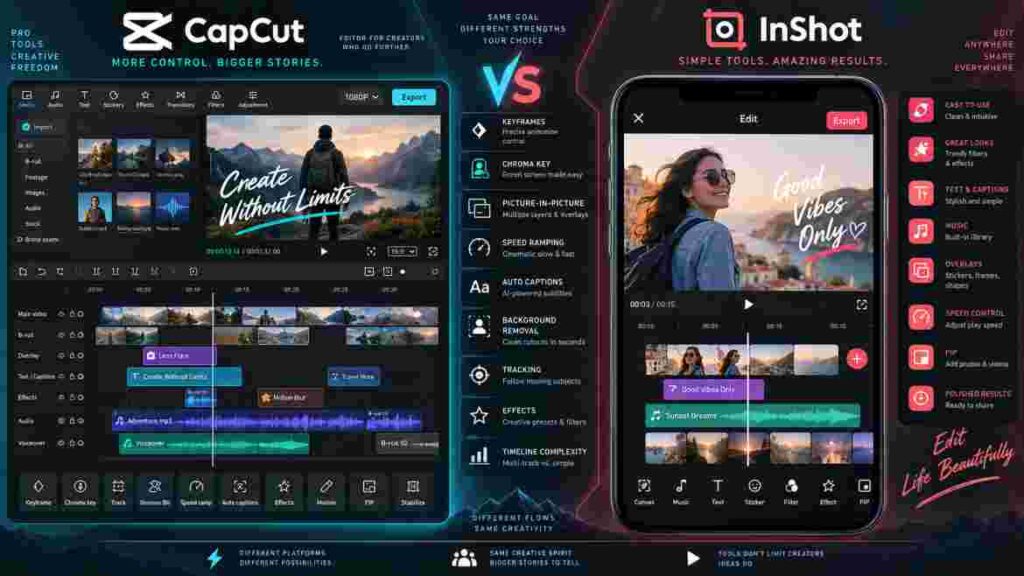
InShot currently offers custom keyframe animation, chroma key, picture-in-picture layers, tracking, AI background removal, speed ramping, and smooth slow motion.
CapCut offers similar fundamentals alongside a more expansive timeline environment and stronger desktop workflow.
The advantage becomes clearer when you are managing several editing elements at once.
Suppose your video includes a talking-head clip, three B-roll tracks, animated captions, a logo, two sound-effect layers, background music, and multiple overlays.
You can technically build layered content in either editor, but CapCut is better suited to projects that keep expanding.
A larger screen makes a difference too.
Making one precise cut on a phone is easy. Making 100 precise cuts while managing several layers becomes much more comfortable on a desktop timeline.
For advanced project control, CapCut wins this part of CapCut vs InShot.
For everyday mobile editing, InShot remains highly capable.
CapCut vs InShot AI Tools
Older comparisons sometimes claim that InShot lacks meaningful AI tools.
That is outdated.
InShot currently advertises Auto Captions, automatic background removal, smart tracking, AI effects, Auto Adjust, smooth slow motion, and additional AI-assisted functions. Recent updates also added more advanced AI speech editing.
CapCut also integrates AI and automation throughout its workflow.
The difference is breadth.
CapCut’s AI tools exist inside a larger ecosystem that also includes desktop editing, web access, cloud features, templates, and more advanced creator workflows.
That becomes important when you use automation repeatedly.
A creator making two videos per month may save only a few minutes with an AI shortcut.
A social media manager creating 50 videos per month may save hours.
This is why the CapCut vs InShot AI comparison should not be about which app displays more AI labels.
Ask which automated features you will actually use.
If your main AI needs are Auto Captions, background removal, basic tracking, and visual enhancements, InShot may already be enough.
If AI-assisted tools are becoming part of a larger production system, CapCut has the stronger overall advantage.
Auto Captions and Text Editing
Both apps now support automatic captions.
That makes this comparison much closer than it once was.
InShot describes Auto Captions as an AI-powered speech-to-text tool, and its 2026 version history includes bilingual Auto Captions.
CapCut also provides automated caption generation as part of its broader AI feature set.
The difference appears when captions become part of your visual style.
If you simply want readable subtitles underneath a talking-head video, InShot can be enough.
If you regularly animate keywords, style captions heavily, combine text with B-roll, or use captions as a major part of your hook, CapCut’s wider editing environment becomes more useful.
Regardless of which app you choose, automatic captions should always be reviewed.
Names, slang, product terms, accents, and noisy recordings can still create transcription errors.
For basic captioning, CapCut vs InShot is fairly close.
For caption-heavy social content, CapCut has the advantage.
Templates, Effects, and Transitions
Templates are one of CapCut’s strongest differentiators.
They can dramatically shorten the time required to recreate popular short-form styles because much of the timing, motion, effects, and structure is already prepared.
That makes CapCut particularly useful for creators who respond quickly to TikTok or Reels trends.
However, template availability is not identical across every CapCut platform. Mobile, desktop, web, region, and app version can affect what templates you can access.
InShot also offers a strong collection of filters, transitions, visual effects, text treatments, and AI effects.
Its workflow simply places less emphasis on building videos from trend-driven templates.
For original edits, travel videos, product clips, and straightforward Reels, that may not matter.
In fact, fewer template distractions can sometimes encourage cleaner editing.
For trend-oriented content, CapCut wins.
For creators who prefer straightforward manual editing, InShot remains competitive.
CapCut vs InShot for TikTok, Reels, and YouTube Shorts
For TikTok, CapCut is usually the better choice.
Its templates, effects, animated text, captions, motion tools, and trend-oriented workflow are well suited to creators who publish frequently and adapt current editing styles.
For Instagram Reels, the decision is closer.
InShot works extremely well for clean product videos, travel clips, lifestyle content, fitness videos, food Reels, and simple talking-head posts.
CapCut becomes stronger when those Reels contain more layers, animated captions, tracking, background removal, or complex motion.
YouTube Shorts creates a similar split.
If you occasionally make a simple Short on your phone, InShot can cover the job.
If you record long-form content and regularly turn it into multiple Shorts, CapCut provides a more scalable workflow.
That matters because repeated production changes the value of software.
Editing one Short is a project.
Editing 40 Shorts every month is a system.
For high-volume short-form production, CapCut wins CapCut vs InShot overall.
For occasional simple social content, InShot may be quicker.
Mobile, Desktop, and Cross-Device Editing
This is one of CapCut’s clearest advantages.

Both apps work well on phones.
CapCut goes much further once you leave mobile.
CapCut Pro supports premium access across iOS/Android, Windows/macOS desktop, and the web editor when you use the same account. Standard membership is more mobile-focused and has more limited cross-platform premium access.
This creates a useful workflow for creators who record on a phone but prefer detailed editing on a computer.
You might make a rough cut while traveling and finish the project later on a Windows laptop.
InShot remains much more mobile-centered.
It can run on compatible Apple silicon Macs; Apple’s current listing requires macOS 13 or later and an M1 Mac or newer.
However, that is not equivalent to CapCut’s wider dedicated Windows, Mac, and browser ecosystem.
If you only edit on a phone, this CapCut advantage may not matter.
If you expect to work across devices, it matters a lot.
For cross-platform flexibility, CapCut comfortably wins CapCut vs InShot.
Export Quality and 4K
Both apps can produce high-resolution video.
InShot currently advertises output up to 4K at 60fps.
CapCut also supports 2K and 4K export, but availability can depend on your device, platform, operating system, source footage, and other technical conditions. CapCut’s own documentation notes that mobile devices do not all expose the same 4K options.
That is why “supports 4K” should not be interpreted as “every project on every phone will export in 4K.”
The source footage also matters.
Exporting 1080p footage at 4K does not magically create the detail of footage originally recorded in 4K.
For most Reels, TikToks, and Shorts, clean footage, correct exposure, readable captions, good audio, and sensible compression matter more than simply selecting the largest resolution.
For pure 4K capability, the difference between CapCut vs InShot is smaller than many people expect.
CapCut’s main export advantage is the flexibility of working across more platforms.
you can also read our guide about 4K Export, which is CapCut Image Upscaler: Free 4K Fix for Blurry Pics
CapCut Free vs InShot Free
Before paying for either editor, use the free version for a real project.
Not a ten-second test.
Create the type of video you actually publish.
Add your normal captions, overlays, effects, music, text, and export settings.
Then see which app interrupts your workflow.
That is more useful than asking whether one individual feature is free.
CapCut still offers substantial free editing capability, but it also has Standard, Pro, premium assets, and features whose availability may depend on your account or plan.
InShot’s free app is also functional, while Pro removes advertisements and the watermark and unlocks paid editing materials.
The best free editor is therefore the one that lets you finish your normal project with the fewest restrictions.
If the free version already does everything you need, there is no reason to upgrade simply because a paid plan exists.
CapCut Pro vs InShot Pro: Pricing and Value
This is where InShot has a major advantage.
At the time of checking the US App Store, InShot lists Pro at $4.99 per month, $19.99 per year, and $49.99 for a lifetime purchase.
CapCut’s US App Store currently lists Standard Monthly at $9.99, Pro Monthly at $19.99, and a Yearly Subscription at $89.99 among its in-app purchases.
Prices can change and may vary by region, platform, promotion, taxes, and account, so always check the actual purchase screen before subscribing.
The important question is not simply which costs less.
It is what the additional spending buys you.
Consider someone who creates four basic Reels each month entirely on an iPhone. If InShot already handles every task comfortably, paying significantly more for CapCut Pro is difficult to justify.
Now consider a creator managing multiple clients, producing dozens of caption-heavy videos, editing on phone and PC, and using more sophisticated effects and AI tools.
If CapCut saves several hours per month, the higher price may provide better value.
That is the key distinction in CapCut vs InShot pricing.
InShot wins on affordability.
CapCut can win on productivity for heavier workflows.

CapCut vs InShot Pros and Cons
This is the one section where a short list is useful for quick scanning.
CapCut Pros
- Better desktop, web, and cross-device workflow
- Stronger fit for complex and high-volume projects
- Larger template and social-content ecosystem
- Broader AI-assisted editing environment
- More room for creators to grow
CapCut Cons
- More complicated for basic edits
- Higher current paid pricing
- Some features vary by plan, platform, version, or region
- Extra tools can be unnecessary for casual users
InShot Pros
- Easier for beginners
- Fast mobile-first workflow
- Strong modern feature set
- Lower current US subscription pricing
- Lifetime purchase option
InShot Cons
- Much weaker Windows and browser workflow
- Less suited to increasingly complex production systems
- Smaller trend/template ecosystem
- May be easier to outgrow for high-volume professional work
Who Should Choose CapCut?
Choose CapCut if editing is becoming a serious part of your content workflow.
It is particularly suitable for social media managers, frequent TikTok creators, YouTube Shorts creators, freelancers, brands, and anyone whose projects are becoming more layered.
CapCut also makes more sense if you want to edit on Windows or Mac instead of completing every project on a phone.
Its broader environment gives you more space to grow without immediately changing software.
You do not need every CapCut feature today for that advantage to matter.
The question is whether your workflow is moving in that direction.
Who Should Choose InShot?
Choose InShot if you value simplicity more than expansion.
It is an excellent fit for beginners, casual creators, small-business owners, travel creators, and people who mostly edit straightforward social videos on a phone.
It is also difficult to ignore for budget-conscious users.
The current $19.99 yearly and $49.99 lifetime US App Store options make it particularly attractive if the feature set already covers your needs.
You should not pay more for an editing ecosystem just because it is more powerful.
If InShot solves the whole problem, simplicity is an advantage.
CapCut vs InShot: Final Verdict
CapCut is the stronger overall editor in 2026, but InShot is the better choice for some users.
CapCut wins when you need deeper workflows, templates, advanced short-form editing, cross-device access, desktop editing, and more room to grow.
InShot wins when you want faster mobile editing, an easier learning curve, and substantially lower current paid pricing.
| Your Priority | Better Choice |
|---|---|
| Beginner-friendly editing | InShot |
| TikTok trends and templates | CapCut |
| Simple Instagram Reels | InShot |
| Advanced social edits | CapCut |
| High-volume Shorts | CapCut |
| Phone-only editing | InShot |
| Windows editing | CapCut |
| Cross-device workflow | CapCut |
| Lower price | InShot |
| Lifetime purchase | InShot |
| Long-term creator growth | CapCut |
The best CapCut vs InShot choice ultimately depends on what is slowing you down.
If your current problem is that your editor cannot keep up with your ideas, CapCut is probably the better move.
If your problem is that editing software already feels too complicated, InShot may be exactly what you need.
Do not switch because one app has more features.
Switch when those features solve a real problem.