If you’re comparing CapCut vs DaVinci Resolve, you’re probably not trying to find the video editor with the longest feature list. You’re trying to figure out which one will make your editing easier, faster, and better.
That’s an important distinction.
CapCut and DaVinci Resolve can both produce impressive videos, but they were built around very different editing philosophies.
CapCut is largely about reducing friction. It helps creators move from raw footage to finished content quickly, with accessible editing controls, captions, effects, templates, automation, AI-assisted tools, and strong support for the type of vertical content people publish on TikTok, Instagram, and YouTube.
DaVinci Resolve takes a broader approach. It is a complete post-production environment built around editing, color correction and grading, visual effects, motion graphics, audio post-production, media management, and professional delivery.
That makes CapCut vs DaVinci Resolve a slightly unusual comparison.
One editor isn’t simply the “better version” of the other.
A TikTok creator producing five videos every day has very different needs from a filmmaker grading footage from multiple cameras. Likewise, a YouTuber editing a 12-minute talking-head video doesn’t necessarily need the same tools as someone cutting a 90-minute documentary.
For many social creators, CapCut can actually be the more efficient choice even though DaVinci Resolve offers considerably more advanced technical control.
For filmmakers, colorists, advanced YouTubers, professional editors, and creators dealing with increasingly complex projects, that balance can reverse.
So here’s the short answer.
Choose CapCut if speed, simplicity, captions, short-form content, creator-focused effects, mobile editing, and rapid publishing are your priorities. Choose DaVinci Resolve if you need advanced color grading, complex timelines, serious audio work, sophisticated visual effects, stronger media management, or greater professional control.
And if your work includes both?
You may not need to choose at all.
This CapCut vs DaVinci Resolve comparison will explain where each editor performs best, where each one becomes limiting, and—more importantly—which differences actually matter for the videos you make.
CapCut vs DaVinci Resolve: Quick Verdict
The easiest mistake when comparing CapCut vs DaVinci Resolve is assuming that the application with more professional features automatically wins.
It doesn’t.
Video-editing software should solve production problems. A feature has little practical value if your workflow never requires it.
Suppose you produce five 45-second vertical videos every week. Each needs jump cuts, animated captions, B-roll, music, a few zooms, sound effects, and basic color correction.
You could absolutely create those videos in DaVinci Resolve.
But do you need Fusion’s advanced compositing environment? Probably not.
Do you need sophisticated node-based color grading for every Reel? Probably not.
Do you need an advanced audio-post environment just to balance one voice track against background music? Again, probably not.
In that workflow, CapCut’s simplicity isn’t a limitation. It’s an advantage.
Now change the project.
You’re editing a 45-minute documentary containing footage from three cameras, multiple interviews, hundreds of B-roll clips, several microphones, archival footage, graphics, sound effects, music, color-matching requirements, and multiple client revisions.
Suddenly, simplicity isn’t the main problem.
Organization and control are.
That’s when the result of CapCut vs DaVinci Resolve starts shifting heavily toward Resolve.
| Your Priority | Better Choice | Why |
|---|---|---|
| Learning video editing quickly | CapCut | Lower learning barrier |
| TikTok videos | CapCut | Social-first workflow |
| Instagram Reels | CapCut | Fast vertical production |
| YouTube Shorts | CapCut | Captions and rapid editing |
| Mobile editing | CapCut | Strong mobile workflow |
| Talking-head videos | Usually CapCut | Fast, straightforward editing |
| Long-form YouTube | Depends | Complexity determines the winner |
| Multicamera editing | DaVinci Resolve | Better suited to complex productions |
| Advanced color grading | DaVinci Resolve | Dedicated professional Color page |
| Advanced audio | DaVinci Resolve | Fairlight |
| Complex VFX | DaVinci Resolve | Fusion |
| Filmmaking | DaVinci Resolve | Complete post-production environment |
| High-volume social production | CapCut | Faster creator workflow |
| Professional post-production career | DaVinci Resolve | Much higher technical ceiling |
| Social + professional production | Both | Each can handle a different stage |
That table captures the central theme of CapCut vs DaVinci Resolve:
CapCut reduces the work required to create. DaVinci Resolve increases the amount of control you have over the work.
Neither advantage matters equally to every editor.
CapCut vs DaVinci Resolve at a Glance
Before getting into individual features, it’s useful to see where the two applications stand overall.
| Feature | CapCut | DaVinci Resolve |
|---|---|---|
| Beginner friendliness | Excellent | Moderate |
| Free version | Yes | Yes |
| Paid option | Subscription-based plans | Resolve Studio |
| Short-form video | Excellent | Very good |
| Long-form video | Good | Excellent |
| Mobile workflow | Excellent | Not its primary strength |
| Desktop editing | Very good | Excellent |
| Social templates | Excellent | Limited focus |
| Automatic captions | Excellent for creator workflows | Strong |
| Timeline depth | Good | Excellent |
| Keyframe animation | Easy to use | More advanced |
| Effects | Creator-focused | Advanced |
| Motion graphics | Accessible | Fusion |
| Color correction | Good | Excellent |
| Professional grading | Limited compared with Resolve | Excellent |
| Audio editing | Good for creators | Professional Fairlight environment |
| AI tools | Creator-focused | Post-production-focused |
| Media management | Adequate for creator projects | Advanced |
| Learning curve | Low to moderate | Moderate to high |
| Professional ceiling | High for creator content | Extremely high |
| Best suited to | Creators/social editing | Advanced post-production |
This is why simply asking whether CapCut vs DaVinci Resolve is “better” doesn’t work particularly well.
The answer changes according to the job.
What Is CapCut?
CapCut is a creator-focused video editor built around accessibility and fast content production.
Its popularity makes sense when you look at the problems modern creators face.
Most people aren’t sitting down to edit a feature film. They’re trying to turn phone footage, camera clips, voice recordings, screenshots, B-roll, product shots, and music into something polished enough to publish.
And they often need to do it quickly.
A small-business owner might record a two-minute promotional video in the morning and need it ready for Instagram that afternoon. A YouTuber may need to turn a 20-minute video into three Shorts. A social-media manager may need to produce dozens of client videos every month.
These users don’t necessarily need an enormous post-production system.
They need an efficient one.
CapCut’s workflow is designed around that reality.
You can import footage, trim clips, add B-roll, generate captions, animate text, add music, apply effects, adjust color, remove backgrounds, change aspect ratios, and export without first understanding the technical structure of traditional post-production.
That lower barrier is one of the biggest factors in CapCut vs DaVinci Resolve.
But CapCut shouldn’t be dismissed as a basic clip cutter.
Its desktop version provides keyframes, curves, HSL adjustments, tracking, chroma key, background removal, captions, effects, transitions, and numerous other tools capable of producing polished creator content.
The important point isn’t that CapCut lacks capability.
It’s that CapCut generally tries to make capability accessible.
What Is DaVinci Resolve?
DaVinci Resolve starts from a different assumption.
Instead of asking, “How can we make content creation faster?” its architecture is closer to asking, “How can we bring the major stages of professional post-production into one environment?”
That’s why Resolve is divided into specialized workspaces.
You can organize media, edit footage, build visual effects, grade color, mix audio, and prepare final deliveries without leaving the broader Resolve ecosystem.
For a beginner, that can initially feel like a lot.
For an experienced editor, it can be exactly the point.
Imagine you’re editing footage from three cameras. One camera is slightly warmer than the others. One interview microphone contains more room noise. Several shots need graphics tracked into the scene. The project has hundreds of clips, and the client has requested several versions for different destinations.
Those aren’t unusual problems in professional post-production.
Resolve is built to deal with them.
This gives DaVinci Resolve a major advantage once projects become technically demanding.
Why CapCut vs DaVinci Resolve Is Not a Simple Comparison
A lot of CapCut vs DaVinci Resolve comparisons make one of two mistakes.
They either treat CapCut as a toy or treat DaVinci Resolve as unnecessarily complicated.
Neither description is particularly useful.
CapCut can be used professionally.
DaVinci Resolve can be used by beginners.
The real difference is the type of complexity each application expects the user to encounter.
Consider these two projects.
| Project A | Project B |
|---|---|
| 40-second Instagram Reel | 40-minute documentary |
| 1 camera | 4 cameras |
| 1 microphone | Multiple microphones |
| 8 video clips | Hundreds of clips |
| Animated captions | Professional subtitles |
| Basic color correction | Shot matching and detailed grading |
| Music + a few SFX | Full audio mix |
| Simple zooms | Custom VFX |
| One social export | Multiple delivery formats |
Both projects are “video editing.”
But they barely require the same workflow.
For Project A, CapCut’s simplicity can be a competitive advantage.
For Project B, Resolve’s structure becomes increasingly valuable.
That is the lens we’ll use throughout this CapCut vs DaVinci Resolve guide.
CapCut vs DaVinci Resolve Ease of Use
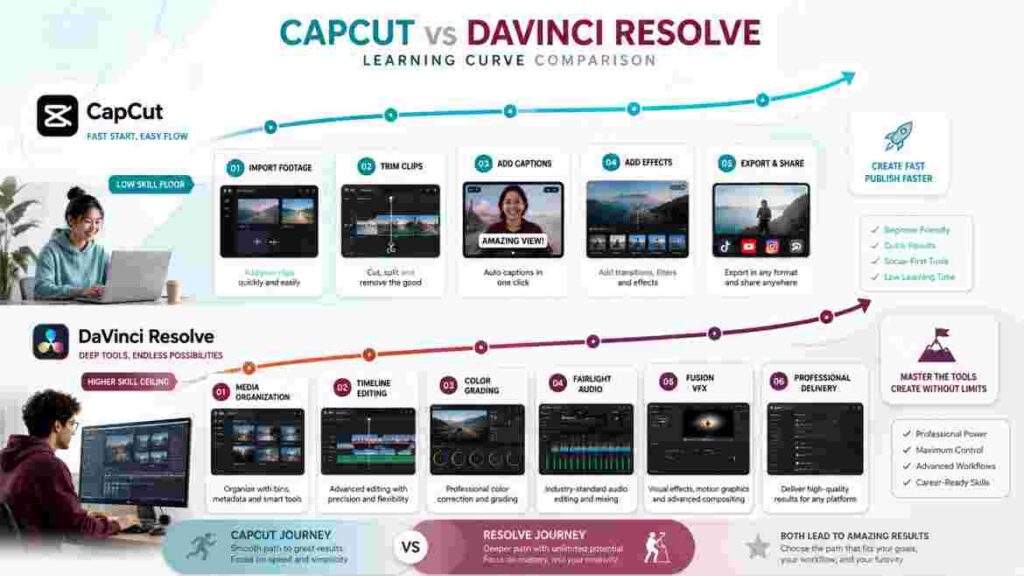
For most beginners, CapCut is easier to learn.
That’s not because Resolve has a bad interface. It’s because Resolve exposes far more of the post-production process.
What CapCut feels like when you’re new
Open CapCut for the first time and much of the workflow makes intuitive sense.
Import footage.
Drag it onto a timeline.
Split a clip.
Delete the bad part.
Add text.
Choose music.
Generate captions.
Add an effect.
Export.
A beginner may not know how to perform every task immediately, but they can usually understand what they’re trying to do.
That’s a significant advantage.
You can begin learning by making actual videos rather than spending your first few sessions learning the architecture of the software.
What DaVinci Resolve feels like when you’re new
Resolve asks more from you.
You’ll encounter the Media Pool, timelines, bins, inspectors, Edit and Cut pages, Fusion, Color, Fairlight, Deliver, nodes, tracks, and numerous technical controls.
You don’t need to master all of these to make your first video.
But they’re there.
And eventually, you’ll need to understand why they’re there.
That creates a higher learning curve in CapCut vs DaVinci Resolve.
The trade-off is that many of those unfamiliar systems become extremely valuable once your work becomes more demanding.
Skill floor vs skill ceiling
This is probably the cleanest way to understand the learning difference.
CapCut has a lower skill floor.
DaVinci Resolve has a higher skill ceiling.
| Learning Stage | CapCut | DaVinci Resolve |
|---|---|---|
| First hour | Easier | More intimidating |
| First simple video | Faster | Usually slower |
| Basic editing | Easy to learn | Moderate |
| Social editing | Very intuitive | Requires more setup |
| Advanced editing | Good depth | Excellent depth |
| Color mastery | Limited ceiling | Extremely high ceiling |
| Audio mastery | Creator-focused | Professional |
| VFX mastery | Accessible tools | Fusion |
| Career development | Useful for creator work | Strong professional pathway |
A beginner who wants to publish their first Reel this weekend will probably be happier with CapCut.
A beginner who wants to become a professional colorist may be better off accepting Resolve’s steeper learning curve.
That’s why even the “beginner” category in CapCut vs DaVinci Resolve needs context.
CapCut vs DaVinci Resolve for Timeline Editing
Both applications can cut, trim, rearrange, layer, and animate footage.
The difference becomes more obvious as timelines grow.
Simple editing
For straightforward creator work, CapCut’s timeline is excellent.
Imagine a 10-minute talking-head video.
You’ve got the main camera footage on the timeline. B-roll sits above it. Captions appear over the video. Background music runs underneath. A few sound effects appear at key moments.
That’s exactly the type of timeline CapCut handles comfortably.
You don’t need a complicated system.
You need an efficient one.
Complex timeline editing
Now imagine a 60-minute podcast.
There are three cameras, separate microphones, intro graphics, sponsor sections, B-roll, music, sound effects, captions, and several revision notes.
The problem isn’t simply cutting clips anymore.
The problem is managing the project.
That’s where Resolve begins to pull ahead.
| Timeline Requirement | CapCut | DaVinci Resolve |
|---|---|---|
| Basic cutting | Excellent | Excellent |
| Drag-and-drop editing | Excellent | Excellent |
| Simple overlays | Excellent | Excellent |
| Talking-head edits | Excellent | Excellent |
| Large timelines | Capable | Stronger |
| Multiple cameras | Less ideal for advanced work | Strong |
| Complex track management | Moderate | Excellent |
| Large media libraries | Moderate | Strong |
| Detailed revisions | Good | Stronger for complex projects |
| Professional project organization | Limited comparatively | Excellent |
The key difference in CapCut vs DaVinci Resolve isn’t whether they can cut video.
It’s how comfortably they continue working when the project stops being simple.
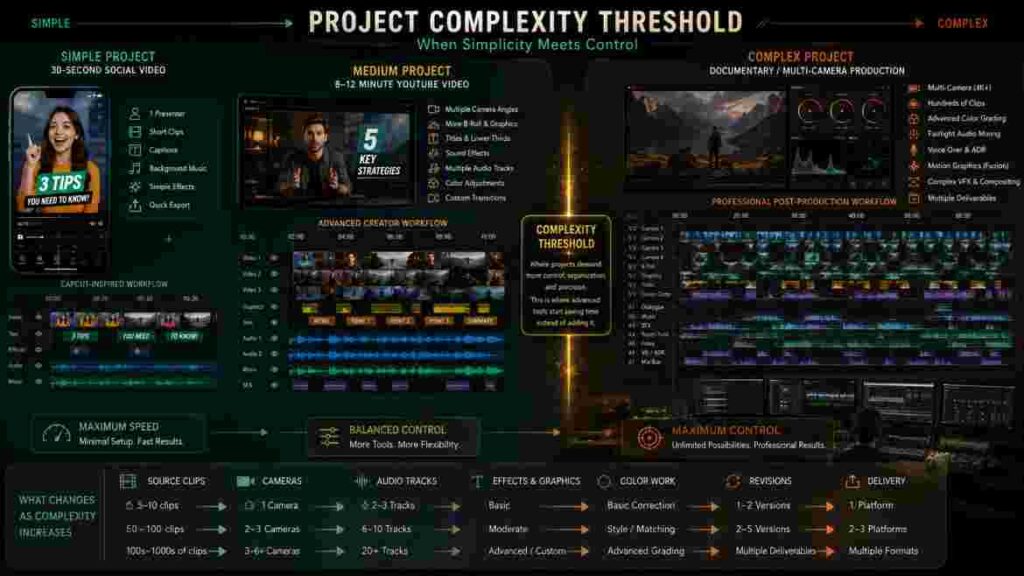
The Project-Complexity Threshold
This is one of the most important ideas in the entire article.
Every editor has a project-complexity threshold.
Below that threshold, additional professional controls can actually slow you down.
Above it, those same controls begin saving time.
Take a 30-second Reel.
It contains one presenter, six cuts, captions, two pieces of B-roll, background music, and a few effects.
Using a complicated post-production workflow may add little value.
Now take a 90-minute documentary with thousands of assets.
Trying to manage that production using a workflow optimized around rapid creator content may become frustrating.
The practical question in CapCut vs DaVinci Resolve is therefore:
When does Resolve’s additional control start saving more time than CapCut’s simplicity saves?
That answer will be different for every creator.
CapCut vs DaVinci Resolve for Keyframes and Animation
Keyframes allow you to change a property over time.
You can use them to create zooms, move graphics, change opacity, animate overlays, reposition subjects, and build countless other effects.
CapCut makes common keyframe animation easy to understand.
That’s ideal for creator workflows.
A YouTuber who wants a slow punch-in on an important sentence doesn’t need to turn that zoom into a motion-design project.
They need it to look good and take a few seconds to create.
Resolve offers deeper control.
That becomes useful when motion needs to be more precise or when animation develops into a larger graphics workflow.
| Animation Task | Better Fit |
|---|---|
| Simple punch-in zoom | CapCut |
| Moving image overlay | CapCut |
| Social-media animation | CapCut |
| Simple product movement | CapCut |
| Detailed motion curves | Resolve |
| Complex title animation | Resolve |
| Advanced tracked graphics | Resolve |
| Custom motion graphics | Resolve/Fusion |
| Sophisticated compositing | Resolve/Fusion |
This is another area where CapCut vs DaVinci Resolve is really a comparison between speed and depth.
CapCut vs DaVinci Resolve for Short-Form Video
For dedicated short-form content, CapCut has one of its strongest advantages.
TikTok, Reels, and Shorts require a very particular production rhythm.
You need fast cuts.
Readable captions.
B-roll.
Music.
Text.
Hooks.
Zooms.
Effects.
Frequent exports.
And you often need to produce several videos every week.
TikTok
A typical TikTok edit may only be 30–60 seconds long, but that doesn’t mean it contains little work.
Every pause may need tightening. Captions need reviewing. B-roll needs positioning. Text needs timing. Music needs balancing.
CapCut is extremely comfortable in this environment.
Instagram Reels
Reels often add brand requirements.
You may need consistent typography, product imagery, logos, colors, and visual styles.
Again, CapCut’s creator-first workflow is highly effective.
YouTube Shorts
Shorts often come from long-form videos.
You find a strong moment, crop the footage vertically, tighten the pacing, add captions, create visual movement, and publish.
CapCut handles this workflow particularly well.
CapCut vs DaVinci Resolve short-form comparison
| Short-Form Requirement | CapCut | Resolve |
|---|---|---|
| Vertical editing | Excellent | Excellent |
| Quick captions | Excellent | Good |
| Animated social text | Excellent | Capable |
| Ready-made effects | Excellent | Good |
| Templates | Excellent | Not a core focus |
| Mobile editing | Excellent | Limited relevance |
| Fast turnaround | Excellent | Depends on experience |
| Deep technical control | Good | Excellent |
| High-volume social work | Excellent | Capable |
| Advanced finishing | Good | Excellent |
For most dedicated social creators, CapCut vs DaVinci Resolve favors CapCut.
That doesn’t mean Resolve can’t create better-looking Shorts.
It means CapCut often gets creators to the required result faster.
Why Editing Speed Matters More Than Many Creators Realize
Imagine you’re a social-media manager producing 80 videos per month.
Suppose CapCut saves only five minutes per video.
That doesn’t sound dramatic.
But over 80 videos, that’s 400 minutes.
More than six and a half hours.
Now multiply that across a year.
Suddenly, workflow efficiency is a business issue.
This is why judging CapCut vs DaVinci Resolve solely by advanced features can produce the wrong recommendation.
The best professional editor isn’t always the one capable of doing the most.
Sometimes it’s the one that completes the paid work fastest without compromising quality.
CapCut vs DaVinci Resolve for YouTube
YouTube is where this comparison becomes much closer.
That’s because “YouTube video” can mean almost anything.
A Short.
A gaming video.
A 12-minute talking head.
A podcast.
A tutorial.
A travel film.
A documentary.
The best editor changes with the format.
Talking-head YouTube videos
For straightforward talking-head videos, CapCut is often enough.
Suppose you’re editing a 15-minute video filmed with one camera and one microphone.
You need to remove mistakes, tighten pauses, insert B-roll, add titles, include music, correct color, and export.
CapCut can handle that workflow efficiently.
Resolve can too.
The question is whether Resolve’s additional control actually improves the project enough to justify the extra complexity.
Long-form YouTube
The answer begins changing when YouTube production becomes more complicated.
Longer projects may involve multiple cameras, extensive B-roll, screen recordings, detailed sound, graphics, sponsors, large media libraries, and repeated revisions.
That’s when Resolve becomes increasingly attractive.
CapCut vs DaVinci Resolve for YouTube scenarios
| YouTube Channel Type | Better Starting Choice |
|---|---|
| Shorts channel | CapCut |
| Simple talking-head channel | CapCut |
| Reaction channel | Usually CapCut |
| Basic tutorial channel | CapCut |
| Gaming channel | Depends |
| Video essay | Depends |
| Podcast channel | Resolve becomes attractive |
| Documentary channel | DaVinci Resolve |
| Cinematic travel channel | DaVinci Resolve |
| Filmmaking channel | DaVinci Resolve |
| Multicamera channel | DaVinci Resolve |
| High-volume creator channel | Often CapCut |
The important lesson from CapCut vs DaVinci Resolve for YouTube is that subscriber count doesn’t determine the editor.
Complexity does.
A channel with two million subscribers may still use a very simple production format.
A channel with 20,000 subscribers may produce extremely sophisticated documentaries.
Choose according to production needs, not channel size.
CapCut vs DaVinci Resolve AI Tools
AI is becoming a major part of modern editing, but “more AI features” doesn’t automatically mean “better AI.”
The useful question is what the automation actually saves you from doing manually.
CapCut’s AI tools generally align closely with creator production.
The goal is often to shorten repetitive tasks or make sophisticated results easier to achieve.
Resolve increasingly applies AI to deeper post-production problems.
That distinction is important.
| AI/Automation Need | CapCut Strength | Resolve Strength |
|---|---|---|
| Creator automation | Excellent | Good |
| Social workflow | Excellent | Moderate |
| Captions | Strong | Strong |
| Background workflows | Creator-friendly | Advanced tools available |
| Media organization | Moderate | Stronger |
| Professional post-production AI | Growing | Strong |
| Fast everyday use | Excellent | Good |
| Complex project assistance | Good | Stronger |
If your biggest problem is producing social content quickly, CapCut’s AI approach may be more useful.
If your biggest problem is navigating and processing a large professional production, Resolve’s AI capabilities may become more valuable.
That’s the recurring pattern in CapCut vs DaVinci Resolve.
CapCut vs DaVinci Resolve Effects and Transitions
CapCut gives creators quick access to a large creative toolkit.
This is one of its strongest advantages.
An effect doesn’t need to become a technical exercise.
You can find something that supports the edit, preview it, adjust it, and continue.
For fast-moving creator workflows, that’s exactly what you want.
Resolve gives you more opportunities to build and customize.
That’s more powerful, but it can also take longer.
Consider two situations.
A TikTok creator wants a quick flash treatment between two product shots.
CapCut is ideal.
A commercial editor needs a custom visual transition where one object moves across the frame, masks the incoming shot, interacts with another graphic, and remains editable after client feedback.
Resolve is far more appropriate.
| Creative Need | CapCut | Resolve |
|---|---|---|
| Quick effects | Excellent | Good |
| Ready-made transitions | Excellent | Good |
| Social effects | Excellent | Capable |
| Filters | Excellent | Strong |
| Custom effects | Moderate | Excellent |
| Complex compositing | Limited comparatively | Excellent |
| Advanced tracking/VFX | Good for creator needs | Excellent |
| Fast styling | Excellent | Moderate |
| Maximum customization | Good | Excellent |
Again, CapCut vs DaVinci Resolve isn’t about whether an effect exists.
It’s about whether you want to select the effect or construct the effect.
CapCut vs DaVinci Resolve for Motion Graphics
CapCut can produce impressive motion graphics for everyday creator work.
You can animate text, graphics, images, overlays, and other properties using accessible controls.
For YouTube, TikTok, Reels, and product videos, this covers a lot of real-world needs.
Resolve goes substantially further through Fusion.
Fusion is a node-based visual-effects and motion-graphics environment.
That opens the door to advanced compositing, tracking, keying, custom titles, motion design, cleanup, and much more.
But there’s a catch.
Fusion takes time to learn.
If you only need animated captions and simple graphics, that learning investment may not make sense.
This is an important principle when comparing CapCut vs DaVinci Resolve:
Advanced capability is valuable only when your projects require advanced capability.
CapCut vs DaVinci Resolve Color Grading
Color grading is one of the clearest areas where DaVinci Resolve takes the technical lead.
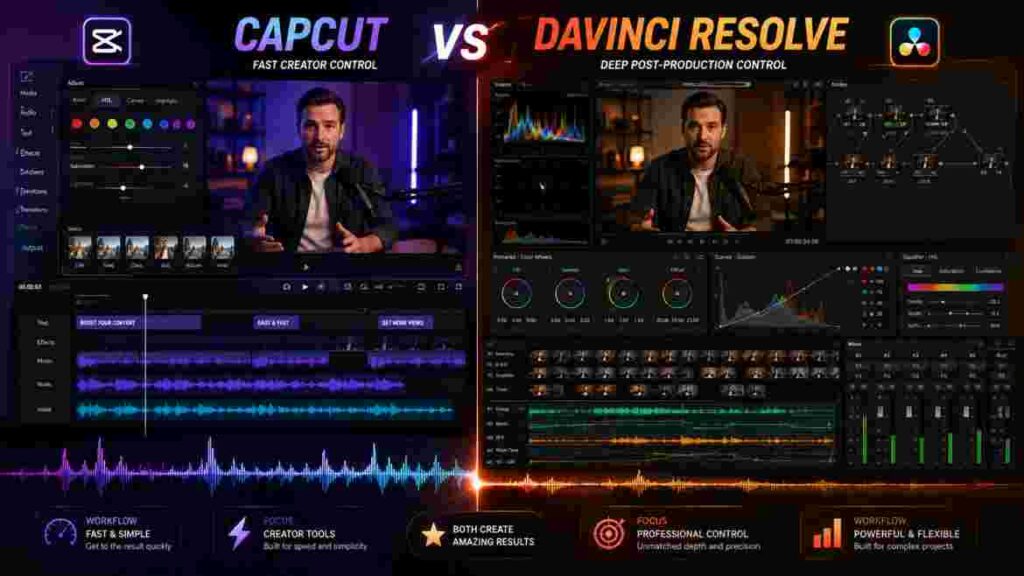
CapCut has useful color tools.
Resolve has an entire professional color environment.
Those are not the same thing.
What CapCut can do with color
CapCut can handle many everyday correction tasks.
You can improve exposure, contrast, saturation, white balance, individual colors, curves, and the overall look of footage.
For a YouTube video, Reel, Short, product video, or talking-head project, that can be more than enough.
A creator who understands basic color principles can get very good results from CapCut.
Where Resolve changes the equation
Resolve’s Color page is designed for professional grading.
It provides far deeper control over correction, selective adjustments, shot matching, tracking, scopes, nodes, and more advanced color workflows.
Imagine you’ve recorded an interview using three cameras.
Camera A looks slightly warm.
Camera B has more contrast.
Camera C makes the subject’s skin appear slightly green.
Every time you cut between angles, the mismatch is visible.
This is exactly the type of problem where Resolve becomes valuable.
CapCut vs DaVinci Resolve color table
| Color Task | CapCut | DaVinci Resolve |
|---|---|---|
| Exposure correction | Good | Excellent |
| Contrast | Good | Excellent |
| Saturation | Good | Excellent |
| White balance | Good | Excellent |
| HSL adjustments | Available | Advanced |
| Curves | Available | Advanced |
| Filters/presets | Excellent | Strong |
| Scopes | Limited comparatively | Professional |
| Node-based grading | No equivalent depth | Excellent |
| Shot matching | Basic/manual workflow | Advanced |
| Skin-tone work | Good for creator needs | Professional |
| Tracking corrections | Limited comparatively | Advanced |
| Professional color management | Limited | Excellent |
| Film grading | Not the primary workflow | Excellent |
For advanced color grading, CapCut vs DaVinci Resolve has a clear winner: DaVinci Resolve.
But don’t confuse that with saying every creator needs Resolve.
If your color workflow consists of correcting exposure, fixing white balance, adding a subtle look, and keeping skin natural, CapCut may already provide everything you need.
CapCut vs DaVinci Resolve Audio Editing
Audio is another category where project complexity determines the winner.
CapCut handles everyday creator audio well.
You can add music, adjust levels, work with voiceovers, place sound effects, and perform the kinds of sound adjustments most social and YouTube creators need.
Resolve goes much further through Fairlight.
Fairlight is a dedicated audio-post environment designed for editing, mixing, processing, and managing sophisticated sound projects.
Consider a 30-second Reel with one voice track and background music.
CapCut makes perfect sense.
Now consider a one-hour podcast with separate microphones for the host and guest, backup audio, sponsor segments, music, room tone, sound effects, and different loudness requirements.
That’s where Fairlight starts making much more sense.
| Audio Requirement | CapCut | Resolve/Fairlight |
|---|---|---|
| Music | Excellent | Excellent |
| Basic volume control | Excellent | Excellent |
| Creator voiceovers | Excellent | Excellent |
| Sound effects | Excellent | Excellent |
| Simple dialogue cleanup | Good | Strong |
| Multiple microphones | Capable | Excellent |
| Advanced mixing | Limited comparatively | Excellent |
| Track organization | Good | Excellent |
| Professional audio post | Not its core focus | Excellent |
For creator audio, CapCut is efficient.
For professional audio post-production, CapCut vs DaVinci Resolve favors Resolve.
CapCut vs DaVinci Resolve for Captions
Captions are one area where CapCut’s creator-first philosophy becomes particularly obvious.
For short-form content, captions aren’t a side feature.
They’re part of the visual language.
Creators want automatic transcription, quick corrections, readable styling, highlighted words, animation, and fast placement.
CapCut is very comfortable with this workflow.
Resolve can handle subtitles and transcription, but its broader professional workflow is not built solely around social-caption styling.
| Caption Need | Better Fit |
|---|---|
| TikTok captions | CapCut |
| Reels captions | CapCut |
| YouTube Shorts captions | CapCut |
| Animated social captions | CapCut |
| Quick creator styling | CapCut |
| Traditional subtitles | Both |
| Long-form subtitle management | Resolve can become attractive |
| Professional delivery workflow | Resolve |
For caption-heavy social content, CapCut vs DaVinci Resolve usually favors CapCut.
Regardless of the editor, automatically generated captions should always be reviewed manually.
AI transcription can mishear names, technical terminology, accents, or unclear speech.
CapCut vs DaVinci Resolve Performance
Performance comparisons need to be handled carefully because editing speed depends on much more than software.
Your CPU matters.
Your GPU matters.
RAM matters.
Storage matters.
Codec matters.
Resolution matters.
Effects matter.
The number of layers matters.
A computer that handles one 1080p clip perfectly may struggle badly when the timeline contains multiple 4K streams, stabilization, effects, grading, and complex graphics.
CapCut on everyday hardware
CapCut is generally approachable for typical creator systems.
For straightforward 1080p editing, many users can work comfortably without a high-end workstation.
That doesn’t mean CapCut is magically lightweight.
Complicated projects can still become demanding.
Resolve and hardware
Resolve’s advanced capabilities can place heavier demands on hardware, particularly when using high-resolution media, Fusion compositions, intensive effects, complex grading, or multiple streams.
The deeper you go into professional post-production, the more hardware becomes part of the workflow.
CapCut vs DaVinci Resolve hardware considerations
| Scenario | Likely Better Starting Point |
|---|---|
| Basic 1080p social editing | CapCut |
| Older everyday computer | Often CapCut |
| Simple talking-head videos | CapCut |
| 4K creator projects | Depends on hardware |
| Multiple 4K cameras | Resolve with suitable hardware |
| Heavy grading | Resolve + capable GPU |
| Complex VFX | Resolve + capable hardware |
| Large professional productions | Resolve |
The correct question isn’t simply whether CapCut vs DaVinci Resolve runs faster.
It’s whether your hardware can support the workflow you intend to build.
CapCut vs DaVinci Resolve Mobile Editing
This category strongly favors CapCut.
For many modern creators, mobile editing isn’t a secondary feature.
It’s the entire workflow.
You record on your phone.
Edit on your phone.
Add captions on your phone.
Review on your phone.
Publish from your phone.
That is an enormous convenience for TikTok creators, Reels creators, travel creators, small-business owners, and social-media managers.
CapCut’s broader device ecosystem makes it particularly attractive here.
Resolve’s professional identity remains much more closely associated with serious desktop post-production.
That doesn’t make Resolve worse.
It simply means CapCut vs DaVinci Resolve serves very different users in this category.
If mobile editing is essential to your daily workflow, CapCut is the natural choice.
CapCut vs DaVinci Resolve Export Quality
A common misconception is that exporting from DaVinci Resolve automatically makes a video look better.
It doesn’t. Video quality depends on the source footage, editing decisions, color correction, effects, resolution, frame rate, codec, bitrate, and final compression.
A carefully prepared CapCut export can look excellent.
A badly configured Resolve export can look poor.
Where Resolve gains the advantage is control.
Professional jobs may require specific codecs, color settings, audio configurations, master files, or delivery specifications.
Resolve gives advanced users much more control over those requirements.
| Export Need | CapCut | Resolve |
|---|---|---|
| TikTok | Excellent | Excellent |
| Instagram Reels | Excellent | Excellent |
| YouTube Shorts | Excellent | Excellent |
| Standard YouTube | Excellent | Excellent |
| 4K creator output | Supported in appropriate workflows | Excellent |
| Simple export setup | Excellent | Good |
| Advanced codec control | Limited comparatively | Excellent |
| Professional masters | Less specialized | Excellent |
| Multiple delivery formats | Good | Excellent |
| Technical broadcast/film delivery | Not its core purpose | Strong |
For normal creator delivery, CapCut can provide excellent results.
For maximum delivery control, CapCut vs DaVinci Resolve favors Resolve.
CapCut vs DaVinci Resolve Pricing
Price deserves more thought than simply asking which editor is cheaper.
CapCut and Resolve use different commercial models.
CapCut offers free access alongside premium subscription options. Specific pricing and premium benefits can vary by platform, region, plan, and promotion.
Resolve also has a capable free edition, while Blackmagic Design offers the paid DaVinci Resolve Studio edition.
The more interesting question is value.
Suppose CapCut Pro saves a social-media manager four hours every month through faster captions, templates, AI tools, effects, or workflow improvements.
That time saving can easily be worth more than the subscription.
Now imagine a filmmaker who rarely uses those creator-oriented conveniences but needs deep color, audio, and finishing tools.
Resolve Free may provide dramatically more value.
CapCut vs DaVinci Resolve cost philosophy
| Cost Factor | CapCut | DaVinci Resolve |
|---|---|---|
| Free edition | Yes | Yes |
| Paid model | Subscription | Studio purchase |
| Creator assets | Major focus | Less central |
| Professional post tools | Growing | Major strength |
| Learning cost | Lower | Higher |
| Hardware cost | Often lower for simple projects | Can rise with advanced work |
| Best value for social creators | Often excellent | Depends |
| Best value for advanced editors | Depends | Excellent |
The true cost of CapCut vs DaVinci Resolve includes more than money.
It includes your time.
Learning time.
Editing time.
Hardware costs.
Switching costs.
And the amount of paid work you can finish.
CapCut vs DaVinci Resolve for Professional Work
Can professionals use CapCut?
Absolutely.
Professional doesn’t mean “uses complicated software.”
Professional means the work reliably meets the client’s requirements.
If a company pays you to produce 30 Reels per month and CapCut lets you deliver them faster without compromising quality, using CapCut is a professional decision.
Resolve becomes more important when the requirements change.
Advanced grading.
Multicamera productions.
Detailed audio.
Complex VFX.
Large media libraries.
Specialized delivery.
Those are the situations where Resolve’s professional architecture creates real value.
| Client Project | Recommended Editor |
|---|---|
| TikTok ads | CapCut |
| Instagram Reels | CapCut |
| Creator ads | CapCut |
| Product social videos | CapCut |
| Basic YouTube editing | CapCut or Resolve |
| Corporate talking head | Either |
| Multicamera interview | Resolve |
| Documentary | Resolve |
| Commercial film | Resolve |
| Advanced color work | Resolve |
| VFX-heavy project | Resolve |
| High-volume social agency work | Often CapCut |
So CapCut vs DaVinci Resolve for professional work isn’t a question of legitimacy.
It’s a question of requirements.
CapCut vs DaVinci Resolve for Freelancers
Freelancers sit in an interesting position because they may work across several content categories.
One client may want 20 Reels.
Another may want a 30-minute YouTube documentary.
Another may need a polished corporate interview.
For that reason, freelancers can benefit from knowing both applications.
CapCut can make high-volume social work extremely efficient.
Resolve can expand the range of technically demanding projects you can accept.
You don’t need to abandon one to learn the other.
In fact, learning both may be one of the strongest answers to CapCut vs DaVinci Resolve for freelancers.
When Should You Move From CapCut to DaVinci Resolve?
You don’t outgrow CapCut because you’ve been editing for six months.
You outgrow it when its workflow starts creating problems.
Maybe your timelines are becoming difficult to manage.
Maybe you’re constantly working with several cameras.
Maybe color matching is becoming important.
Maybe clients are asking for more sophisticated sound.
Maybe you need effects that are difficult to create using your existing tools.
Maybe delivery requirements are becoming more technical.
Those are meaningful signals.
| Problem You’re Encountering | Is Resolve Worth Considering? |
|---|---|
| Simple edits take too long | Not necessarily |
| Need better timeline organization | Yes |
| Multiple cameras becoming common | Yes |
| Advanced color needed | Definitely |
| Detailed audio mixing needed | Yes |
| Complex VFX needed | Definitely |
| Need professional delivery controls | Yes |
| Just want “more professional software” | No |
| CapCut already handles everything | Probably not |
| Want professional post-production career | Yes |
This is one of the most practical ways to approach CapCut vs DaVinci Resolve.
Don’t switch because Resolve has more buttons.
Switch because one of those buttons solves a problem you’re actually having.
When Should You Stay With CapCut?
There is nothing wrong with staying with CapCut.
If your workflow is fast, your videos look good, your clients are happy, and you aren’t encountering technical limitations, switching software may simply make your life harder.
This is especially true for creators working primarily with TikTok, Reels, Shorts, talking-head videos, product videos, and social ads.
CapCut’s simplicity is valuable.
Don’t give it up just to make your workflow look more complicated.
A professional editor should care about results, reliability, and efficiency—not whether the interface looks intimidating.
In the CapCut vs DaVinci Resolve decision, staying with CapCut is completely reasonable when its strengths match your work.
Should You Switch From CapCut to DaVinci Resolve?
Switching makes sense when you can finish this sentence:
“I need Resolve because ______.”
If the answer is advanced grading, multicamera work, professional audio, Fusion, complex media organization, or specialized delivery, you have a real reason.
If the answer is “because professionals use it,” you probably don’t.
The transition also has a productivity cost.
Tasks you can perform instinctively in CapCut may initially take longer in Resolve.
You’ll need to learn new terminology, new workflows, new shortcuts, and new ways of organizing projects.
That’s normal.
The safest approach is not to move your most important client project into Resolve on day one.
Start with a personal project.
Recreate a video you’ve already finished in CapCut.
Learn the Edit page first.
Then learn the Color page.
Add Fairlight when you need deeper audio.
Learn Fusion when you have an actual VFX problem to solve.
That approach makes the CapCut vs DaVinci Resolve transition much less disruptive.
Can You Use CapCut and DaVinci Resolve Together?
Yes—and for many creators, this is the smartest answer.
You might edit a 30-minute YouTube documentary in Resolve and then use CapCut to turn it into five vertical Shorts.
You might finish a client commercial in Resolve and create quick social variations in CapCut.
You might use CapCut for everyday social clients and Resolve for technically demanding work.
The applications don’t need to compete for every project.
They can serve different parts of your workflow.
Example hybrid workflow
| Production Stage | Suggested Tool |
|---|---|
| Organize major production | Resolve |
| Long-form editing | Resolve |
| Advanced grading | Resolve |
| Detailed audio | Resolve |
| VFX | Resolve |
| Export master | Resolve |
| Create vertical cutdown | CapCut |
| Add social captions | CapCut |
| Add creator-style effects | CapCut |
| Produce rapid variants | CapCut |
| Publish social version | CapCut workflow |
One warning is important.
Don’t assume complete editable projects will move perfectly between the two applications.
Effects, transitions, captions, masks, and animations may rely on different internal systems.
A safer hybrid workflow is usually to finish a defined stage, export a high-quality asset, and then continue in the second editor.
CapCut vs DaVinci Resolve by Creator Type
At this point, we can turn the entire comparison into practical recommendations.
| Creator | Best Choice | Why |
|---|---|---|
| Complete beginner | CapCut | Easier starting point |
| TikTok creator | CapCut | Speed and social workflow |
| Reels creator | CapCut | Vertical production |
| Shorts creator | CapCut | Captions and rapid editing |
| Mobile creator | CapCut | Strong mobile ecosystem |
| Social-media manager | CapCut | High-volume production |
| Talking-head YouTuber | Usually CapCut | Efficient workflow |
| Video essay creator | Depends | Complexity matters |
| Podcast editor | Resolve | Audio and multicam |
| Documentary YouTuber | Resolve | Large project management |
| Filmmaker | Resolve | Complete post-production |
| Colorist | Resolve | Professional grading |
| VFX creator | Resolve | Fusion |
| Freelance social editor | CapCut | Fast client turnaround |
| Advanced freelancer | Both | Wider service range |
| Aspiring professional editor | Resolve | Long-term skill ceiling |
The strongest pattern in CapCut vs DaVinci Resolve should now be clear.
CapCut usually wins when speed is the bottleneck.
Resolve usually wins when complexity is the bottleneck.
CapCut vs DaVinci Resolve: Real-World Scenarios
Feature lists are useful, but real situations make the decision easier.
Scenario 1: TikTok creator
You publish one video every day.
Most videos are 30–60 seconds long.
You need captions, quick zooms, music, B-roll, effects, and vertical exports.
Better choice: CapCut.
Resolve can perform the work, but CapCut’s workflow is closer to the production problem.
Scenario 2: Beginner YouTuber
You publish one 10-minute talking-head video every week.
You use one camera, one microphone, B-roll, titles, and music.
Better starting choice: CapCut.
Resolve becomes worth considering later if production becomes more complicated.
Scenario 3: Documentary YouTuber
You create 30–60 minute videos containing interviews, archival footage, several cameras, extensive B-roll, graphics, voiceovers, and detailed sound.
Better choice: DaVinci Resolve.
The project has crossed the complexity threshold.
Scenario 4: Social-media agency
Your team creates dozens of short videos every week.
Turnaround matters more than advanced film finishing.
Better choice: CapCut for much of the workflow.
The time savings can have direct commercial value.
Scenario 5: Aspiring filmmaker
You’re currently a beginner but want to learn editing, professional grading, audio post, and visual effects.
Better long-term choice: DaVinci Resolve.
The learning curve is higher, but the skills align better with the destination.
Scenario 6: Freelance editor
You edit social content, YouTube videos, interviews, and occasional commercial projects.
Better choice: Learn both.
In this situation, CapCut vs DaVinci Resolve doesn’t need a single winner.
CapCut Pros and Cons
CapCut’s biggest strength is how quickly it gets out of the creator’s way.
The interface is approachable, short-form production is excellent, captions are creator-friendly, mobile editing is a genuine strength, and effects and templates can save significant time.
Its main limitations appear when projects move beyond creator-focused editing into sophisticated post-production.
Advanced color, professional audio, complex compositing, large-scale media management, and highly technical delivery are areas where Resolve offers considerably more depth.
| CapCut Strengths | CapCut Limitations |
|---|---|
| Easy to learn | Lower professional ceiling than Resolve |
| Excellent short-form workflow | Less suited to very complex projects |
| Strong mobile editing | Advanced color is more limited |
| Fast captions | Advanced audio is more limited |
| Creator-friendly effects | Fusion-level VFX not available |
| High production speed | Professional media management less advanced |
| Great for social content | Subscription needed for some premium capabilities |
| Good desktop editor | Not designed as a complete film post suite |
DaVinci Resolve Pros and Cons
Resolve’s greatest strength is depth.
Editing, grading, audio, VFX, media management, and delivery can all grow with the editor.
You can begin with simple cuts and continue learning for years without exhausting what the software can do.
Its biggest drawback is that all that capability comes with additional complexity.
| Resolve Strengths | Resolve Limitations |
|---|---|
| Advanced editing | Higher learning curve |
| Professional color grading | Can feel overwhelming to beginners |
| Fairlight audio | More software than many social creators need |
| Fusion VFX | Fusion requires additional learning |
| Strong project organization | Advanced workflows may require stronger hardware |
| Excellent long-form workflow | Short-form creation can involve more friction |
| Capable free edition | Mobile-first creators may prefer CapCut |
| High professional ceiling | Takes longer to master |
This makes the final CapCut vs DaVinci Resolve decision less about which list is longer and more about which side contains the capabilities you actually need.
CapCut vs DaVinci Resolve Final Comparison Table
Here is the entire decision condensed into one table.
| Category | Winner | Why |
|---|---|---|
| Beginners | CapCut | Easier learning curve |
| Short-form video | CapCut | Faster creator workflow |
| TikTok | CapCut | Social-first tools |
| Instagram Reels | CapCut | Fast vertical editing |
| YouTube Shorts | CapCut | Captions and speed |
| Mobile | CapCut | Strong mobile workflow |
| Templates | CapCut | Creator-focused library |
| Social captions | CapCut | Faster styling |
| Quick effects | CapCut | Immediate results |
| Long-form editing | Resolve | Greater project depth |
| Multicamera | Resolve | Better complex workflow |
| Media management | Resolve | Professional organization |
| Color grading | Resolve | Dedicated Color page |
| Audio post | Resolve | Fairlight |
| VFX | Resolve | Fusion |
| Motion graphics | Resolve | Greater customization |
| Professional delivery | Resolve | Advanced controls |
| Filmmaking | Resolve | Complete post environment |
| Social client work | CapCut | Often faster |
| Professional growth | Resolve | Higher technical ceiling |
| Hybrid creator workflow | Both | Different strengths |
Final Verdict: CapCut vs DaVinci Resolve
So, after everything we’ve compared, which editor should you actually install?
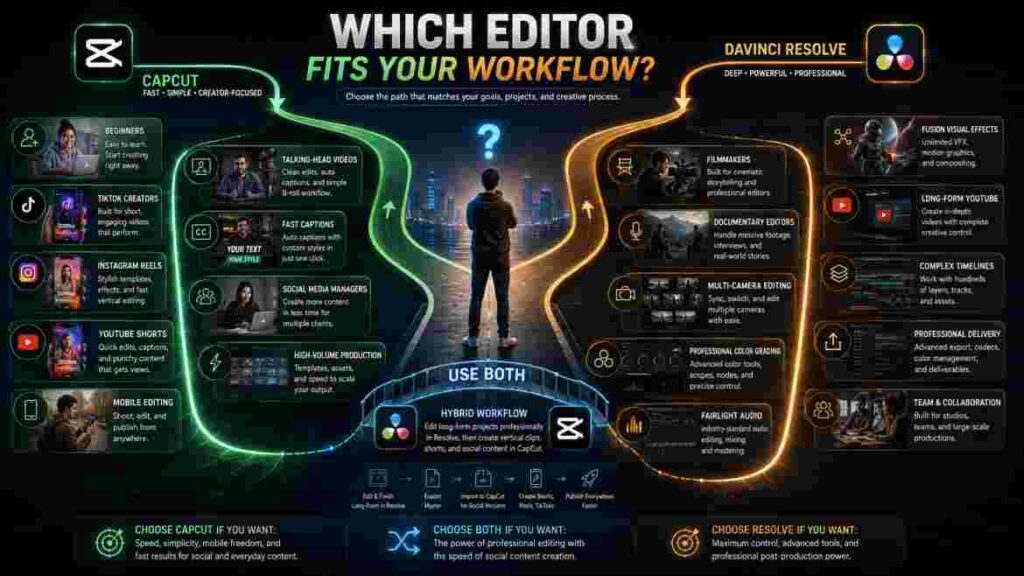
For most beginners and social creators, CapCut vs DaVinci Resolve favors CapCut.
It gets you editing faster.
It makes captions easier.
It works naturally with vertical content.
It provides creator-focused effects and automation.
And it reduces the amount of technical knowledge required before you can produce something worth publishing.
For advanced editors, filmmakers, colorists, documentary creators, multicamera editors, and people working with complex post-production, CapCut vs DaVinci Resolve moves strongly toward DaVinci Resolve.
Resolve gives you far more control over color, sound, visual effects, timeline organization, media management, and delivery.
But here’s the part that matters most.
Don’t choose Resolve simply because it can do more.
Choose it when you need more.
And don’t choose CapCut simply because it’s easier.
Choose it when that simplicity makes your production more efficient.
Before making your decision, ask yourself five things:
- What kind of videos do I make most often?
- What part of editing currently takes the most time?
- Am I actually hitting limitations with my current editor?
- Would more technical control noticeably improve my work?
- Is that improvement worth the additional learning time?
If your answer points toward rapid social production, CapCut is difficult to beat.
If it points toward increasingly complicated post-production, Resolve is the logical direction.
And if you produce both kinds of content, use both.
That’s ultimately the fairest conclusion to CapCut vs DaVinci Resolve:
CapCut is optimized for getting to the result faster. DaVinci Resolve is optimized for controlling the result more deeply.
The better editor is the one that solves the bigger problem in your workflow.