CapCut makes video editing remarkably accessible. You can cut clips, build short-form videos, add captions, animate elements, apply effects, work with templates, and turn raw footage into something ready for TikTok, Instagram, or YouTube without learning a traditional professional editor first.
But CapCut is not the right video editor for everyone.
Perhaps a feature you regularly use is no longer available to you for free. Maybe you want stronger desktop editing, better color controls, an open-source workflow, fewer premium prompts, or a video editor that fits your device better. You may simply want to know whether another editor can do the same job without adding another subscription to your monthly expenses.
That is where free CapCut alternatives become interesting.
The problem is that “free” is one of the most loosely used words in software. A video editor can be free to download but charge for useful exports. Another may offer a free plan while reserving its best effects, stock media, AI tools, or 4K output for paying users. A third may actually be free and open source, but require considerably more effort to learn than CapCut.
So this guide does not treat every editor with a $0 signup button as equal.
We compare free CapCut alternatives according to what matters after you start editing: platform support, watermark behavior, export options, timeline controls, ease of use, effects, captions, color tools, social-media workflows, and the limitations that may eventually make you pay.
If you want the short answer, DaVinci Resolve is the strongest free CapCut alternative for users who want to grow into professional editing, while VN is one of the closest options for creators who prefer CapCut’s mobile-first style. Clipchamp makes more sense for many Windows users who value simplicity, iMovie remains a practical choice inside the Apple ecosystem, and Shotcut or Kdenlive are compelling if you specifically want free, open-source desktop software.
There is no universal winner, though.
The best choice depends on why you are leaving CapCut.
That is exactly what we are going to figure out.
Best Free CapCut Alternatives at a Glance
Before getting into individual reviews, here is the quickest way to understand the landscape.
| Free CapCut Alternative | Best For | Main Platforms | Free Model | Watermark-Free Export? | Notable Strength |
| DaVinci Resolve | Professional editing | Windows, macOS, Linux | Free + paid Studio version | Yes for normal free-version workflows | Editing, color, audio, VFX |
| VN Video Editor | CapCut-like mobile editing | Mobile and desktop availability varies by platform | Freemium | Generally available for standard edits; verify current platform/version | Mobile-friendly timeline |
| Clipchamp | Windows beginners | Windows, browser | Free + premium | Yes on eligible free projects | Simple browser/Windows workflow |
| iMovie | Apple users | Mac, iPhone, iPad | Free Apple app | Yes | Simple Apple workflow and 4K support |
| Kdenlive | Open-source editing | Windows, macOS, Linux, BSD | Free/open source | Yes | Flexible desktop timeline |
| Shotcut | Completely free desktop editing | Windows, macOS, Linux | Free/open source | Yes | Format support and 4K |
| OpenShot | Basic desktop projects | Windows, macOS, Linux | Free/open source | Yes | Straightforward basic editing |
| Adobe Express | Browser/social content | Browser, mobile | Freemium | Yes for eligible free content | Templates and fast social creation |
| Canva | Design-led social videos | Browser, apps | Freemium | Depends on assets/features used | Graphics, templates, branding |
| Clipchamp/Adobe Express-style web workflow | TikTok, Reels and Shorts | Browser/mobile depending on tool | Freemium | Varies by selected assets/features | Fast publishing workflow |
A qualification is important here: software plans change. A feature that is free today can become premium later, and a feature restricted on one platform may be available on another. Always check the current plan before committing a large project to any freemium editor.
For example, Microsoft’s current Clipchamp free tier supports watermark-free exports up to 1080p, while 4K output and additional premium assets/features sit above the basic free offering. Adobe Express similarly has a permanent free plan, but its premium tier unlocks additional assets and capabilities.
Our Quick Recommendations
If you are short on time, narrow your search for free CapCut alternatives according to your actual workflow.
Choose DaVinci Resolve if you want the most room to grow. It is dramatically deeper than CapCut and is particularly strong for long-form YouTube videos, advanced color work, audio, multicamera-style production, motion graphics, and serious post-production. The trade-off is a much steeper learning curve and heavier hardware demands.
Choose VN Video Editor if what you really want is “something that feels more like CapCut.” It is more approachable than a traditional professional nonlinear editor and suits mobile-first creators particularly well.
Choose Clipchamp if you use Windows and want to create ordinary YouTube videos, presentations, tutorials, social clips, or basic marketing content without learning professional editing software.
Choose iMovie if you already live in Apple’s ecosystem and your editing needs are straightforward. It is not a feature-for-feature CapCut replacement, but simplicity is sometimes a benefit rather than a limitation.
Choose Kdenlive or Shotcut if “free” means I do not want my core editor built around a subscription upgrade path. Both are open-source desktop editors and provide considerably more timeline control than many lightweight free apps.
Those recommendations already reveal something important: the best alternative is not necessarily the editor with the longest feature list. It is the one that removes the particular problem making you consider leaving CapCut.
Why Are People Looking for Free CapCut Alternatives?
People search for free CapCut alternatives for very different reasons, and those reasons should influence which editor they choose.
Someone creating three TikToks a week has different requirements from a YouTuber editing 25-minute videos. A freelancer working with client footage needs different controls from a student putting together a school presentation. Someone using an older Windows laptop should not blindly install the most demanding professional software simply because it ranks first on a “best video editors” list.
Understanding your reason for switching prevents you from replacing one problem with another.
Free vs. Paid CapCut Features
CapCut operates within a broader free-and-paid ecosystem, and feature availability can change by platform, region, account, and plan.
That means the question is no longer simply:
“Can CapCut edit my video?”
For many users, it is:
“Can the version available to me edit my video the way I need without requiring a paid upgrade?”
That distinction matters.
Modern video editors increasingly use freemium models. The basic editor may remain accessible, while certain effects, templates, stock assets, AI features, cloud capabilities, or advanced tools sit behind a paid tier.
This is not automatically bad. Developing sophisticated editing software costs money. The problem arises when a creator builds a workflow around features they assumed would remain free.
When comparing free CapCut alternatives, therefore, look beyond the installation price.
Ask what you can repeatedly do for $0.
Feature and Export Limitations
Export restrictions are among the most important differences between free video editors.
Imagine spending four hours editing a video and discovering at export that your chosen template contains premium assets.
Or learning that the free plan only outputs at a resolution below what you need.
Or realizing an effect that looked available during editing requires payment before the final file can be saved.
That is why our evaluation of free CapCut alternatives considers the entire workflow rather than the download page.
The important questions include:
- Can you export without the editor’s watermark?
- What resolution can you export for free?
- Are frame-rate choices restricted?
- Are premium assets clearly identified?
- Are captions free?
- Are AI features metered or paywalled?
- Can you use your own media freely?
- Does the editor restrict project duration?
- Are important codecs or formats unsupported?
- Can you continue using the free version indefinitely?
The answers are more useful than simply seeing “Free” on a pricing page.
Desktop and Mobile Workflow Requirements
CapCut became popular partly because it understands modern creator workflows. Many people want to edit where they create.
That often means a phone.
Traditional video editing software was built around a desktop monitor, mouse, keyboard, file system, and relatively powerful computer. Mobile-first editors reverse that assumption.
This creates a major divide among free CapCut alternatives.
DaVinci Resolve may be vastly more capable than a typical mobile editor, but that does not make it better for someone who records a Reel on a phone, edits it during a lunch break, adds captions, and posts it immediately.
Similarly, a mobile editor can feel frustrating when you are organizing hundreds of clips, multiple audio tracks, B-roll, graphics, and a 30-minute YouTube timeline.
Choose the workflow before you choose the software.
Users Who Need More Advanced Editing Controls
CapCut can go surprisingly far, but creators often reach a point where they want more control rather than more presets.
You may start caring about detailed color correction, scopes, node-based compositing, audio mixing, sophisticated keyframing, proxy workflows, media organization, advanced masking, plugin support, or delivery formats.
At that point, some free alternatives to CapCut become attractive precisely because they are less simplified.
DaVinci Resolve is the obvious example. Its free version combines editing, color, visual effects, motion graphics, and audio post-production in one application. Blackmagic Design currently states that the free version handles virtually all 8-bit formats up to 60 fps at resolutions as high as Ultra HD 3840 × 2160.
That is far beyond what many casual creators need—but exactly what an ambitious editor may eventually want.
Creators Looking for a Different Editing Ecosystem
Not every switch is caused by a missing feature.
Sometimes you simply prefer a different ecosystem.
A Windows user may appreciate how naturally Clipchamp fits into Microsoft’s environment. A Mac and iPhone owner may prefer iMovie because it works comfortably with Apple devices. A Linux user may immediately rule out several mainstream editors and gravitate toward Kdenlive, Shotcut, or DaVinci Resolve.
Open-source users may value software that is not fundamentally dependent on a freemium subscription model.
Professional editors may prefer an application that can grow into paid client work.
Your ecosystem affects your experience every day, so it deserves as much attention as flashy feature lists.
What Does “Free” Actually Mean in a Video Editor?
This is where many lists of free CapCut alternatives become misleading.
They mix three very different things:
completely free software, freemium software, and free trials.
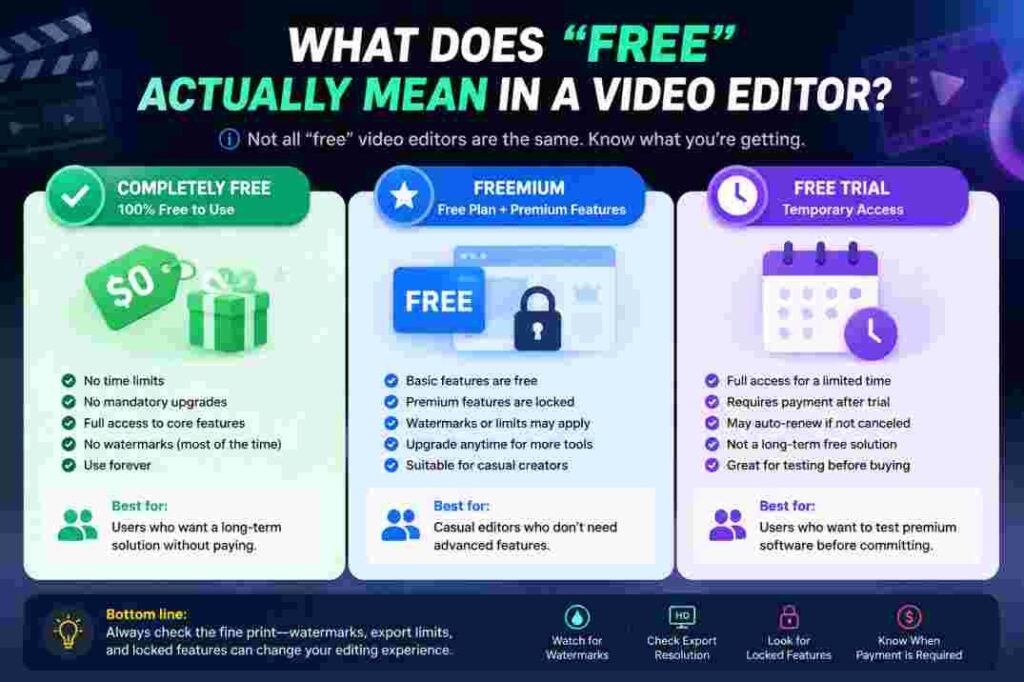
Those categories should not be treated as interchangeable.
| Type | Initial Cost | Can You Keep Using It Free? | Common Catch | Best For |
| Completely free/open source | $0 | Usually yes | Fewer polished templates/cloud services | Long-term no-subscription editing |
| Freemium | $0 | Yes, within free limits | Features/assets may be locked | Creators comfortable with optional upgrades |
| Free trial | $0 temporarily | No, not indefinitely | Payment required after trial | Testing paid software before buying |
Completely Free Video Editors
A completely free editor generally allows you to continue using its core software without reaching the end of a trial.
Open-source applications such as Shotcut and Kdenlive are especially relevant here.
Shotcut describes itself as free, open-source, and cross-platform. It runs on Windows, macOS, and Linux, supports hundreds of audio/video formats through FFmpeg, works with multi-format timelines, and supports resolutions up to 4K.
Kdenlive is likewise a free and open-source nonlinear video editor and currently supports Linux, Windows, macOS, and BSD.
These applications have a fundamentally different value proposition from many freemium free CapCut alternatives.
They are not trying to replicate every CapCut template or one-click AI workflow. Instead, they give you a traditional editing environment without making a subscription the foundation of the experience.
The trade-off is polish and convenience.
A creator accustomed to CapCut’s templates, trendy effects, automated features, and mobile-first interface may initially find an open-source desktop editor less inviting.
Free does not automatically mean easier.
Freemium Video Editors
Freemium software gives you a permanent free level and then sells additional functionality.
CapCut itself fits broadly into this modern model, and several competitors do too.
Clipchamp is a clear example. Microsoft currently offers a free personal tier with core editing tools, free stock assets, AI subtitles, voiceovers, silence removal, and exports up to 1080p without a watermark. Premium features, including 4K exports and additional premium assets, are available through paid options.
Adobe Express also offers a $0 free plan. Its current plan includes standard editing tools, a limited pool of assets and generative AI access, templates, stock content, fonts, and storage, while more advanced capabilities sit in premium plans.
Freemium software can be an excellent choice.
Just remember that “free” describes a tier, not necessarily the entire product.
Free Trials Are Not the Same as Free Software
A seven-day or 30-day trial should not qualify as one of the best free CapCut alternatives for someone specifically looking to avoid paying.
Trials answer a different question:
“Can I test this paid editor before buying it?”
They do not answer:
“What editor can I continue using without a subscription?”
That distinction is particularly important in commercial software comparisons, because calling a temporary trial “free” may get someone to click, but it does not solve their problem.
For this article, permanent free access carries far more weight than temporary trial access.
Watch for Watermarks, Resolution Limits, and Paywalled Features
A watermark is only one form of restriction.
Creators often focus on whether a logo appears in the corner of the exported video, but there are other limitations that can matter more.
A free editor might have no watermark but restrict 4K.
Another may allow high-resolution exports but reserve certain effects for paid users.
A browser editor may be easy to use but make long projects inconvenient because media must be uploaded or processed through a web-based workflow.
A professional editor may offer extraordinary free functionality but demand a stronger GPU and considerably more learning time.
Therefore, when evaluating free CapCut alternatives without a watermark, do not stop at the watermark column.
Look at what the editor costs you in time, flexibility, performance, and future limitations as well as money.
How We Chose the Best Free CapCut Alternatives
A useful comparison needs consistent criteria.
Rather than ranking editors according to popularity alone, we evaluate free CapCut alternatives based on how well they solve real editing problems.
Ease of Use
CapCut has established a relatively high standard for accessibility.
A replacement does not need to look identical, but a beginner should understand what they are getting into.
We consider how difficult it is to import footage, build a timeline, trim clips, add text, control audio, create transitions, adjust visual properties, preview the project, and export the final file.
An editor can still rank highly with a steep learning curve if the extra complexity delivers meaningful power.
Free Editing Features
We prioritize what exists in the free version—not what appears in a marketing screenshot but requires payment.
Core editing should be genuinely usable.
Cutting, trimming, splitting, arranging clips, controlling audio, adding titles, working with multiple media elements, and producing a finished video are the baseline.
Watermark Policy
For many creators, an unavoidable editor watermark is a deal-breaker.
A watermark can make a personal video look amateurish and may be unacceptable for client work, branded content, YouTube uploads, or portfolio pieces.
So watermark-free output is a major advantage among free CapCut alternatives.
Export Resolution and Restrictions
1080p remains perfectly adequate for many social-media and YouTube workflows, but 4K matters to creators shooting high-resolution footage or building an archive they expect to reuse.
Resolution alone does not determine quality, but arbitrary export restrictions affect long-term flexibility.
Effects, Transitions, Filters, and Templates
This is where CapCut users often notice the biggest difference.
Traditional editors may provide powerful effects but fewer ready-to-post templates.
Social editors may provide excellent templates while offering less granular control.
Neither approach is inherently superior.
We judge whether the tool’s creative system matches the audience it is designed for.
Keyframes and Advanced Editing
Keyframes matter once you move beyond static edits.
They allow properties such as position, scale, opacity, rotation, and effect parameters to change over time. For creators accustomed to animating elements in CapCut, weak keyframe control can make an alternative feel surprisingly restrictive.
Advanced editors receive extra credit for offering meaningful manual control rather than relying exclusively on presets.
AI Editing Features
AI has become part of mainstream creator software.
Automatic captions, speech enhancement, silence removal, background processing, transcription, reframing, and generative features can dramatically reduce repetitive work.
But AI is also where free plans often change fastest.
We therefore avoid assuming that an AI feature will remain free indefinitely simply because it exists inside the application.
Platform Support
An excellent Windows editor is useless if you edit on an iPhone.
A brilliant iPhone app does not solve a Linux user’s problem.
Our free CapCut alternatives include different platform categories precisely because there is no meaningful “best” without knowing where the editing will happen.
Performance and Hardware Requirements
Power has a price even when the software costs $0.
That price can be RAM, GPU resources, storage, battery life, render time, or general system responsiveness.
This is one reason a lightweight editor can sometimes be a smarter recommendation than the technically superior professional option.
1. DaVinci Resolve — Best Overall Free CapCut Alternative for Serious Editing
If your goal is to replace CapCut with something you can grow into for years, DaVinci Resolve deserves the first look.
It is not the closest CapCut clone.
It is arguably the opposite.
CapCut emphasizes accessibility, speed, templates, creator-friendly automation, and social workflows. DaVinci Resolve comes from professional post-production and brings editing, color correction, visual effects, motion graphics, and audio into a much deeper environment.
That difference makes Resolve one of the most compelling free CapCut alternatives for creators who feel they are beginning to outgrow simplified editing.
According to Blackmagic Design, the DaVinci Resolve free version supports virtually all 8-bit video formats up to 60 fps at resolutions as high as Ultra HD 3840 × 2160.
Why It Is a Strong CapCut Alternative
The strongest reason to choose Resolve is not that it can imitate CapCut.
It is that you are unlikely to outgrow it quickly.
You can start by learning basic cutting and trimming on the Edit page, then gradually explore color grading, Fairlight audio, Fusion visual effects, multicamera workflows, more sophisticated media organization, and professional delivery controls.
Blackmagic Design currently offers DaVinci Resolve 21 as the free version and Resolve Studio 21 as its paid counterpart.
The free version is unusually capable. Blackmagic states that it supports virtually all 8-bit video formats at up to 60 fps and Ultra HD 3840 × 2160, while Studio adds additional AI functionality, effects, higher frame-rate support, resolutions beyond 4K, and other professional features.
That makes Resolve particularly attractive if your concern is not simply finding free CapCut alternatives, but finding one that can become the foundation of a serious editing workflow.
What You Get for Free
The free version covers considerably more than basic timeline editing.
You get an integrated environment for editing, color, motion graphics/VFX, and audio. The color system alone is a major reason creators move toward Resolve.
For ordinary YouTube videos, interviews, educational content, short films, product videos, and social media projects, the free version can provide more control than many users will ever need.
You can also work at up to Ultra HD 3840 × 2160 within the current free-version limits specified by Blackmagic Design.
The important qualification is that Studio exists for a reason.
Some AI tools, advanced effects, noise-reduction capabilities, higher-end format support, and other professional functions remain paid.
That does not weaken the free version. It simply means you should compare your exact workflow before assuming every Resolve tutorial on the internet applies to the free edition.
Editing Features and User Experience
Resolve’s interface is divided into task-focused pages.
At first, that can feel intimidating.
CapCut tries to keep much of the creator experience immediately approachable. Resolve exposes the fact that video post-production contains different disciplines.
Once the logic becomes familiar, however, it is efficient.
For editing, you can build multi-track timelines, trim precisely, layer B-roll, manage audio, animate parameters, create titles, adjust speed, and organize much larger projects than most mobile-first creators would comfortably manage in a simplified editor.
For color, the difference becomes even larger.
If you care about controlled exposure, skin tones, shot matching, secondary corrections, scopes, curves, keys, and building a deliberate visual style, Resolve is in a different class from most lightweight free CapCut alternatives.
Export Quality and Watermark Restrictions
Resolve does not turn the free version into a demo by placing a generic application watermark over ordinary exports.
However, some Studio-only effects or functions can behave differently if you attempt to use them without the appropriate paid license, so stay aware of what belongs to the free edition.
For normal free-version projects, Blackmagic currently supports finishing up to 60 fps at Ultra HD 3840 × 2160.
That is a significant advantage for creators who want a genuinely capable 4K workflow without immediately purchasing editing software.
Where DaVinci Resolve Is Better Than CapCut
Resolve wins when control matters more than convenience.
Its biggest advantages include sophisticated color grading, deeper audio post-production, professional timeline workflows, media organization, compositing potential, and the ability to grow with your skills.
If you want to edit long-form YouTube content, documentaries, interviews, short films, client videos, or more cinematic projects, Resolve provides a much higher ceiling.
It also teaches concepts that transfer well to other professional NLEs.
Where CapCut Is Better
CapCut is far easier to approach for many beginners.
If your typical project is a 20-second vertical video that needs a trending template, animated captions, a quick effect, and immediate social publishing, opening a professional post-production suite may feel excessive.
CapCut’s creator-oriented ecosystem also makes certain trendy edits faster.
Resolve can often achieve more, but “can achieve more” is not the same as “gets this particular job done faster.”
Who Should Use DaVinci Resolve?
Choose Resolve if you are serious about improving as an editor and willing to invest time in learning.
It is especially suitable for YouTubers, filmmakers, freelancers, photographers moving into video, creators working with cameras rather than only phone clips, and anyone who cares deeply about color.
Skip it if your main priority is fast mobile editing, social templates, or running smoothly on weak hardware.
| Pros | Cons |
| Extremely powerful free version | Steeper learning curve |
| Strong professional editing tools | Can be demanding on hardware |
| Excellent color workflow | Less template-first than CapCut |
| Integrated audio and VFX tools | Overkill for very simple edits |
| Free Ultra HD workflow within stated limits | Some advanced/AI features require Studio |
For ambitious creators comparing free CapCut alternatives, Resolve is the strongest long-term recommendation in this guide.
2. VN Video Editor — Best CapCut-Like Alternative for Mobile Creators
Not everyone looking for free CapCut alternatives wants a professional editing suite.
Many simply want CapCut’s basic philosophy—fast, visual, mobile-friendly editing—without relying on CapCut for every project.
That is where VN Video Editor becomes relevant.
Why Mobile Editors Should Consider It
VN is much closer to the experience a CapCut user expects than Resolve, Kdenlive, or Shotcut.
The timeline is designed around creator workflows rather than traditional post-production alone. You can arrange clips, add music, build text layers, work with transitions, use filters, adjust speed, and create keyframe-based movement without feeling like you have entered a broadcast editing room.
That familiarity lowers switching friction.
If you already understand trimming, overlays, keyframes, text, music, and effects in CapCut, the underlying concepts transfer naturally.
What You Get for Free
VN has historically positioned itself strongly around accessible video editing and watermark-free standard creation, but mobile-app features and monetization can change faster than desktop open-source software.
For that reason, check the current App Store or Google Play listing and the export screen on your device before basing a professional workflow on any specific free entitlement.
This is a useful rule for all mobile free CapCut alternatives.
App versions can differ by operating system, country, update cycle, and account.
What matters most is that VN provides the core timeline-based editing experience creators expect: cutting, music, text, transitions, filters, speed manipulation, multi-layer composition, and animation-oriented tools.
Editing Features and User Experience
VN’s biggest strength is balance.
It is more approachable than a professional desktop NLE but provides enough manual control to create edits that do not look like they came directly from a template.
This matters for short-form creators.
Templates are convenient, but creators eventually want their content to feel recognizable as their own. A flexible timeline makes that easier.
VN also makes sense for someone learning keyframes for the first time because you can experiment with movement and scaling in a relatively visual environment.
Export Quality and Watermark Considerations
Because mobile apps change frequently, verify the export options shown in the current version on your device.
Do not rely on a three-year-old tutorial claiming that a particular resolution, frame rate, or feature is permanently free.
This caution may sound less exciting than a definitive feature checklist, but it prevents a common problem with free CapCut alternatives articles: publishing precise app limitations that become wrong after the next update.
Where VN Is Better Than CapCut
For some users, VN’s appeal is simply having a capable alternative that retains a familiar mobile-editing philosophy.
It can also feel less overwhelming if you want to focus on manual timeline editing rather than constantly exploring a large ecosystem of templates and AI-driven options.
Where CapCut Is Better
CapCut’s scale is difficult to ignore.
Its ecosystem of effects, templates, creator trends, automation, and integrated features can make it faster for certain types of social video.
A CapCut user who relies heavily on a specific automatic feature should check whether VN can reproduce that workflow before switching.
Do not compare apps by feature count. Compare the five features you actually use every week.
Who Should Use VN?
VN makes the most sense for mobile creators, beginner-to-intermediate editors, TikTok and Reels creators, and users who want an editing experience closer to CapCut than a professional NLE.
| Pros | Cons |
| Familiar creator-focused workflow | Feature availability can change by app version |
| Good fit for mobile editing | Less powerful than professional desktop NLEs |
| Supports manual timeline editing | Smaller professional post-production ecosystem |
| Useful for short-form content | Specific free limits should be checked before major projects |
| Lower learning barrier than Resolve | Not a direct one-for-one CapCut replacement |
Among mobile-focused free CapCut alternatives, VN deserves a place near the top of your shortlist.

3. Clipchamp — Best Free CapCut Alternative for Windows Beginners
If you use Windows and want something straightforward, Microsoft Clipchamp is one of the easiest free CapCut alternatives to recommend.
Its value is not raw professional power.
It is accessibility.
Clipchamp is available as a Windows experience and can also run through supported browsers. That makes it convenient for people who do not want to learn a complex NLE simply to trim footage, add text, create a voiceover, build a presentation, or publish a 1080p YouTube video.
Windows Editing Experience
Clipchamp feels much closer to modern web software than a traditional editor such as DaVinci Resolve.
That is an advantage for beginners.
The workflow centers on importing media, arranging clips on a timeline, trimming, adding text and graphics, working with stock assets, applying basic visual adjustments, and exporting.
Windows 11 users also benefit from Clipchamp’s presence in Microsoft’s current Windows video-editing ecosystem.
For someone searching free CapCut alternatives for PC because they primarily want simple editing, that convenience matters.
Free Features
Microsoft’s current free personal plan includes core editing tools such as trimming, cropping, resizing, rotating, recording tools, animated titles, some stock content, filters/effects, and several AI-assisted features.
Microsoft currently lists AI subtitles, AI voiceovers, and silence removal among free-plan capabilities.
That combination makes Clipchamp surprisingly useful for tutorials, presentations, educational content, talking-head videos, and basic YouTube production.
Performance and Hardware Requirements
Because Clipchamp uses a modern Windows/browser-oriented workflow, it avoids some of the conceptual complexity of a professional desktop NLE.
That does not mean every large project will be effortless.
Browser-based and web-connected workflows can become less comfortable when you are handling huge quantities of high-resolution media or complicated timelines.
For normal creator projects, though, simplicity can outweigh the lack of advanced post-production controls.
Export and Watermark Limitations
This is where Clipchamp is unusually easy to explain in 2026.
Microsoft’s current pricing documentation states that free users can export up to 1080p HD, and those eligible free exports are watermark-free.
4K UHD export belongs to premium access rather than the standard free tier.
There is another important detail: using premium stock media or a feature outside your plan does not simply stamp a watermark onto the finished video. Microsoft says you will need to remove the premium item or upgrade before exporting.
That is much better than discovering an unexpected logo after rendering.
CapCut vs. Clipchamp
CapCut is stronger for trend-driven short-form editing, creator effects, and mobile-first workflows.
Clipchamp is compelling when your needs are simpler and more conventional: trimming, titles, screen recordings, voiceovers, subtitles, stock assets, and ordinary 1080p exports.
Think of it this way:
CapCut often asks, “How can we make this content more engaging?”
Clipchamp often asks, “How can we make this video easy to finish?”
Both approaches have value.
Who Should Use Clipchamp?
Choose Clipchamp if you use Windows, dislike complicated interfaces, mainly publish in 1080p, or create tutorials, school projects, presentations, basic marketing videos, YouTube videos, or social clips.
Skip it if you need advanced color grading, complex compositing, professional audio post-production, or a free 4K workflow.
| Pros | Cons |
| Beginner-friendly | Free export currently tops out at 1080p |
| Watermark-free eligible free exports | 4K requires premium access |
| Works well in Windows ecosystem | Less advanced than Resolve/Kdenlive |
| Useful AI features in free tier | Premium assets/features can block free export |
| Good for quick YouTube/social projects | Not ideal for complex professional timelines |
For Windows beginners, Clipchamp is one of the most practical free CapCut alternatives available right now.
4. iMovie — Best Free CapCut Alternative for Apple Users
Apple users already have access to a video editor that many people overlook because it is not marketed as a trendy CapCut competitor.
iMovie is simpler than CapCut in several important ways, but that simplicity can be exactly what some creators need.
Apple Editing Experience
iMovie is designed to feel native to the Apple ecosystem.
It works across iPhone, iPad, and Mac workflows, and Apple emphasizes the ability to begin projects on mobile devices and continue editing on a Mac.
The interface is intentionally restrained.
You import clips, arrange your story, trim footage, add titles and transitions, work with music, adjust speed, use picture-in-picture or green-screen features, and export.
There are fewer distractions.
For beginners exploring free CapCut alternatives for Mac, that can be refreshing.
Features Available for Free
iMovie is available free on supported Apple devices.
It includes timeline editing, titles, transitions, audio controls, speed changes, basic color adjustment, stabilization on Mac, green-screen capabilities, picture-in-picture, and templates/workflows such as Magic Movie and Storyboards on supported mobile devices.
Apple also supports editing 4K video in iMovie.
That makes iMovie more capable than its simple interface initially suggests.
Performance and Apple Ecosystem Advantages
Apple controls both the software and the hardware ecosystem, which gives iMovie an obvious advantage for people already recording on an iPhone and editing on a Mac or iPad.
Moving from capture to edit can feel natural.
iMovie also gives beginners a path toward Final Cut Pro later. Apple allows projects to move into its professional editing ecosystem when more advanced control becomes necessary.
That progression makes sense for users who do not want to learn everything at once.
Export Quality
Apple currently documents 4K workflows across supported iPhone, iPad, and Mac devices.
Its support documentation states that iMovie can share 4K projects at 3840 × 2160, with the exact workflow depending on the device and source project.
For creators comparing free CapCut alternatives without watermark restrictions, that is a meaningful strength.
CapCut vs. iMovie
CapCut wins easily on trendy social editing.
It provides a much richer creator-oriented ecosystem for effects, captions, templates, and fast vertical content.
iMovie wins on simplicity.
If your video needs clean cuts, music, titles, straightforward transitions, basic color work, and a polished export, you may not need a massive effects library.
That is particularly true for family videos, educational projects, simple YouTube content, travel videos, and basic product footage.
Who Should Use iMovie?
Choose iMovie if you already own compatible Apple hardware and value a clean workflow over endless creative options.
Skip it if you rely heavily on sophisticated keyframe animation, advanced captions, complex multi-layer effects, or social-media templates.
| Pros | Cons |
| Free for supported Apple users | Apple ecosystem only |
| Very approachable | Fewer advanced controls |
| Supports 4K workflows | Limited compared with CapCut for trendy effects |
| Good iPhone/iPad/Mac integration | Not ideal for complex professional editing |
| Clean, uncluttered experience | Less flexible motion/graphics workflow |
For Apple users who want simplicity, iMovie remains one of the most sensible free CapCut alternatives.
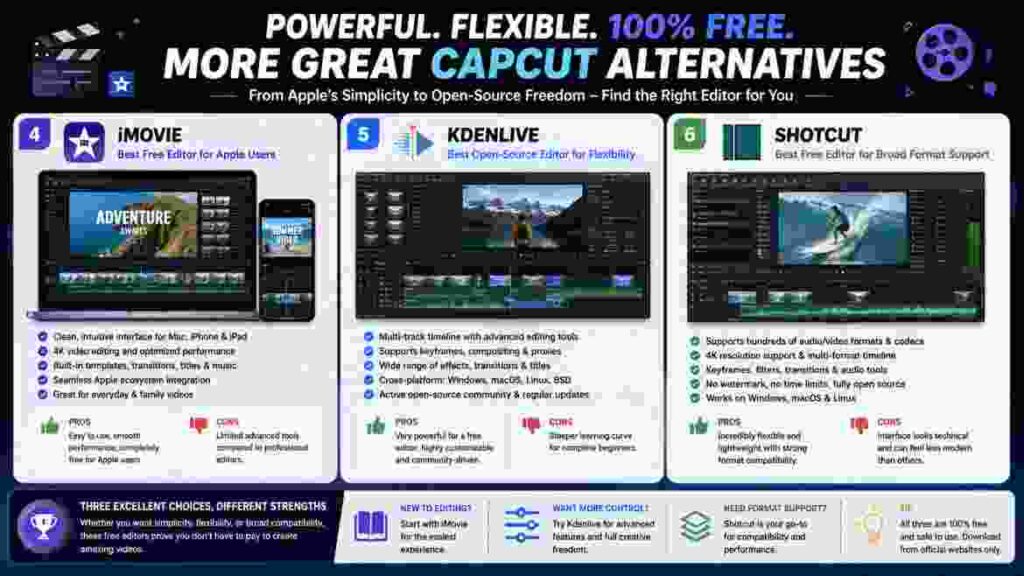
5. Kdenlive — Best Open-Source CapCut Alternative for Flexible Desktop Editing
If you want an editor that is genuinely built around free and open-source software, Kdenlive deserves serious consideration.
Kdenlive stands for KDE Non-Linear Video Editor. The project currently supports Linux, Windows, macOS, and BSD.
Unlike many freemium free CapCut alternatives, its appeal is not a free entry tier designed to lead you toward a subscription.
It is an open-source editing application.
Why Open Source Matters
Open-source software gives users a different relationship with their tools.
You are not choosing between a deliberately limited free tier and a premium subscription simply to unlock the “real” editor.
For creators who dislike recurring software costs, that matters.
It is also valuable for Linux users, who have fewer mainstream commercial video editors available than Windows and macOS users.
Editing Features
Kdenlive provides a proper multi-track nonlinear editing environment.
That means you can build timelines with multiple video and audio layers, organize media, work with effects and transitions, create titles, adjust clip properties, use proxies for more manageable editing, and construct projects with much more manual control than a template-first mobile app.
Recent Kdenlive development also continues actively. The project released version 26.04.x updates in 2026, including stability, usability, and effects/transition workflow improvements.
That active development matters when evaluating open-source free CapCut alternatives. Free software is much more attractive when it is still being maintained and improved.
Effects, Keyframes, and Advanced Controls
Kdenlive is a better fit than lightweight editors for creators who want to understand timeline-based editing.
You can work with effects, transitions, animation-oriented parameters, layered compositions, and more sophisticated project structures.
The experience is closer to a conventional desktop NLE than to CapCut.
That means the learning curve is higher, but it also means you have more room to build deliberate workflows instead of depending on templates.
Export Options
Kdenlive provides flexible rendering and encoding workflows rather than centering its business model around paid export tiers.
That is one of the fundamental advantages of open-source software.
However, codec availability and performance can still depend on your operating system, installation, hardware, and configuration.
“Free” does not remove technical complexity.
Limitations Compared With CapCut
Kdenlive is not trying to win a social-media template contest.
If you want trending TikTok templates, polished one-tap AI features, massive cloud libraries, or a mobile-first interface, CapCut remains more convenient.
Kdenlive’s value appears when you want control, desktop editing, open-source software, and independence from a typical freemium model.
Who Should Use Kdenlive?
Choose Kdenlive if you edit on Linux, Windows, or macOS and want a capable open-source NLE.
It is especially attractive for technically comfortable users, YouTube creators, hobby filmmakers, educators, and people who want to learn more traditional editing.
| Pros | Cons |
| Free and open source | Less beginner-friendly than CapCut |
| Cross-platform | Fewer trendy social templates |
| Proper multi-track editing | Interface can feel more technical |
| Active development | Less emphasis on one-click AI |
| Good long-term no-subscription option | Mobile-first creators should look elsewhere |
Among truly open-source free CapCut alternatives, Kdenlive offers one of the most balanced combinations of power and accessibility.
6. Shotcut — Best Completely Free CapCut Alternative for Broad Format Support
Shotcut is another open-source editor worth considering, particularly if you want straightforward desktop editing without entering a freemium ecosystem.
The official project describes Shotcut as free, open source, and cross-platform for Windows, Mac, and Linux.
Why Shotcut Stands Out
Shotcut’s strongest practical advantage is its broad media support.
It uses FFmpeg and supports hundreds of audio and video formats and codecs. It also supports multi-format timelines, different resolutions and frame rates within projects, and native editing without requiring every file to go through a conventional import/transcode process first.
That makes it useful for creators who receive footage from multiple cameras, phones, screen recorders, or older media sources.
Editing Features
Shotcut includes the core tools expected from a desktop nonlinear editor.
You can cut and arrange footage, build multi-track timelines, apply filters, create transitions, animate parameters with keyframes, work with text and compositing, adjust audio, and export to a range of formats.
The official project also provides tutorials covering keyframes, text, picture-in-picture, split-screen, voiceovers, transitions, proxy editing, filters, and exporting.
This is a good sign for beginners who are willing to learn.
4K and Export
Shotcut’s official documentation states support for resolutions up to 4K.
Because it is open-source desktop software, there is no conventional premium tier requiring you to pay merely to unlock higher-resolution exports.
That makes Shotcut one of the more straightforward free CapCut alternatives without a watermark for desktop users.
Where Shotcut Is Better Than CapCut
Shotcut gives you an independent desktop editing environment with strong format support and no need to structure your workflow around a subscription tier.
It is also available on Linux.
For traditional timeline editing, it provides plenty of control.
Where CapCut Is Better
CapCut is more polished for mainstream social creators.
Its effects ecosystem, templates, automated features, mobile workflow, and trend-oriented design make many everyday edits quicker.
Shotcut can feel utilitarian by comparison.
But that is not necessarily a flaw.
A hammer does not need to entertain you. It needs to drive the nail.
Who Should Use Shotcut?
Choose Shotcut if you want a genuinely free desktop editor, need broad media-format support, or use Linux.
It is also worth considering on an older or more modest system before committing to a heavier professional suite, although actual performance depends on your media and hardware.
| Pros | Cons |
| Free and open source | Interface is less polished than CapCut |
| Windows, macOS, Linux | Smaller template ecosystem |
| Broad format support | Fewer automated creator tools |
| Supports up to 4K | Learning curve for total beginners |
| Useful keyframe/filter system | Not designed around mobile social editing |
Shotcut is not the flashiest entry among free CapCut alternatives, but it solves the fundamental editing problem without constantly reminding you that a premium plan exists.
7. OpenShot — Best Simple Open-Source Option for Basic Desktop Editing
Some users do not need Resolve’s professional depth or Kdenlive’s flexibility.
They need to put clips on a timeline, cut out mistakes, add music and titles, create transitions, and export.
OpenShot belongs in that conversation.
Ease of Use
OpenShot has historically focused on making nonlinear editing approachable.
That makes it relevant to beginners moving from basic mobile editing toward desktop software.
The conceptual workflow is straightforward: import your media, place it on the timeline, trim and arrange clips, add titles or transitions, adjust properties, and export.
For uncomplicated projects, that may be enough.
Free Editing Model
OpenShot is open-source software rather than a limited trial.
That immediately gives it an advantage for users searching free CapCut alternatives because they specifically want to avoid recurring subscriptions.
You are not choosing it for premium stock libraries or trendy social templates.
You are choosing it because you want a desktop editor whose core identity is free software.
Where It Works Well
OpenShot can suit school projects, simple YouTube uploads, family videos, slideshows, basic tutorials, and straightforward social content created on a computer.
It also provides a stepping stone into timeline editing.
That educational value should not be underestimated.
Learning how tracks, clips, transitions, keyframes, audio, and exports interact makes it easier to move to more advanced editors later.
Limitations Compared With CapCut
CapCut is far stronger if your workflow depends on modern social-media effects, automatic captions, sophisticated templates, mobile creation, or integrated AI features.
OpenShot is a conventional editor, not a creator platform.
That difference determines whether it feels refreshingly simple or frustratingly limited.
Who Should Use OpenShot?
Use OpenShot when your editing requirements are basic and you specifically value open-source desktop software.
If you expect your projects to become complex quickly, starting with Shotcut, Kdenlive, or Resolve may save you another migration later.
| Pros | Cons |
| Free/open source | Limited creator-focused automation |
| Beginner-accessible concept | Smaller effects/template ecosystem |
| Desktop timeline workflow | Less suitable for complex professional work |
| No subscription-first model | Not a close CapCut replacement |
| Useful for simple projects | Mobile creators have better choices |
OpenShot demonstrates why ranking free CapCut alternatives requires context: the simplest tool can be the best tool when the job itself is simple.

8. Adobe Express — Best Free Online CapCut Alternative for Fast Social Content
Sometimes installing a full video editor is unnecessary.
If your work involves promotional clips, social posts, quick ads, presentations, simple branded videos, or short-form content, Adobe Express offers a browser-oriented alternative.
Browser-Based Editing Experience
Adobe Express is built around quick creation rather than traditional professional post-production.
You can upload footage, trim and split clips, add text, use templates, work with stock assets, add music, apply visual adjustments, and export.
Adobe positions its video editor as accessible even to people without editing experience.
That makes it relevant to creators searching for an online free CapCut alternative.
Features Available Without Installing Software
Adobe’s current free plan includes standard photo, video, and document editing tools, a substantial collection of templates and free assets, thousands of fonts, limited generative AI access, 5GB of storage, and support across desktop browsers and mobile phones.
The free plan is permanent rather than a temporary trial.
Adobe’s video editor also supports watermark-free creation for eligible free workflows.
That is important because browser editors often attract users with “free” marketing only to make clean export difficult.
Cloud and AI Features
Adobe Express increasingly combines conventional editing with cloud-based design and AI tools.
This is useful for marketers, small businesses, social-media managers, and creators who need graphics and video in the same workspace.
However, AI access should always be checked against current free-plan credits and restrictions.
Generative AI is computationally expensive, so it is one of the least sensible feature categories to assume will remain unlimited.
Watermarks and Free Export Restrictions
Adobe currently promotes watermark-free video export in Express, but the free and premium plans differ in available assets and advanced functionality.
Its current pricing information also distinguishes free-plan video limits from premium capabilities, including longer project duration and additional advanced functions.
So while Adobe Express is one of the better free CapCut alternatives online, build projects using assets and features actually included in your plan.
Privacy and Upload Considerations
Browser editing introduces another consideration: your media workflow.
Uploading a few phone clips is very different from working with hundreds of gigabytes of client footage.
Creators working with confidential material, slow internet connections, or large camera files may prefer a local desktop editor.
Cloud convenience is not universally convenient.
Who Should Use Adobe Express?
Adobe Express works best for marketers, small businesses, educators, social-media creators, and people who already think in terms of graphics, templates, and branded content.
| Pros | Cons |
| Browser-based and accessible | Less suitable for complex long-form timelines |
| Permanent free plan | Premium features/assets remain restricted |
| Strong templates and design tools | Cloud workflow may not suit huge media libraries |
| Watermark-free eligible video creation | Less manual control than professional NLEs |
| Useful for social/marketing content | Advanced editing needs another tool |
For fast design-led content, Adobe Express is one of the more useful web-based free CapCut alternatives.
9. Canva — Best Free CapCut Alternative for Design-First Social Media Content
Canva is not primarily a traditional video editor.
That is exactly why it belongs on this list.
A significant percentage of social video is not really “film editing.” It is design in motion: text, product images, logos, screenshots, short clips, animated graphics, music, and calls to action.
For that kind of work, Canva can make more sense than a conventional NLE.
Why Canva Works for Social Creators
Canva’s core strength is visual composition.
If your videos need branded typography, graphics, layouts, product images, simple animations, and multiple social-media aspect ratios, Canva makes those tasks approachable.
It is particularly useful for creators who already use Canva for thumbnails, Instagram posts, presentations, Pinterest graphics, or marketing assets.
Keeping video in the same ecosystem can reduce workflow friction.
Free Editing Tools
Canva provides free video creation capabilities alongside its broader design platform.
You can upload footage, arrange scenes, trim clips, add text and graphic elements, use templates, apply filters/effects, work with music, and export finished content.
The critical issue is asset selection.
Canva mixes free and premium resources within the wider platform, so a project that uses paid elements may not behave like a project built entirely from free assets.
That is why it should be described as freemium rather than completely free.
Templates and Quick Editing
This is where Canva can beat traditional free CapCut alternatives.
You are not starting with a blank timeline and asking, “How should this promo look?”
You can start from a designed composition and replace the content.
That is valuable for small businesses and non-editors.
A restaurant making a weekly special, a realtor creating a listing Reel, a coach promoting a webinar, or an ecommerce brand announcing a product does not necessarily need advanced color grading.
They need a professional-looking piece of content quickly.
CapCut vs. Canva
CapCut is a stronger video editor.
Canva is often a stronger design environment.
If motion, timing, effects, captions, and video-centric storytelling dominate your project, CapCut has the advantage.
If layouts, branding, text, product imagery, and reusable design systems dominate, Canva may be faster.
Who Should Use Canva?
Choose Canva for design-heavy social videos, marketing assets, simple promotional content, slideshows, announcements, and branded short-form posts.
Do not choose it as your main replacement if you want advanced timeline editing, serious color grading, or sophisticated audio work.
| Pros | Cons |
| Excellent design ecosystem | Not a professional NLE |
| Huge template-driven workflow | Premium assets can affect free workflow |
| Easy for non-editors | Less granular video control |
| Strong for marketing/social content | Not ideal for long-form complex edits |
| Useful across many content formats | Advanced video creators may outgrow it |
Canva is one of the more specialized free CapCut alternatives, but for the right user, specialization is a strength.
10. Clipchamp or Adobe Express-Style Web Editing — Best for TikTok, Reels, and Shorts
There is no single editor that automatically becomes the best choice for every short-form creator.
The key question is what your Shorts, TikToks, or Reels actually contain.
If your videos are built around rapid effects, motion, trending formats, and mobile editing, VN may be the closer CapCut replacement.
If your content is primarily talking-head footage with captions, stock elements, titles, and clean 1080p delivery, Clipchamp can be more than enough.
If your videos are design-heavy promotions, Adobe Express or Canva may be more efficient.
That is why the final slot among our free CapCut alternatives is better treated as a workflow category rather than pretending another random editor is universally “number ten.”
Vertical Video Editing
Short-form platforms usually favor vertical 9:16 content, but aspect ratio is only the beginning.
A good Shorts editor should make it easy to keep the subject inside safe viewing areas, position captions where interface elements will not cover them, control pacing, work with music, and preview the video as a mobile viewer will experience it.
CapCut excels here because short-form video is central to its identity.
Any alternative needs to be evaluated against that standard.
Social Media Templates and Effects
Templates save time when used intentionally.
They become a problem when every post looks like the same template with different footage.
When comparing free CapCut alternatives for TikTok, ask whether you need templates because they genuinely improve production speed or because you have not yet developed your own editing style.
As your skills improve, manual control becomes increasingly valuable.
Captions and Text Tools
Captions are no longer optional for many short-form workflows.
Viewers often encounter social video without sound, and captions improve accessibility as well as comprehension.
Clipchamp currently includes AI subtitles within its free feature set, making it particularly relevant to talking-head creators who publish at 1080p.
Other apps may offer captioning too, but free limits can change.
Always run a test project before migrating your content workflow.
Export and Watermark Limitations
Short-form creators publish frequently.
A restriction that is tolerable once becomes frustrating when repeated five times a week.
That is why watermark-free exports and predictable free-plan rules matter even more for TikTok, Reels, and Shorts creators.
Do not evaluate only the first project.
Ask whether the workflow remains comfortable after project fifty.
Who Should Use Which Tool?
For CapCut-like mobile creation, start with VN.
For Windows-based talking-head and educational Shorts, test Clipchamp.
For graphic-heavy promotions, compare Adobe Express and Canva.
For creators who want maximum control and are comfortable editing short-form video on a computer, Resolve remains an option—but it may be more software than you need.
Free CapCut Alternatives Compared Side by Side
By this point, the differences should be clearer.

The following table focuses on practical decisions rather than trying to declare one universal winner.
| Editor | Primary Platform | Free Model | Watermark-Free Standard Export | 4K Free? | Advanced Timeline | AI/Automation Emphasis | Best For |
| DaVinci Resolve | Desktop | Free + paid Studio | Yes | Yes, up to UHD within free limits | Excellent | Moderate; more AI in Studio | Serious/pro editing |
| VN | Mobile-focused | Freemium | Check current app/version | Check current version | Good for creator app | Creator-focused | CapCut-like mobile workflow |
| Clipchamp | Windows/browser | Freemium | Yes | No on standard free tier | Basic–moderate | Strong for accessible AI tools | Windows beginners |
| iMovie | Apple | Free | Yes | Yes on supported workflows | Moderate | Limited | Apple users |
| Kdenlive | Desktop | Free/open source | Yes | Flexible rendering | Strong | Limited | Open-source editing |
| Shotcut | Desktop | Free/open source | Yes | Yes, supports 4K | Strong | Limited | Cross-platform desktop |
| OpenShot | Desktop | Free/open source | Yes | Depends on workflow/settings | Basic–moderate | Limited | Simple projects |
| Adobe Express | Browser/mobile | Freemium | Yes for eligible free workflows | Premium-dependent/current plan | Basic | Stronger cloud/AI focus | Social/marketing |
| Canva | Browser/apps | Freemium | Depends on project assets/features | Plan/feature dependent | Basic | Growing AI/design focus | Design-led video |
Which Editor Offers the Most for Free?
For raw professional capability, DaVinci Resolve wins.
It is difficult to compare Resolve’s free version directly with lightweight social editors because they solve different problems. Resolve provides an entire post-production environment rather than simply a quick creator app.
For permanently free open-source software, Kdenlive and Shotcut are stronger choices.
For Windows users who want an easy interface, Clipchamp’s free 1080p watermark-free export is unusually practical.
For Apple users, iMovie’s free 4K-capable workflow is hard to argue with if its feature set already meets your needs.
For mobile creators, VN is worth testing because it sits closer to CapCut’s style of editing.
Which Has the Fewest Restrictions?
“Fewest restrictions” depends on what kind of restriction bothers you.
Open-source editors generally avoid commercial plan restrictions but may impose a skill cost.
Resolve provides huge free capability but reserves selected advanced functions for Studio and asks more from your computer.
Clipchamp is easy but limits free export to 1080p.
iMovie is free and capable but restricts you to Apple’s ecosystem.
VN is convenient but, like many mobile apps, can evolve quickly.
Every editor has a cost.
The goal is to choose the cost you mind least.
Best Free CapCut Alternative by Use Case
If you still cannot decide, start here.
| If You Need… | Best Starting Choice | Why |
| Best overall professional option | DaVinci Resolve | Deep editing, color, audio and VFX |
| Closest mobile-style workflow | VN | Creator-friendly timeline and mobile focus |
| Windows beginner editing | Clipchamp | Easy workflow and free 1080p export |
| Mac/iPhone simplicity | iMovie | Tight Apple integration |
| Open-source flexibility | Kdenlive | Capable multi-track NLE |
| Broad format support | Shotcut | FFmpeg-based format compatibility |
| Very basic desktop projects | OpenShot | Simple conventional timeline |
| Browser-based social content | Adobe Express | Templates, design and web workflow |
| Design-heavy marketing video | Canva | Excellent graphics/template ecosystem |
| Advanced color grading | DaVinci Resolve | Professional color workflow |
| No subscription-oriented editor | Kdenlive/Shotcut | Open-source model |
| YouTube long-form growth | DaVinci Resolve | Scales well with creator skills |
Best Choice for Beginners
Beginners should resist the temptation to choose software based solely on what professionals use.
The best beginner editor is the one that helps you finish videos.
On Windows, that makes Clipchamp a sensible starting point.
On Apple hardware, iMovie is difficult to beat for simplicity.
On mobile, VN is worth testing.
Once basic editing becomes second nature, moving into Resolve or Kdenlive is much easier because you already understand cuts, timelines, audio, transitions, titles, and exports.
Best Choice for Content Creators
“Content creator” is too broad to have one answer.
A TikTok creator should start with VN.
A YouTuber who wants to build a serious channel should strongly consider Resolve.
A small business creating branded social graphics may be happier in Canva or Adobe Express.
A tutorial creator on Windows may find Clipchamp faster than all of them.
The smartest free CapCut alternatives are selected around content type rather than popularity.
Best Choice for Advanced Editors
Resolve is the clear first recommendation for advanced work.
Kdenlive and Shotcut remain valuable when open-source software is a priority.
The important distinction is whether you want a professional post-production ecosystem or an independent open-source workflow.
What Is the Closest Free Alternative to CapCut?
If by “best” you actually mean “most similar,” the answer changes.
DaVinci Resolve may be more powerful, but nobody opening Resolve for the first time would mistake it for CapCut.
Similarity is about workflow, not capability.
Closest Alternative for Mobile
VN is the first app we would test.
It gives mobile creators a familiar timeline-oriented environment with tools for text, music, transitions, speed, effects, and animation.
The exact interface is different, but the mental model is much closer to CapCut than a desktop professional NLE.
That makes it one of the most natural free CapCut alternatives for someone who wants to keep editing on a phone.
Closest Alternative for Desktop
There is no perfect desktop clone.
Clipchamp gets closer to CapCut’s accessibility than Resolve or Kdenlive, but it is simpler and less effects-driven.
Resolve offers far greater control but requires a different mindset.
Therefore:
Choose Clipchamp if similarity means easy.
Choose Resolve if similarity means I need the same editing jobs covered, but with more control.
Closest Alternative for Short-Form Content
VN is again the strongest starting point for mobile-first short-form creation.
For browser-based work, Adobe Express and Canva become more relevant when the video is heavily designed.
The deciding factor should be your content style.
Best Free CapCut Alternatives Without a Watermark
A watermark-free export is a legitimate requirement, particularly for YouTube channels, client projects, business videos, portfolios, and branded social content.
Several options in this guide can produce clean exports without forcing an editor logo onto standard projects.
| Editor | Watermark Situation | Important Qualification |
| DaVinci Resolve | Standard free workflows can export cleanly | Studio-only effects/features remain separate |
| Clipchamp | Free exports are watermark-free | Free resolution currently up to 1080p; premium assets can require upgrade/removal |
| iMovie | No iMovie branding required on normal exports | Apple devices only |
| Kdenlive | No commercial editor watermark | Open-source desktop workflow |
| Shotcut | No commercial editor watermark | Open-source desktop workflow |
| OpenShot | No subscription-style export watermark | Feature depth is more limited |
| Adobe Express | Supports watermark-free eligible video creation | Premium assets/features remain plan-dependent |
| VN | Commonly used for clean creator exports | Verify current version/platform before relying on exact terms |
Which Editors Allow Watermark-Free Free Exports?
For the clearest long-term answer, open-source applications are attractive because they do not revolve around paid watermark removal.
Shotcut and Kdenlive are particularly strong examples.
Resolve also offers clean professional output from ordinary free-version workflows.
Microsoft explicitly states that Clipchamp’s free personal tier exports up to 1080p without a watermark.
Apple’s iMovie likewise does not turn your normal export into an advertisement for iMovie.
What Other Export Restrictions Should You Check?
Do not let the phrase “no watermark” distract you from more important limitations.
Check:
- maximum resolution;
- supported frame rates;
- codec options;
- project duration;
- premium asset restrictions;
- audio export options;
- commercial-use terms for stock media;
- caption export behavior;
- cloud-storage requirements;
- account requirements;
- and whether the feature you need is free on your platform.
A clean 720p or 1080p export may be perfectly adequate for your use case.
The point is to know the limitation before editing.
CapCut vs. Free Alternatives: What Do You Gain and Lose?
Switching software always involves trade-offs.
The internet tends to frame comparisons as battles: Tool A destroys Tool B; Tool C is “dead”; Tool D is the only editor you need.
Real workflows are less dramatic.
CapCut is popular because it solves genuine problems well.
A useful guide to free CapCut alternatives should therefore explain what you may lose by leaving, not only what you gain.
Where CapCut Still Has an Advantage
CapCut remains particularly strong for fast creator workflows.
Its mobile orientation, effects, templates, text tools, automated features, and short-form editing philosophy reduce the distance between raw footage and publishable content.
That matters when speed is part of your job.
A social-media manager producing multiple clips per day may value that speed more than sophisticated node-based color grading.
CapCut also benefits from familiarity. If you already know where every tool lives, switching has a productivity cost.
Where Free Alternatives Can Be Better
Alternatives become better when they solve a specific limitation.
Resolve gives you much deeper post-production.
Kdenlive and Shotcut provide open-source desktop workflows.
Clipchamp gives Windows users a simple 1080p editing environment.
iMovie integrates naturally with Apple hardware.
Adobe Express and Canva combine video with broader design workflows.
The word “better” only becomes meaningful after “for what?”
AI Tools and Automation
CapCut’s AI-oriented features are one reason many creators enjoy it.
But AI is spreading across competing platforms.
Clipchamp currently includes AI subtitles, voiceovers, and silence removal in its free personal feature set. Adobe Express integrates generative and automated tools across its creation platform. Professional applications such as Resolve increasingly use AI as well, although Blackmagic reserves several advanced Neural Engine capabilities for Resolve Studio.
The key lesson is not to chase the editor with the longest AI list.
Ask which AI tool actually saves you time every week.
Automatic captions may be worth more to a YouTuber than ten generative effects they never use.
Professional Editing Controls
This is where Resolve clearly separates itself.
CapCut is capable, but Resolve is designed for deeper post-production.
Kdenlive and Shotcut also provide more conventional desktop editing environments for users who want detailed timeline control without a paid subscription.
If your editing is becoming more complex, switching can be an investment in skill development rather than simply a reaction to pricing.
If color is one of the main reasons you are considering another editor, first explore what you can achieve with color grading in CapCut before deciding whether a professional tool such as DaVinci Resolve is necessary.
Ease of Use and Learning Curve
CapCut wins many comparisons because it respects the fact that most people do not want to become professional editors.
That is valuable design.
Resolve can take weeks or months to feel genuinely comfortable.
Kdenlive and Shotcut require more technical patience.
Even something as simple as file organization becomes more important as projects become professional.
So do not interpret “harder” as automatically “better.”
The best editor removes friction from your actual work.
How to Choose the Right Free CapCut Alternative
You now have plenty of options.
The next step is narrowing them down without downloading ten applications.

Start With the Type of Videos You Create
Write down your three most common projects.
For example:
- 30–60 second talking-head Reels.
- 10-minute YouTube tutorials.
- Product advertisements for Instagram.
Those projects immediately tell you more than a generic feature comparison.
For Reels, prioritize captions, vertical formatting, mobile speed, and text.
For YouTube tutorials, prioritize timeline organization, audio, screen recordings, B-roll, and reliable long-form exports.
For product ads, prioritize graphics, branding, motion, templates, and aspect-ratio flexibility.
Your content determines which free CapCut alternatives deserve testing.
Decide Between Mobile, Desktop, and Browser Editing
This decision removes half the list immediately.
Choose mobile when portability and immediate publishing matter most.
Choose desktop when project complexity, file management, precision, and performance matter more.
Choose browser-based editing when installation-free access, collaboration, templates, or simple cross-device workflows are priorities.
Do not choose a platform because it sounds modern.
Choose it because it fits how you work.
Check Watermark and Export Restrictions
Before building a real project, create a 30-second test.
Use:
- one video clip;
- one transition;
- one text element;
- one music track;
- one effect;
- one caption feature if relevant;
- and your desired export resolution.
Then export.
That tiny experiment can reveal more than an hour of reading reviews.
You will immediately learn whether premium assets are confusing, the editor performs well, the export looks good, and the interface makes sense.
Consider Your Computer or Phone’s Performance
A free editor is not free if it makes your existing computer unusable and forces a hardware upgrade you did not need.
Professional software can require substantial processing power, particularly with high-resolution codecs, effects, noise reduction, color grading, and multiple layers.
If Resolve struggles on your computer, use proxies or optimized workflows—or choose a lighter editor.
There is no shame in choosing software your hardware can actually run well.
Check the Features You Actually Use in CapCut
Open your last five CapCut projects.
Write down every feature that appears repeatedly.
Maybe your list is:
- auto captions;
- keyframes;
- speed ramps;
- background removal;
- transitions;
- text animation;
- color adjustment;
- music;
- overlays;
- 9:16 export.
Now test those features in your shortlisted free CapCut alternatives.
This is much more useful than comparing 100 features you never use.
If animation and precise motion control are important to your workflow, understanding how keyframes in CapCut work gives you a useful benchmark for comparing keyframe tools in alternative editors.
Think About Your Future Editing Needs
Do not optimize only for today’s easiest project.
If you expect to start a YouTube channel, take freelance clients, shoot with a dedicated camera, learn color grading, or create longer videos, choose an editor with room to grow.
That is where Resolve becomes particularly compelling.
If your needs will remain focused on quick social content, however, there is no reason to burden yourself with professional complexity.
Future-proofing should not become overbuying—or in this case, overlearning.
Common Mistakes When Choosing a Free Video Editor
Choosing among free CapCut alternatives becomes easier when you know what not to do.
Assuming “Free Download” Means Completely Free
This is the most common mistake.
“Download free” may mean:
- permanent free software;
- a limited free tier;
- a trial;
- free installation with paid exports;
- free basic features with premium effects;
- or free personal use with different commercial terms.
Read the pricing and licensing pages.
The word “free” is not enough.
Ignoring Watermark Restrictions
Do not discover export rules after finishing the project.
Run a test export first.
Also check whether adding premium assets changes the export requirements. Clipchamp, for example, can prevent export when premium features outside your plan remain in the project rather than simply adding a watermark.
Knowing this before editing saves frustration.
Choosing the Most Powerful Editor Instead of the Right Editor
Resolve is the most powerful option in this guide for many professional workflows.
That does not mean everyone should use it.
If you create one Reel per week, VN may be better.
If you make classroom presentations, Clipchamp may be better.
If you design animated promotions, Canva or Adobe Express may be better.
If you need open-source software on Linux, Kdenlive or Shotcut may be better.
Power sitting unused is not productivity.
Ignoring Hardware Requirements
4K video, high-frame-rate footage, complex effects, and modern codecs can challenge ordinary computers.
Before committing to an editor, test it with the type of footage you actually shoot.
A smooth demo project made from a 720p sample clip tells you very little about how your laptop will handle 4K H.265 phone footage with multiple effects.
Switching Before Checking the Features You Need
Frustration can make switching feel urgent.
But migration has costs.
You need to learn a new interface, rebuild presets, understand different export settings, reorganize media, and sometimes change your entire workflow.
If CapCut still performs the tasks you need efficiently, staying may be the rational choice.
Alternatives are useful when they solve a problem—not merely because they are alternatives.
Should You Switch From CapCut or Keep Using It?
After comparing all these free CapCut alternatives, you may discover that you do not need to leave CapCut at all.
That is a perfectly valid conclusion.
Stay With CapCut If…
Stay if it still fits your budget and workflow, runs well on your devices, and gives you the features you use most.
You should also consider staying if short-form social content is your primary focus and switching would slow production without providing a meaningful advantage.
Familiarity has value.
An editor you know deeply is often more productive than a “better” editor you barely understand.
Before switching, it is worth checking CapCut’s official video editor to see whether the feature you need is already available on your current platform or through a newer version. CapCut currently highlights tools including transitions, filters, transcription, color correction, background removal, templates, stock media, and AI-assisted editing.
Consider an Alternative If…
Switch towards free capcut alternatives when the reason is concrete.
Maybe you need:
- a genuinely open-source editor;
- better desktop timeline control;
- stronger color grading;
- different operating-system support;
- watermark-free exports under a specific workflow;
- a simpler Windows experience;
- a cleaner Apple workflow;
- or a tool that integrates video with your design process.
Those are real reasons.
“I saw another editor ranked number one” is not.
When Paying for an Editor Might Make More Sense
Free software is not automatically the best financial decision.
Suppose a paid feature saves you 30 minutes on every video and you produce 20 videos per month.
The cost of the subscription may be trivial compared with the time saved.
Professionals should evaluate software in terms of return on time, not just monthly price.
Likewise, creators should not pay for features they do not use.
The smartest workflow is not “never pay.”
It is “pay only when the value clearly exceeds the cost.”
That principle applies whether you eventually choose CapCut Pro, Resolve Studio, another professional editor, or continue using one of the free CapCut alternatives in this guide.
Final Verdict: Which Free CapCut Alternatives Should You Choose?
There is no single replacement that recreates everything people like about CapCut while simultaneously being more powerful, easier, completely free, cross-platform, packed with AI tools, loaded with templates, and perfect on weak hardware.
Software choices involve trade-offs.
If you want the best overall free CapCut alternative for serious editing, choose DaVinci Resolve. Its free version provides professional-level editing, color, audio, and visual-effects capabilities, with current support for up to Ultra HD 3840 × 2160 at 60 fps within Blackmagic’s stated free-version format limits.
If you want something closer to CapCut for mobile editing, test VN Video Editor.
If you use Windows and prioritize simplicity, Clipchamp’s current free 1080p watermark-free workflow makes it one of the easiest recommendations.
If you use Apple devices, try iMovie before installing anything more complicated. Its clean interface and supported 4K workflows may already cover everything you need.
If you want truly open-source desktop editing, choose between Kdenlive and Shotcut. Kdenlive is particularly attractive for a more flexible traditional NLE workflow, while Shotcut offers broad format support and 4K capability.
For browser-based social and marketing content, Adobe Express and Canva deserve consideration because they approach video as part of a broader content-creation workflow.
The most important advice is simple:
Do not switch because another editor has more features. Switch because it solves your specific editing problem better.
That is the difference between downloading free CapCut alternatives and actually finding the right one.