Choosing between Clipchamp and CapCut is not about finding one universal “best” editor. It is about matching the software to the way you create. A Windows user making tutorials may value simplicity and screen recording, while a Shorts creator may care more about mobile editing, animated captions, keyframes, and fast social workflows.
That is why the Clipchamp vs CapCut decision becomes clearer when you compare real workflows instead of feature counts. Clipchamp is generally better for simple browser/Windows editing and Microsoft 365 users. CapCut is usually stronger for mobile-first creators, short-form content, motion controls, and more ambitious creative editing.
This guide compares ease of use, features, AI tools, social video, YouTube editing, export quality, pricing, platforms, limitations, and overall value so you can choose confidently.
Clipchamp vs CapCut at a Glance
The fastest way to understand the difference is to look at what each editor prioritizes.
| Category | Clipchamp | CapCut |
|---|---|---|
| Best for | Beginners, Windows users, screen-recorded tutorials, simple business videos | Social creators, mobile editors, Shorts/Reels, more advanced creative editing |
| Learning curve | Very easy | Easy to moderate |
| Desktop support | Strong on Windows and web | Windows and macOS desktop apps |
| Mobile editing | No longer a practical strength after Clipchamp iOS app deprecation | Strong iOS and Android workflow |
| Free export | Up to 1080p | Depends on project, assets, platform, and selected features |
| 4K export | Available through eligible Microsoft 365 or Clipchamp Premium access | Available on supported devices/platforms; some options can require Pro |
| Captions | Auto captions and transcript workflow | Auto captions with more creator-oriented styling |
| Screen recording | Excellent built-in screen and camera recording | Available, but less central to the experience |
| Motion control | Basic to moderate | Stronger keyframes, animation, and speed tools |
| Social templates | Useful | One of its major strengths |
| Best value for | Microsoft 365 users and basic editors | High-volume content and social-first creators |
Microsoft currently allows free Clipchamp personal accounts to export up to 1080p; 4K requires eligible Microsoft 365 Personal/Family access or Clipchamp Premium. Microsoft also discontinued the Clipchamp iOS app on June 9, 2026. CapCut continues to support mobile, desktop, and web workflows, though exact capabilities can vary by platform and plan.
For most buyers, the practical Clipchamp vs CapCut question is simple: do you want straightforward desktop editing, or a more creator-focused toolkit with stronger mobile and motion features?
What Are Clipchamp and CapCut Designed For?
Although both applications edit video, their priorities are different.
Clipchamp Focuses on Simple Desktop and Browser Editing
Clipchamp fits naturally into a Windows and Microsoft-centered workflow. It is designed for users who want to import clips, trim footage, add text or music, record a screen or webcam, create captions, and export without learning a complex professional timeline.
Its screen and camera recording tools are especially useful for tutorials, presentations, demos, training content, and simple YouTube videos. Microsoft allows screen and webcam recordings to be adjusted separately on the timeline, which makes picture-in-picture tutorials easy to build.
That simplicity can be a major advantage when video editing is only one part of your work. A student, teacher, marketer, or small-business owner may prefer reaching a finished video quickly instead of managing dozens of advanced controls.
CapCut Is Designed Around Creator Workflows
CapCut has a stronger social-content identity. It emphasizes captions, templates, effects, keyframes, speed changes, transitions, vertical formats, and fast visual editing for TikTok, Instagram Reels, and YouTube Shorts.
CapCut also supports more involved desktop editing. Its keyframing tools can animate properties such as position, scale, and opacity, making controlled zooms, pans, and overlays easier.
In practical terms, Clipchamp vs CapCut is a comparison between overlapping editors with different priorities: simplicity versus broader creator flexibility.
Clipchamp vs CapCut: Ease of Use and Learning Curve
Clipchamp has the easier first hour.
Its interface feels familiar if you have used simple drag-and-drop creative tools. Importing media, placing clips on a timeline, adding titles, trimming, splitting, and exporting are straightforward. The software avoids exposing too many advanced tools at once.
CapCut is also beginner-friendly, but there is more happening. New users may encounter effects, templates, filters, captions, animations, transitions, adjustment tools, speed controls, AI features, and premium resources during the same editing session.
None of these features are necessarily difficult. The issue is that more choices can create more decisions.
Which Is Easier for a Complete Beginner?
If you have never edited video and simply need a horizontal YouTube video, presentation, product demo, or screen-recorded tutorial, Clipchamp is usually easier to understand.
If you are a beginner specifically trying to produce Reels, TikToks, Shorts, montages, or caption-heavy social videos, CapCut may actually feel easier because its tools already match the type of content you want to create.
Ease of use should therefore not be measured by interface simplicity alone. The easiest editor is the one that requires fewer steps to produce your intended result.
That is one reason the Clipchamp vs CapCut comparison changes depending on the user rather than producing one universal winner.
Clipchamp vs CapCut: Editing Features and Creative Control
Both editors cover essentials such as trimming, splitting, text, music, transitions, overlays, aspect-ratio changes, and basic visual adjustments. The difference becomes clearer once you move beyond the basics.
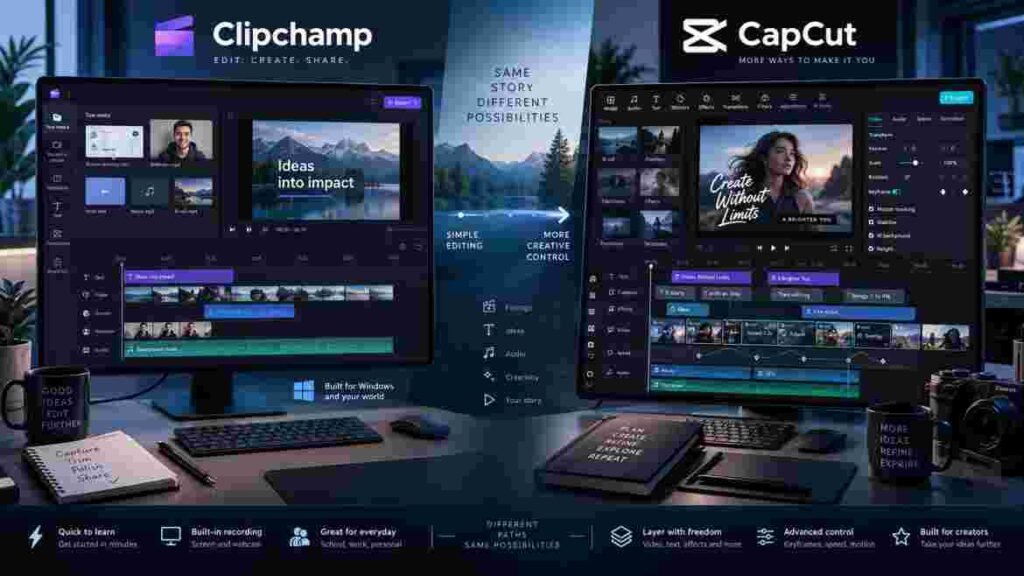
| Editing Need | Better Fit | Why |
|---|---|---|
| Basic cuts and simple titles | Clipchamp | Cleaner workflow |
| Screen-recorded tutorials | Clipchamp | Strong screen + webcam tools |
| Animated social captions | CapCut | More creator-oriented styling |
| Keyframe movement | CapCut | Better motion control |
| Fast vertical edits | CapCut | Social-first workflow |
| Simple business videos | Clipchamp | Straightforward editing |
| Trend-style edits | CapCut | Stronger effects and templates |
Basic Editing Is Good in Both
If your workflow consists of trimming clips, removing pauses, adding music, placing a logo, inserting text, and exporting a 1080p video, both editors are capable.
That means you should not automatically choose CapCut because it offers a longer feature list. Features you never use provide no practical value.
Clipchamp can actually be faster for straightforward work because fewer creative options compete for your attention.
CapCut Offers More Creative Headroom
The advantage shifts when videos depend on motion.
Keyframing, animated overlays, speed changes, caption animation, visual effects, and fast short-form pacing are areas where CapCut feels more ambitious.
Imagine editing a talking-head Reel. You want the frame to punch in during an important sentence, display a screenshot beside the speaker, highlight important words in the captions, and change the speed of the supporting B-roll.
CapCut handles this style of workflow more naturally.
For creators who expect their editing complexity to increase, this is one of the strongest reasons to favor CapCut in the Clipchamp vs CapCut comparison.
Clipchamp vs CapCut: AI Tools and Automatic Captions
AI tools matter when they reduce repetitive work rather than simply making a software feature list look impressive.
Both editors support automatic captions.
Microsoft’s Clipchamp documentation says its auto-caption system can automatically generate subtitles and an editable transcript. Users can also download the captions as an SRT file.
CapCut provides auto captions across its web, desktop, and mobile platforms, with manual editing available after generation. Some advanced caption functionality may vary depending on platform, account, version, or region.
Automatic captions are particularly valuable for talking-head creators, educators, businesses, podcasters, and social media creators because they eliminate a large amount of manual typing.
However, automatic transcription should never be treated as “generate and publish.” Names, technical terms, accents, background noise, and fast speech can produce mistakes. Every caption track should be reviewed before export.
CapCut generally provides the more creator-focused caption workflow when subtitles are part of the visual style of the video.
Clipchamp works well when the main goal is readable subtitles, accessibility, and transcript generation.
Therefore, in Clipchamp vs CapCut, Clipchamp handles practical captioning effectively, while CapCut is usually the stronger option for visually dynamic social captions.
CapCut or Clipchamp for TikTok, Reels, and YouTube Shorts?
For short-form social content, CapCut is usually the stronger choice.
Vertical creators often need much more than simple trimming. A typical Reel or Short might require reframing, animated subtitles, B-roll, image overlays, fast zooms, music synchronization, effects, templates, and frequent editing directly from a smartphone.
CapCut was designed around many of these behaviors.
The device on which you edit also matters. A creator who shoots on a phone may want to begin editing immediately rather than transferring every clip to a computer first.

Microsoft discontinued the Clipchamp iOS app on June 9, 2026, meaning Clipchamp is now primarily a web and desktop editing solution instead of a serious mobile-first competitor.
The Clipchamp vs CapCut gap is therefore particularly noticeable for creators producing several Shorts, TikToks, or Reels each week.
Clipchamp can still create vertical 9:16 videos. You can use captions, text, music, graphics, and transitions.
But if short-form video represents your primary workload instead of an occasional project, CapCut generally gives you a workflow better suited to that style of content.
Clipchamp vs CapCut for YouTube and Longer Videos
The comparison becomes more balanced when you move from Shorts to regular YouTube videos.
For talking-head videos, educational content, product demonstrations, presentations, screen recordings, and tutorials, Clipchamp can be an excellent option.
Its interface stays relatively uncluttered, and its screen-recording workflow is particularly useful for software tutorials, business training, and educational content.
A creator producing a 10-minute tutorial with webcam footage, a browser recording, several titles, background music, and a few B-roll clips may gain very little from CapCut’s larger effects library.
CapCut becomes more appealing when the same YouTube videos require regular animated text, multiple overlays, zoom effects, fast B-roll sequences, visual effects, or repurposing into vertical social content.
That makes the Clipchamp vs CapCut decision particularly interesting for YouTubers. Clipchamp can be more efficient for simple production, while CapCut gives creators more flexibility as their editing style becomes more visual.
Neither editor should automatically be considered the final choice for extremely complex professional production.
If your projects require serious multicamera editing, advanced audio mixing, detailed professional color workflows, heavy compositing, or very large long-form timelines, tools such as DaVinci Resolve, Adobe Premiere Pro, or Final Cut Pro may eventually make more sense.
Sometimes the correct answer to the comparison is therefore “neither.”
Creators who need a more traditional desktop timeline can also compare CapCut vs Filmora to see which platform handles larger and more complex projects better.
Clipchamp vs CapCut: Export Quality and Performance
Export specifications can directly affect the buying decision.
Microsoft states that Clipchamp personal accounts can export 480p, 720p, and 1080p video for free. 4K requires eligible Microsoft 365 Personal/Family access or Clipchamp Premium.
Microsoft also documents completed Clipchamp video exports as MP4 files at 30fps.
CapCut’s export options vary more by device and platform. CapCut’s official documentation states that its desktop software can support 2K and 4K export with frame rates up to 60fps when the system and source footage support those settings.
Mobile and browser availability can depend on hardware, source footage, browser, region, software version, and account conditions.
| Export Factor | Clipchamp | CapCut |
|---|---|---|
| Free 1080p | Yes | Commonly available; project assets/features can affect conditions |
| 4K | Paid or eligible Microsoft 365 access | Supported on compatible setups; restrictions can apply |
| 60fps | Microsoft documents 30fps output | Up to 60fps on supported desktop workflows |
| Best fit | Straightforward HD delivery | More export flexibility |
Not every creator needs 4K or 60fps.
A clean 1080p/30fps tutorial can look excellent on YouTube. Exporting at higher specifications does not automatically improve a video when the original footage, target platform, or audience does not benefit.
Performance Depends on Project Complexity
Large video files, 4K footage, long timelines, multiple effects, browser memory, CPU performance, GPU capability, and available storage can all influence editing performance.
Microsoft specifically notes that large 4K media files can make Clipchamp slower and suggests working with smaller files when 4K output is unnecessary.
CapCut Desktop will generally make more sense than its browser workflow for creators building heavier CapCut projects.
When evaluating Clipchamp vs CapCut performance, use the type of project you actually create. A five-second demo timeline tells you very little about how either editor will handle your normal workload.
Clipchamp vs CapCut Pricing: Which Gives Better Value?
Pricing comparisons become misleading when they ignore what users already pay for.
Clipchamp’s free personal tier includes core editing and export up to 1080p.
Microsoft 365 Personal or Family subscribers receive several premium Clipchamp features, including 4K exporting, personal brand kit capabilities, and some premium stock content. Microsoft also offers a standalone Clipchamp Premium plan.
CapCut combines free editing with Pro features, but CapCut states that Pro prices can vary according to region, device, and current promotions.
For that reason, users should check the upgrade screen in their own account rather than trusting an old fixed price listed in a comparison article.
| User Situation | Better Value |
|---|---|
| Already pays for Microsoft 365 Personal/Family | Clipchamp deserves serious consideration |
| Needs basic 1080p desktop editing | Clipchamp Free may be enough |
| Produces frequent Shorts or Reels | CapCut often provides greater workflow value |
| Needs advanced motion/social effects | CapCut |
| Uses a phone as the primary editing device | CapCut |
| Creates occasional simple videos | Stay free until a real limitation appears |
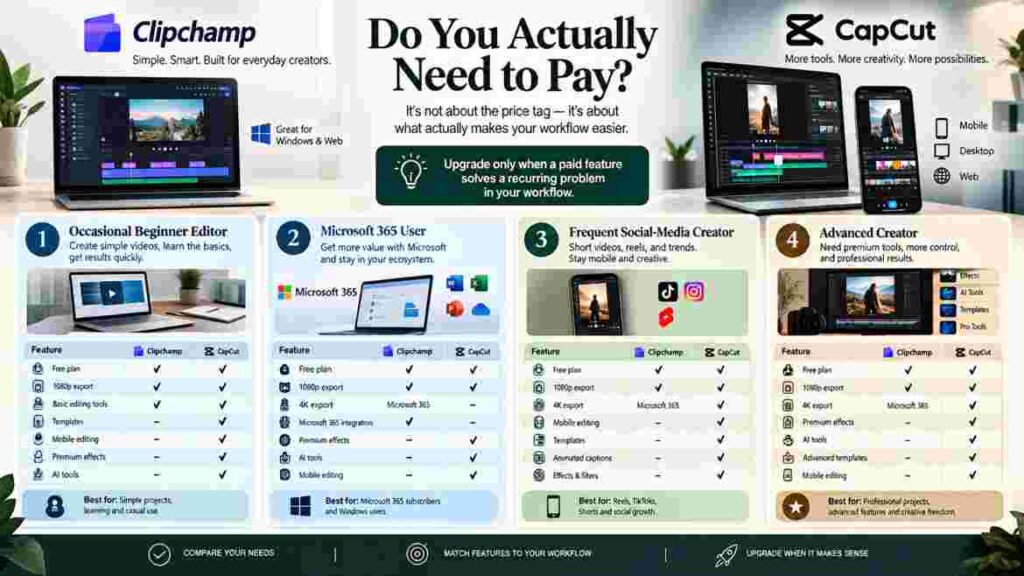
When Should You Actually Pay?
Do not upgrade simply because you see a premium badge.
Pay when the locked feature solves a recurring production problem.
For Clipchamp, that could mean needing 4K delivery or premium media resources.
For CapCut Pro, the justification may be premium effects, AI tools, templates, or export capabilities that reduce editing time enough to make the subscription worthwhile.
CapCut notes that Pro prompts can appear when a project uses premium resources or restricted features.
For occasional editors, the best-value answer in Clipchamp vs CapCut may simply be staying on the free tier.
Clipchamp vs CapCut Platform Support
Platform support is no longer a minor detail in this comparison.
| Platform | Clipchamp | CapCut |
|---|---|---|
| Windows | Yes | Yes |
| macOS | Browser-based workflow | Desktop app available |
| Web browser | Yes | Yes |
| iPhone/iPad | Clipchamp iOS app discontinued June 9, 2026 | Yes |
| Android | Not a core Clipchamp mobile workflow | Yes |
| Cross-device creator workflow | More desktop/web centered | Stronger overall |
CapCut’s cross-platform coverage makes it more practical for creators who switch regularly between a smartphone and computer.
Clipchamp makes more sense when editing primarily takes place on a Windows PC or in a browser.
This is one of the clearest 2026 changes affecting Clipchamp vs CapCut. Comparisons that continue to present Clipchamp as an active iPhone editing solution are now outdated following Microsoft’s iOS app deprecation.
Microsoft officially confirmed the Clipchamp iOS app discontinuation, with support ending on June 9, 2026.
Clipchamp vs CapCut Pros and Cons
Rather than repeating every feature, it is more useful to look at the trade-offs that affect everyday editing.
| Editor | Main Advantages | Main Limitations |
|---|---|---|
| Clipchamp | Easy learning curve, strong screen recording, free 1080p export, Microsoft 365 integration, clean Windows/browser workflow | Limited mobile workflow, 30fps output, fewer advanced social-motion tools |
| CapCut | Strong mobile support, captions, keyframes, templates, effects, flexible social workflow, higher-end export options on supported setups | More interface clutter, premium assets can complicate free projects, features can vary by platform or region |
The important point is that limitations depend on the user.
Clipchamp’s simpler toolset might feel restrictive to an experienced creator but refreshing to a beginner who needs to finish a presentation quickly.
CapCut’s larger collection of controls may be valuable to a social media manager producing content every day but unnecessary for someone creating one business video each month.
A useful Clipchamp vs CapCut recommendation therefore has to begin with the workload rather than the length of each product’s feature list.
Which Video Editor Should You Choose?
Use your normal workflow as the deciding filter.
- Choose Clipchamp if you mainly edit on Windows or the web, want the easiest learning curve, create screen recordings or presentations, already subscribe to Microsoft 365, or only need clean 1080p video without advanced animation.
- Choose CapCut if you regularly create TikToks, Reels, or Shorts, edit on a phone, need keyframes and animated captions, use plenty of overlays and motion, want social templates, or expect your editing style to become more advanced.
- Consider a more professional editor if your work already involves multicamera footage, advanced color grading, detailed audio mixing, complex long-form timelines, or professional post-production delivery.
A student making occasional class videos may find Clipchamp faster and easier.
A small business creating software demonstrations may receive more value from its screen-recording workflow than from hundreds of effects.
A creator publishing four Shorts every week is much more likely to benefit from CapCut.
A YouTuber who publishes long-form content and then converts those videos into vertical clips may also find CapCut provides more room to grow.
The right Clipchamp vs CapCut choice is the editor that removes the most friction from the tasks you repeat every week.
If your priority is mobile-first editing rather than desktop workflows, our CapCut vs InShot comparison explains which editor fits beginners and social creators better.
If your projects are becoming too advanced for beginner editors, our CapCut vs DaVinci Resolve guide can help you decide whether it is time to move toward professional editing software.
Common Mistakes to Avoid Before Choosing
One common mistake is choosing the editor with the longest feature list. More features do not automatically make editing faster.
Another is paying before identifying which free limitation actually affects your work. A free 1080p workflow can be completely sufficient for many users.
Platform habits are also easy to underestimate. If most of your footage is recorded and edited on a phone, choosing a desktop-centered workflow creates unnecessary transfers. If you spend your working day on a Windows computer creating tutorials, mobile editing may have little value.
Do not assume every advertised CapCut feature is identical across desktop, web, and mobile either. CapCut documents platform-dependent availability for certain tools and export settings. Check the version you intend to use before subscribing.
Finally, test one complete real project before paying.
Import the type of footage you normally use. Add captions. Create your normal effects. Test the export. Pay attention to where you lose time or encounter restrictions.
That practical test will tell you more than a generic list of 50 features.
Clipchamp vs CapCut: Final Verdict
For most social-first creators, CapCut is the stronger overall editor.
Its mobile support, keyframe controls, creator-focused caption workflow, templates, effects, and greater export flexibility make it better suited to frequent Shorts, Reels, TikToks, and increasingly complex creative projects.
Clipchamp remains an excellent choice for a different audience.
It is easier to learn, integrates naturally with Microsoft-centered workflows, offers free 1080p exporting, includes useful screen and webcam recording, and can be more efficient when the goal is simply producing a clean video without navigating dozens of creative tools.
So the final Clipchamp vs CapCut verdict is not simply “CapCut wins” or “Clipchamp wins.”
Choose Clipchamp when simplicity, Windows/browser editing, screen recording, and Microsoft 365 value matter most.
Choose CapCut when mobile editing, social content, motion, captions, effects, and creative flexibility matter more.
If you are still undecided, start with the free option that best fits your device and complete one real project before upgrading.
The editor that allows you to finish that project with fewer workarounds is probably the better choice for you.
This is a good tip especially to those fresh to the blogosphere.
Brief but very accurate info… Appreciate your sharing this one.
A must read post!